


While Pixel phones offer many beneficial features by default, altering these specific settings can drastically affect The Google Pixel 9a could be the best-value phone of 2025, especially now that it has flagship-level AI capabilities, a dazzling 120Hz display, and a large battery at a more inexpensive price. However, like with every Pixel phone, the most useful functions are frequently disabled by default.
These suggestions are for a Pixel 9a running Android 15. The specific menu locations may differ slightly depending on the Pixel model and Android version you’re using, but the settings are broadly available throughout recent Pixel generations.Enhance your user experience.
Use smooth display
Pixels continue to ship with a dazzling Actua 120Hz OLED panel, which is set to a more cautious 60Hz by default. It’s fine for battery conservation, but if you prefer buttery-smooth scrolling and animations that showcase the screen’s full capability, enable Smooth Display.

Go to Settings > Display > Smooth Display and turn it on. You’ll notice an immediate improvement in responsiveness when scrolling through social networks or navigating the UI.
Use “At a Glance”
When you enable the Pixel’s smart widgets, the lock screen may transform into a small command center. At a Glance displays travel information, weather alerts, calendar events, and more.
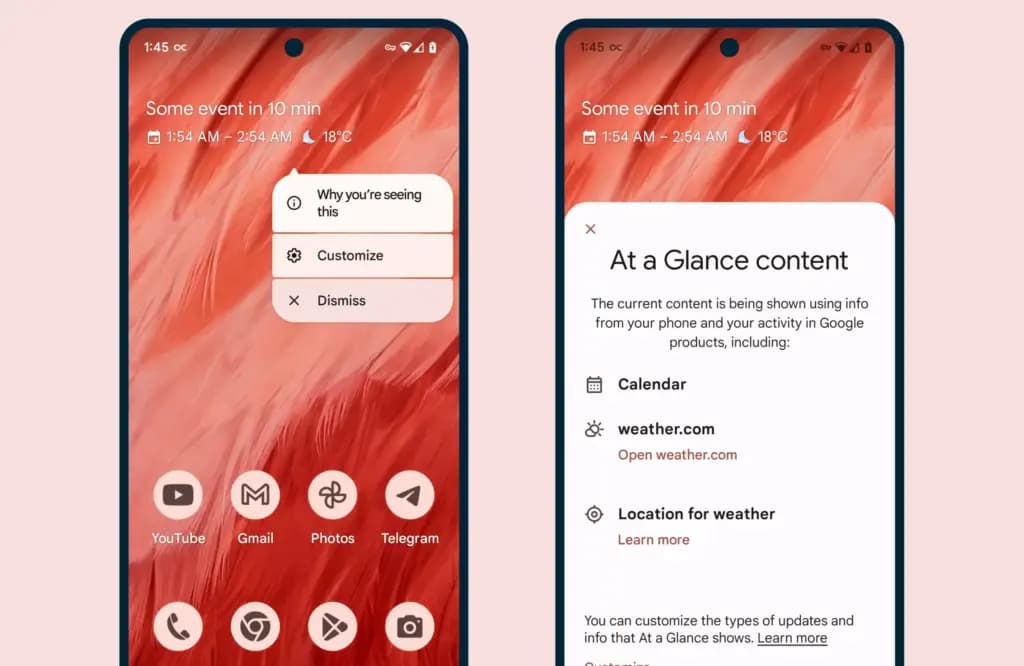
All of this happens via the Pixel Launcher. Tap and hold any available space on the home screen, then pick Home settings, followed by the At a Glance settings button. There, you may control what kind of information display and what data sources it uses (with your permission, of course).
As an added bonus, the At a Glance widget on your home screen will display this information, increasing your chances of receiving notifications and updates.
Use caller ID and spam ID to save your time
Pixel phones actively filter out spam and unrecognized numbers. Google’s Caller ID and Spam feature detects robocalls and other unwanted calls before you answer.

Open the Phone app and navigate to Settings > Caller ID and Spam. Enable See caller and spam ID, and incoming calls will have a vivid red alert that cannot be ignored. If your Pixel has the option to filter spam calls, I recommend turning it on, as this prevents those calls from ringing your phone and instead sends them directly to voicemail.
Dismiss notifications across Pixel devices
This one is for the Pixel fanatics out there. If you have multiple Pixel devices signed in with the same Google account, you can sync notification dismissals between them.

Go to Settings > Notifications > Dismiss notifications from all Pixel devices. Toggle Dismiss on this device, grant notification access, and select the apps you wish to sync. Repeat the process on all of your Pixel devices to ensure that you never see the same notice twice.
Enable app suggestions on the home screen
The Pixel Launcher may provide app suggestions based on personal information such as location, time of day, and usage habits.

Tap and hold an available space on the home screen to access Home Settings > Suggestions. Enable Suggestions on Home Screen, then remove at least one static symbol from the bottom row of your Home Screen. That location will turn yellow and begin to change dynamically based on usage trends. You may even do this on the entire row if you like.
Increase battery life using Adaptive Battery and Extreme Saver.
Pixels already have a long battery life, but Google’s battery-saving features extend it much further. Adaptive Battery learns which apps you use the most and reduces power to the others. Extreme Battery Saver turns down non-essential apps to save power for days.
Enable both under Settings > Battery > Battery Saver > Adaptive Battery and Battery Saver > Extreme Battery Saver. You can also set schedules so that they activate automatically when needed.
Use Pixel Quick Tap feature
The Pixel’s Quick Tap function allows you to double-tap anywhere on the phone’s back to perform customized actions, but it is not activated by default. You can configure it to start the camera, take a screenshot, pause music, or open your preferred app.
Go to Settings > System > Gestures > Quick Tap, then enable it and select your chosen shortcut. Mine is set to toggle the flashlight, which is quite useful.
Enhance Now Playing on your lockscreen
Now Playing is a great tool that automatically recognizes songs that are playing around you. The phone displays that information on your lock screen in a passive manner. Even though the database is remarkable and entirely on-device, it cannot identify every song out there. This is where Google Search comes in.

Go to Settings > Display > Lock Screen > Now Playing and select Identify Songs Playing Nearby. Then, enable the Show search button on Lock Screen. The next time Now Playing fails, hit the lock screen icon to transmit the audio fingerprint to Google Search for a second viewpoint. It does not always work, but when it does, you will be glad you tried.
Change your lock screen privacy settings
By default, notifications appear on your lock screen, so others may view your messages. I always change this option on my new devices.
Go to Settings > Notifications and turn Sensitive notifications off. This keeps the sender and app visible while hiding the message contents. To ensure utmost privacy, go to Notifications on the lock screen and select Don’t show any notifications.
Make use of Live Translate and Interpreter Mode
Tensor-powered Pixels offer offline translation tools. Live Translate enables you to automatically translate text messages in real time.

Go to Settings > System > Live Translate, then Add a language. Depending on your choices, you’ll have access to services such as in-message translation, camera view translation, and live captioning for videos. Interpreter mode still requires Google Assistant, which is becoming less important now that Gemini has taken over.
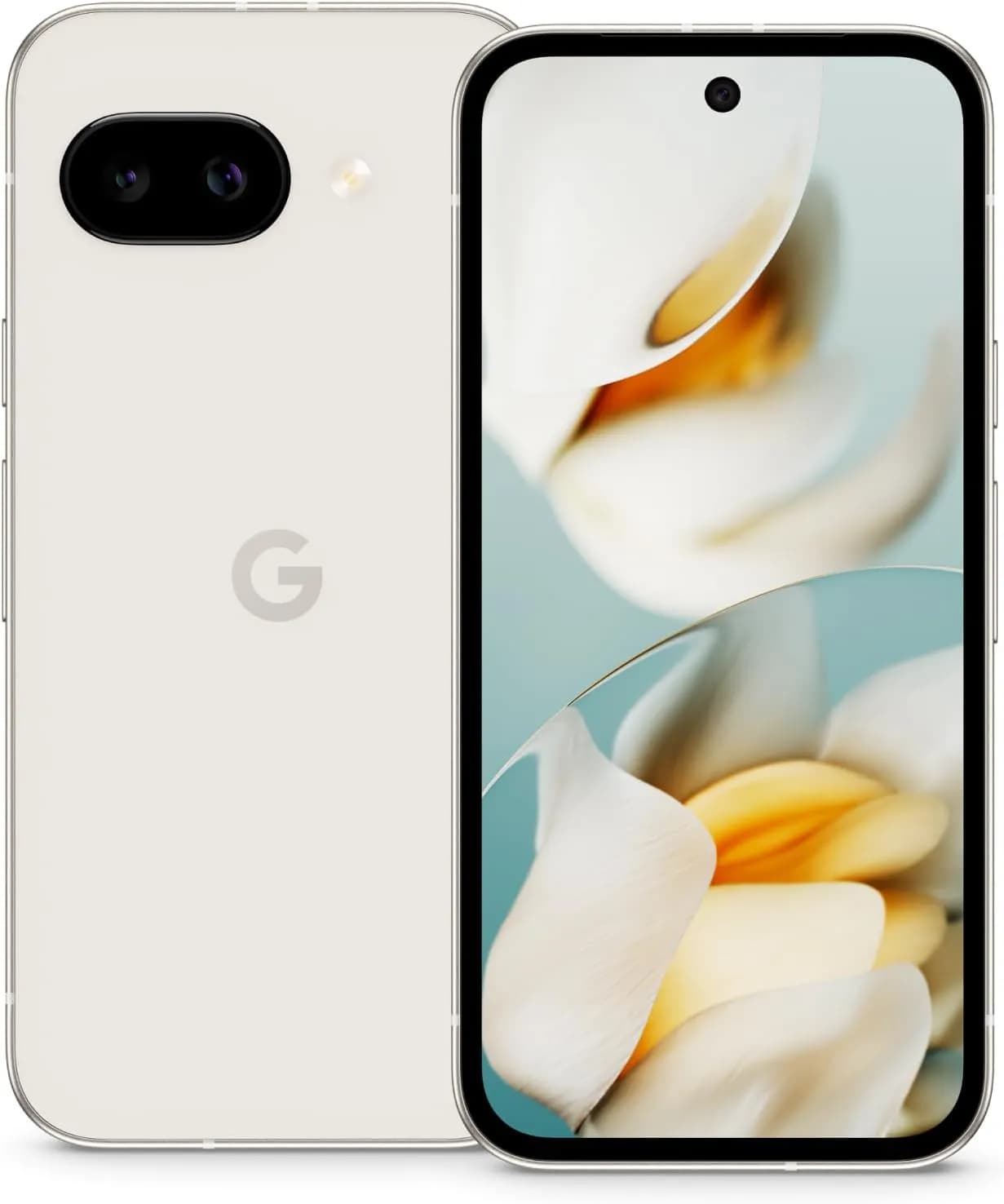
A few small changes can help your new Pixel feel faster, smarter, and more personal. Whether this is your first Pixel or you’ve lost count by now, taking the time to explore these options unlocks some of the best of what Google has to offer.

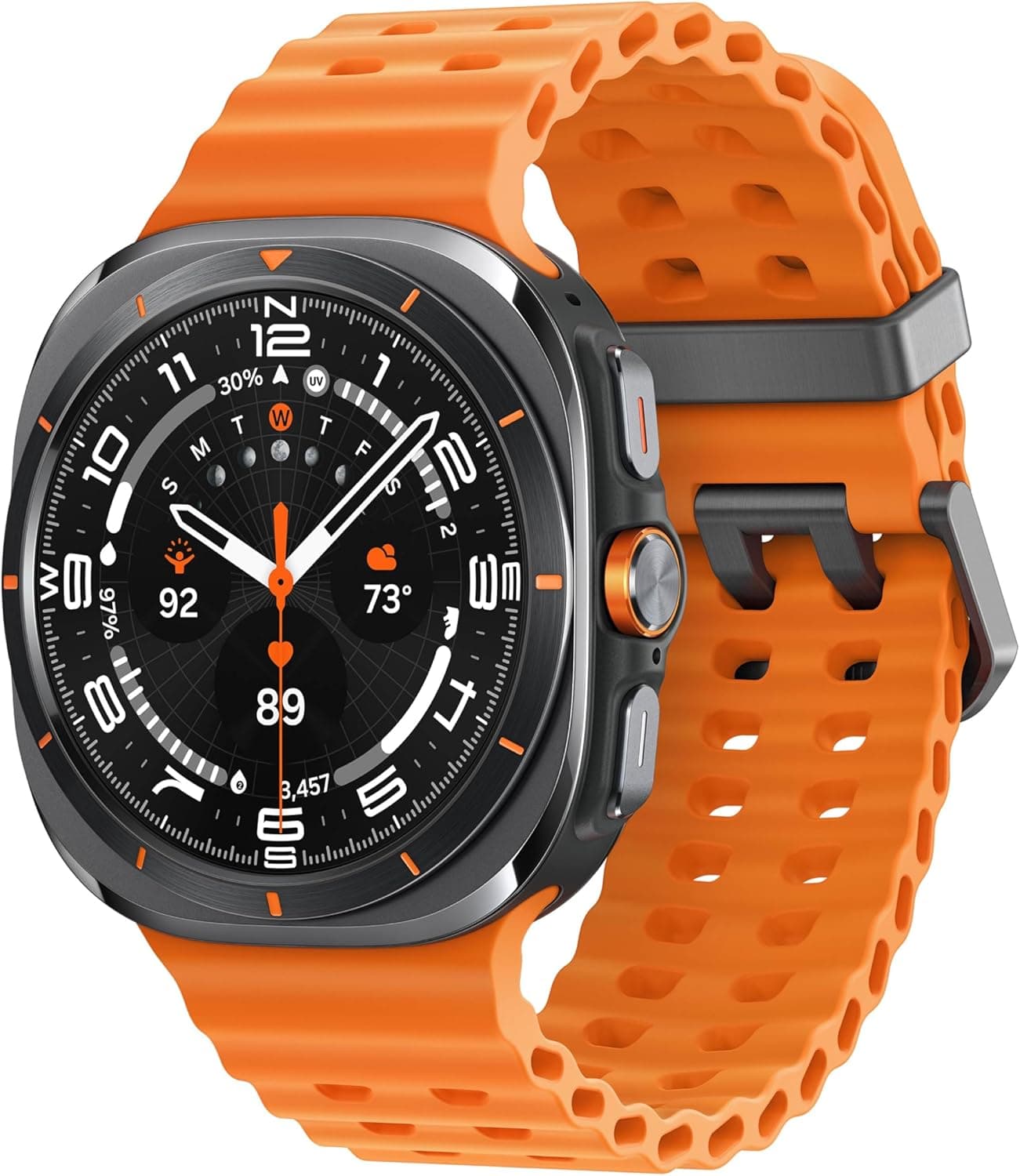

Samsung Galaxy Watch 8

Google Pixel Watch 4

Keep Reading
Six days after Android 17’s stable rollout began on June 16, a growing number of Pixel owners are dealing with a touchscreen bug that makes their devices genuinely unreliable. Swipes invert direction, taps either fail to register or fire multiple times, and screens go briefly unresponsive before recovering. Google has confirmed the bug and says […]
Motorola Quick Launch lets users double-tap the back of the phone to trigger a custom action without touching the screen. According to AT&T’s support documentation for the Razr+ 2025, when Quick Launch is enabled, that double-tap can perform actions like taking a screenshot or returning to the home screen. That specific wording — “certain options […]
If a Samsung phone occasionally shows a small flashing dot – or several – on the display, the proximity sensor is almost certainly the cause. These dots typically appear near the top center of the screen and become most visible during phone calls, when the under-display sensor is actively working. It’s worth distinguishing these from […]
Samsung builds the Galaxy Watch on the assumption that most people want some level of health and fitness tracking. That may be true for many users – but even if it describes you, there are several health settings running in the background that you might never actually check. If that data isn’t being used, there’s […]
Portable tech exists on a spectrum. A desktop setup stays home. A laptop travels. A phone handles the street-level stuff. And when even pulling out a phone to skip a song feels like too much effort, a smartwatch steps in. It’s the layer of tech that lives on your wrist, always available without the friction. […]
Before USB-C came along in 2014, smartphones relied on mini USB, micro USB, or Apple’s proprietary Lightning port. Android devices made the switch to USB-C early on — the Nokia N1 tablet was one of the first devices to feature the reversible connector — and Apple eventually followed suit, dropping Lightning with the iPhone 15 […]
Comments & Discussions
Join the conversation! We use Disqus to handle comments. Click the button below to load the comment section.