Samsung builds the Galaxy Watch on the assumption that most people want some level of health and fitness tracking. That may be true for many users - but even if it describes you, there are several health settings running in the background that you might never actually check. If that data isn't being used, there's ...
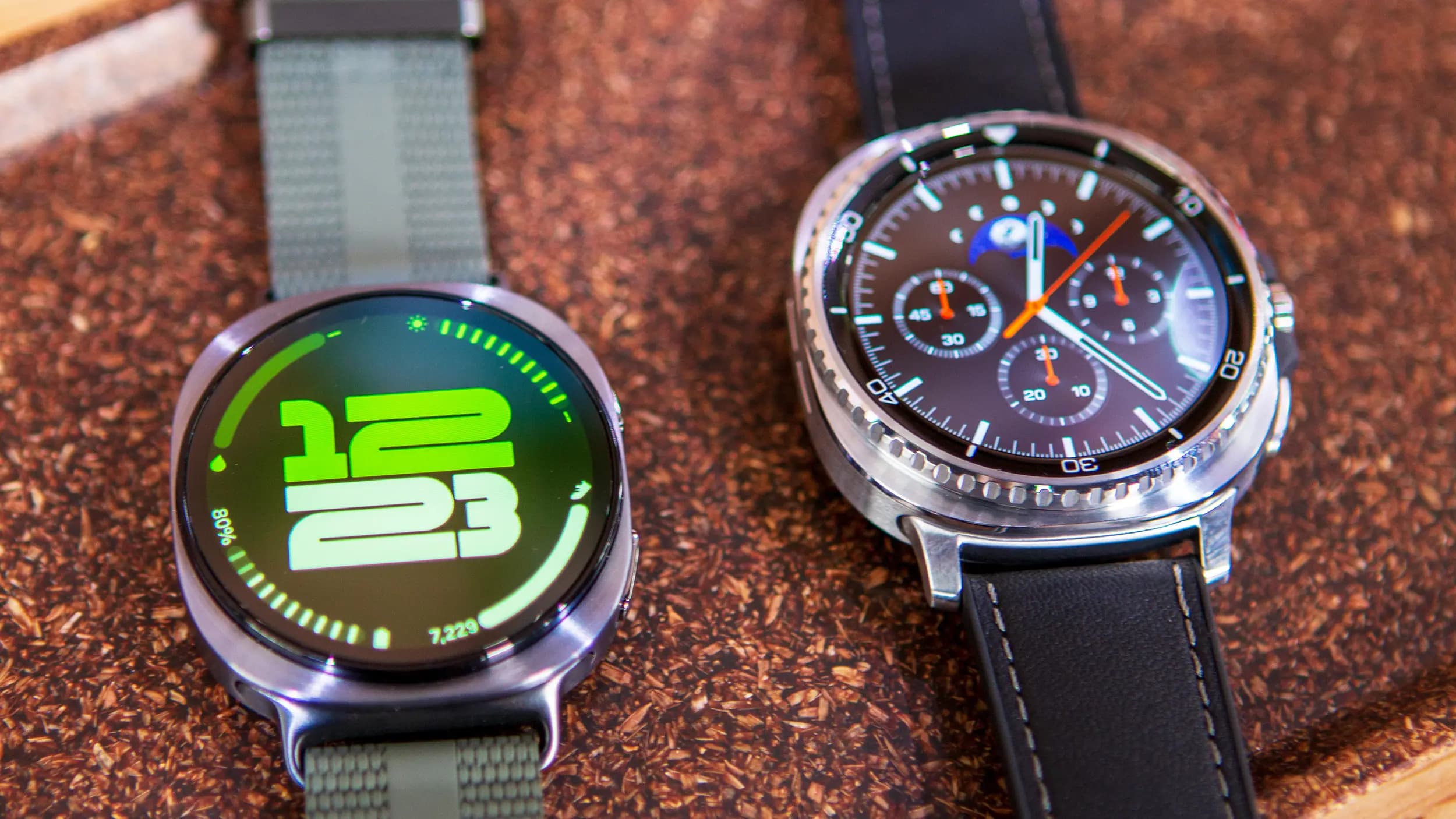
Samsung builds the Galaxy Watch on the assumption that most people want some level of health and fitness tracking. That may be true for many users – but even if it describes you, there are several health settings running in the background that you might never actually check. If that data isn’t being used, there’s no reason to let it quietly drain the battery.
The Galaxy Watch can serve very different purposes depending on the person. Some users track every workout, heart rate zone, and sleep stage. Others just want notifications and a few basic apps. Either way, a handful of default settings can be turned off or scaled back to squeeze considerably more battery life out of each charge. How many to disable depends entirely on what health data actually gets used.
Out of the box, the Galaxy Watch is configured to track heart rate – and on some models, the default is set to “Measure continuously.” For anyone not actively analyzing detailed heart rate graphs, that’s a lot of unnecessary sensor activity.
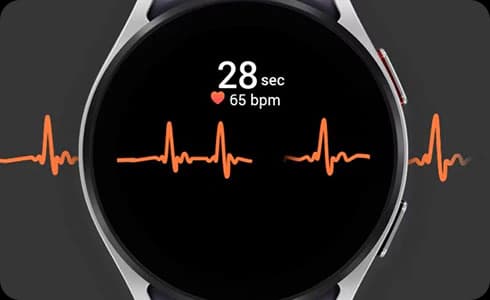
There are two more reasonable alternatives. “Every 10 mins” limits measurements to once every 10 minutes while not actively exercising, which is a decent middle ground for casual health awareness. For those who rarely check heart rate data, “Manual only” goes further – heart rate is only recorded when triggered manually. Both options are found under Settings > Health > Heart rate.
“Auto detect workouts” sounds like a training feature, but in practice it’s far broader. The Galaxy Watch interprets walking to work or cycling to a train station as potential workout activity. When enabled, the watch continuously monitors movement and, once it decides something qualifies as a workout, begins tracking vitals, location, and other variables depending on the activity type. That constant background monitoring takes a real toll on the battery.
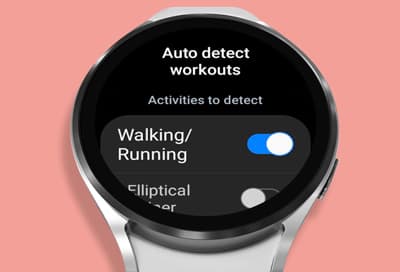
The fix is straightforward: disable it entirely or limit it to specific activities. Head to Settings > Health > Activities to detect, and toggle off anything that isn’t useful. Several activities also include an option to automatically record GPS location, which can be disabled separately for additional savings.
Sleep tracking is one of the Galaxy Watch’s more appealing features, but the deeper metrics come with a cost. Blood oxygen (SpO2) and skin temperature measurements require the infrared sensors to run continuously throughout the night – and that’s happening during the exact window when the watch isn’t being charged.
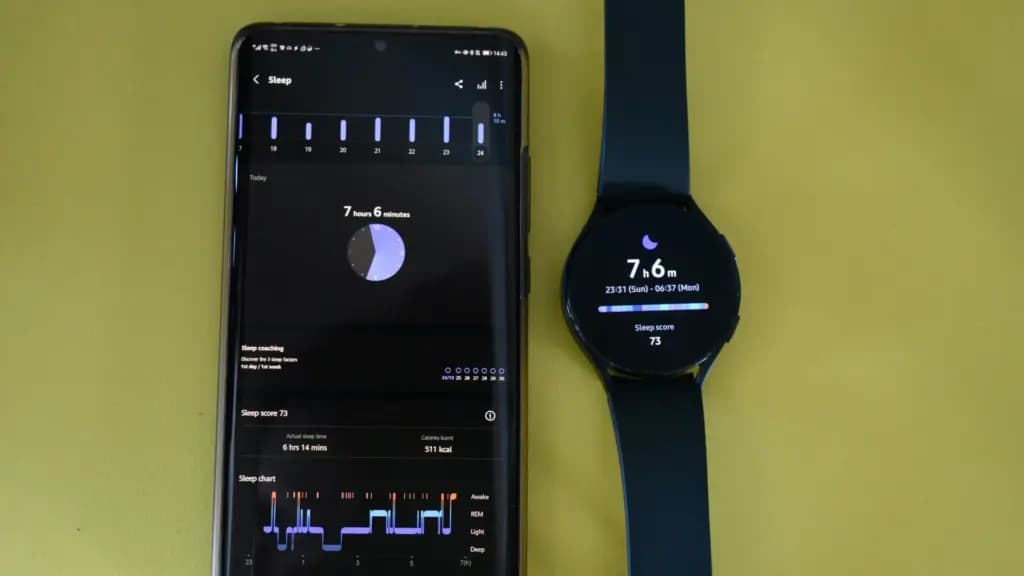
For those who like sleep tracking in general but don’t need that level of detail, disabling just those two metrics is a useful compromise. Go to Settings > Health > Sleep and toggle off “Blood oxygen” and “Skin temperature.” The result is a less sensor-intensive night and a bit more battery remaining when the alarm goes off.
The Galaxy Watch‘s built-in Power Saving mode handles the basics when battery gets low – it disables wake gestures, always-on display, and Wi-Fi, and limits background CPU activity. But there’s an optional extra step that goes further.
Enabling “Limit health features” within Power Saving mode turns off workout auto detection, heart rate alerts, and various background health tracking processes. It’s a meaningful additional saving that doesn’t kick in until Power Saving mode is already active, so it doesn’t affect normal use. Find it under Settings > Battery > Limit health features.
The range of options on a Galaxy Watch is one of its strengths, but it also means a lot of features are active by default regardless of whether they’re being used. Health and fitness tracking gets significant marketing attention from smartwatch brands, but it genuinely isn’t a priority for every person who wears one. Turning off what isn’t relevant is one of the simplest ways to improve battery life without sacrificing anything that matters.
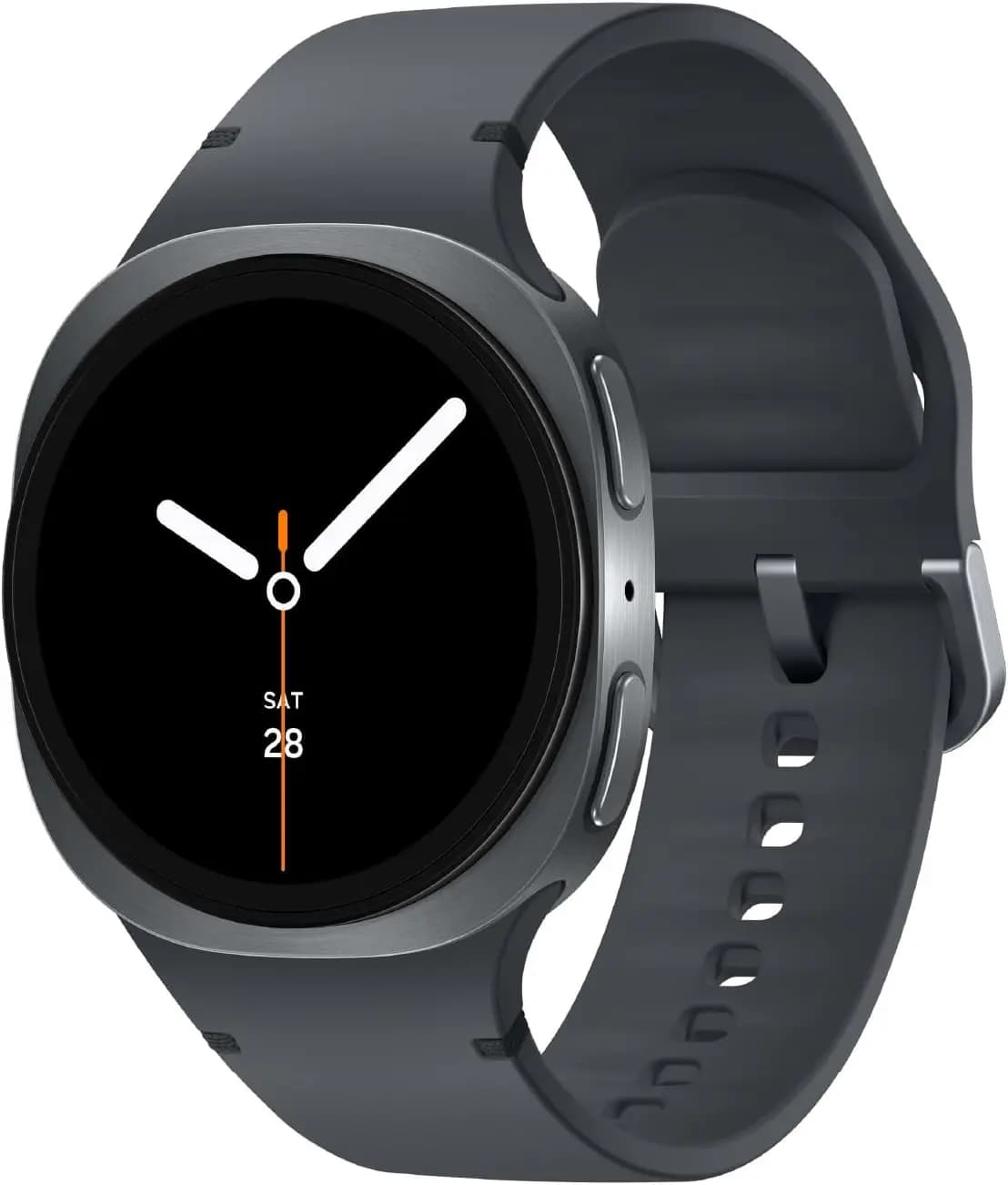

Samsung Galaxy Watch 8

Cristian Penisoara is a Guides Writer and Android specialist at Droid Tools. An Android user since version 2 and a professional event photographer, he combines technical curiosity with a detail-oriented approach - every guide he publishes is tested step-by-step on a real device before it goes live.

Track the Google Pixel update schedule, including seven-year lifespans for newer models, quarterly patch shifts, and dual Android OS release windows.

Google explained how to manage Android time zones as Canadian regions end seasonal time changes, offering steps for automatic and manual clock adjustments.

Quick Share for Windows transfers files from Android to your PC over Wi-Fi at rates up to 100MB/s, bypassing email and third-party cloud uploads.

Overnight charging exposes phone batteries to sustained high voltage and heat. Learn how Google Pixel and Samsung Galaxy settings stop cell degradation.
The next story loads as you reach the end. You can also load it using the button.


Comments & Discussions
Join the conversation! We use Disqus to handle comments. Click the button below to load the comment section.