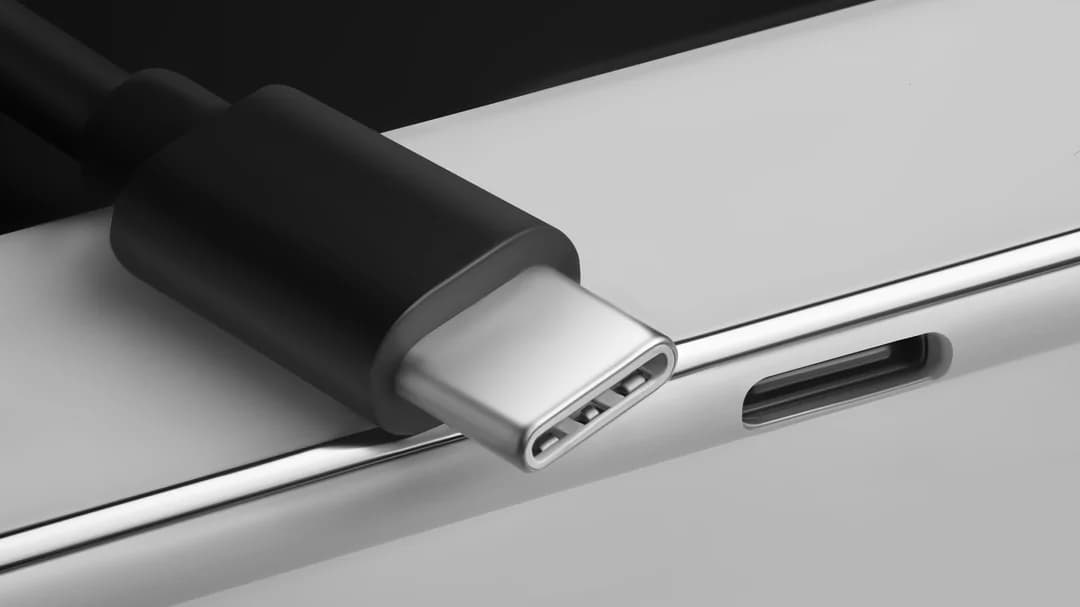
Before USB-C came along in 2014, smartphones relied on mini USB, micro USB, or Apple’s proprietary Lightning port. Android devices made the switch to USB-C early on — the Nokia N1 tablet was one of the first devices to feature the reversible connector — and Apple eventually followed suit, dropping Lightning with the iPhone 15 series in 2023. The result is a genuinely universal standard: one cable type that works across virtually every modern device, cutting down on the tangled pile of charging cables most people used to carry.
The benefits go beyond convenience. USB-C handles high-speed data transfers, fast charging, video output, and of course that reversible design that means no more fumbling to plug things in the right way. And while most people use the port purely for charging, there’s a lot more it can do. The uses below apply broadly to tablets and non-Android devices too, but this guide is focused specifically on Android phones.
1. Connect an Ethernet Adapter for a Reliable, Fast Internet Connection
Wi-Fi and mobile data are convenient, but neither is bulletproof. A slow or unstable connection makes streaming, video calls, and large downloads frustrating — and that’s where a wired Ethernet connection comes in. With a USB-C to Ethernet adapter plugged into the phone and an Ethernet cable running to the router, the connection becomes significantly more stable and consistent.
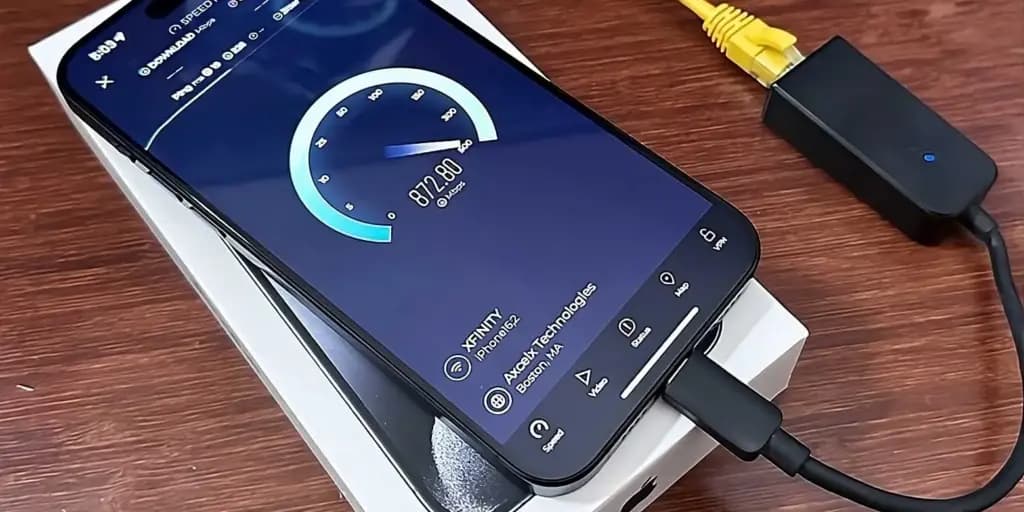
One well-regarded option is the Ugreen USB-C to Ethernet adapter, which supports speeds up to 1 Gbps and is available for $14.99. The setup is about as simple as it gets — plug in the cable, disconnect Wi-Fi and mobile data, and refresh the browser. The phone needs to be running Android 6.0 or higher, but beyond that, it’s plug-and-play. When it comes to the Ethernet cable itself, going with something durable is worth the small extra cost, especially for longer runs.
2. Plug In a Game Controller for a Better Mobile Gaming Experience
Android gaming has come a long way. Modern phones can handle some genuinely demanding titles, but touchscreen controls remain a weak point — they lack the physical feedback that makes controller-based gaming feel precise and satisfying. Connecting a controller through the USB-C port changes that entirely.
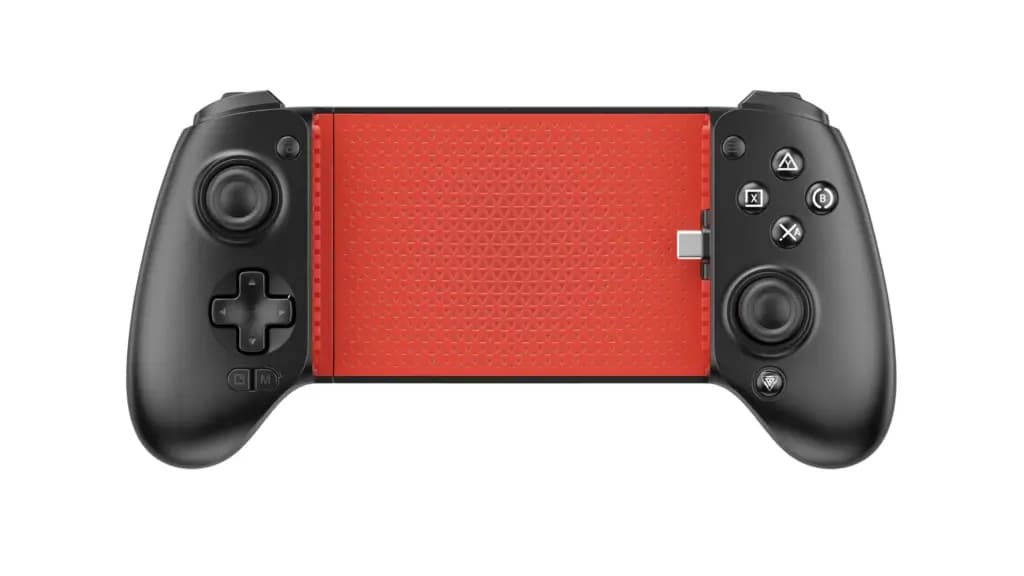
Xbox and PlayStation controllers can be connected via a compatible USB cable, though some may require an OTG adapter. For something designed specifically for mobile, clip-on Android controllers that attach directly to the phone are widely available on Amazon. The 8Bitdo Ultimate Bluetooth controller is a solid pick at $49.99, while the Backbone One sits at the higher end at $99.99. Most modern Android phones handle these plug-and-play, but it’s worth confirming that a specific game supports controller input before buying.
3. Connect a USB-C Microphone for Better Audio Quality
Built-in smartphone microphones have improved a lot, but they still can’t match a dedicated external mic — particularly for content creators, podcasters, or anyone recording audio seriously. A USB-C microphone connects directly to the port and immediately upgrades recording quality without any additional hardware or setup.
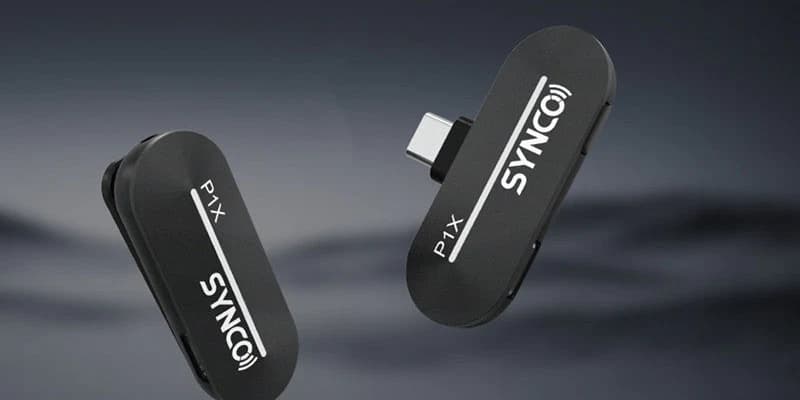
Most USB-C microphones are plug-and-play, though there’s one catch: some stock camera apps don’t recognize external mics. In that case, a third-party app like Filmic Pro or Open Camera is needed to route audio through the external device. Microphones with a 3.5mm jack can also work with an appropriate USB-C adapter. Wired microphones are generally preferable to wireless for audio quality, since they eliminate the latency, potential interference, and battery dependency that wireless options introduce.
4. Mirror Your Screen to a TV or Monitor via HDMI
Wireless screen mirroring works well when conditions are right, but a wired HDMI connection is more reliable and introduces no lag. A USB-C to HDMI cable or adapter is all that’s needed — connect it to the phone, run an HDMI cable to the TV or monitor, switch the display source, and the phone’s screen appears on the larger display.
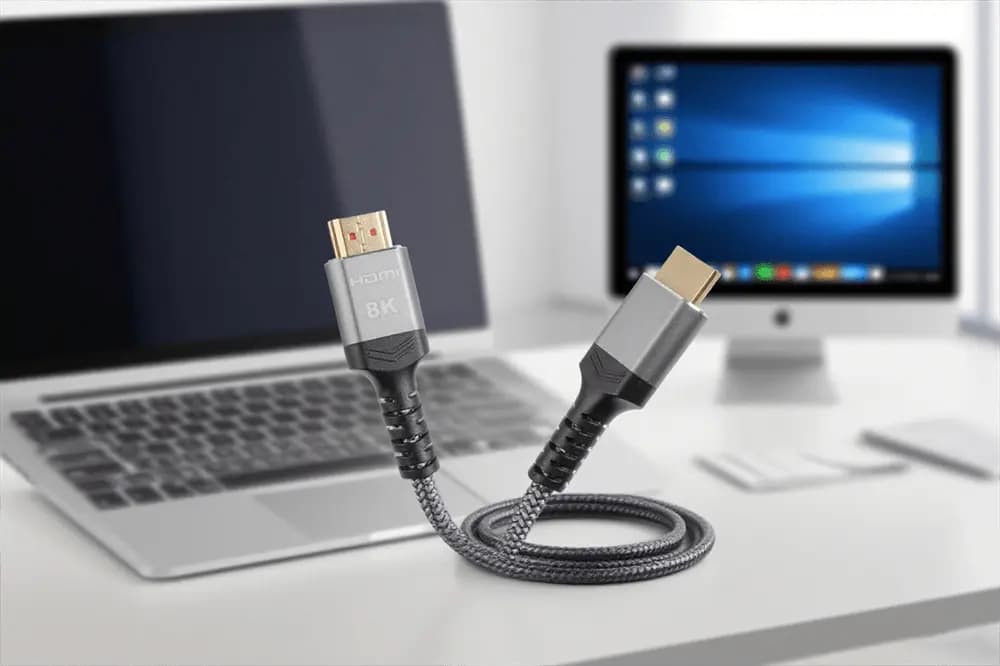
This is useful for watching content, but also for setting up a quick mobile workspace. Pair it with a USB-C keyboard and mouse (via a hub if needed), and the phone effectively becomes a compact desktop replacement. USB-C to HDMI adapters are widely available and generally cost between $10 and $20, making this one of the cheapest ways to extend what the phone can do.
5. Add a Keyboard and Mouse for a Desktop-Style Workflow
The idea of using a phone as a productivity device sounds like a compromise, but with the right peripherals it works better than expected. A USB-C keyboard and mouse turn the phone into something closer to a compact computer, capable of handling emails, spreadsheets, and general browsing with far more precision than a touchscreen allows. Any keyboard or mouse that isn’t natively USB-C can be connected through a simple adapter.
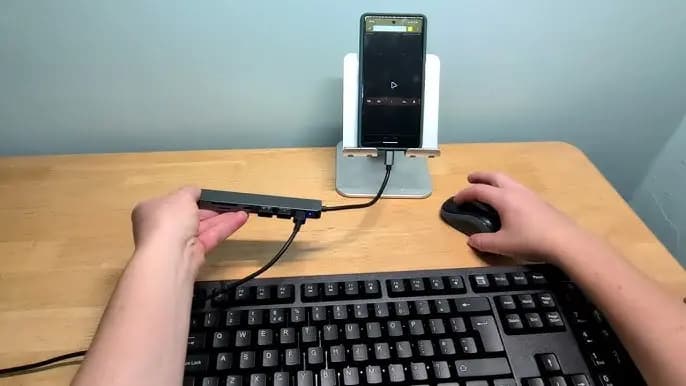
The Perixx Permice-209C USB Type-C wired optical mouse is one of the more affordable well-reviewed options at $19.90 on Amazon. For connecting multiple peripherals at once, a USB hub is the answer — the Ugreen USB-C Hub is available for $17.99 and also supports external storage devices like SSDs, which makes file transfers considerably easier. Most keyboards and mice are plug-and-play, so no driver installation or configuration is needed.
6. Connect External Storage for Easy File Management
Running out of phone storage is one of the more common frustrations with Android devices, and USB-C offers a direct solution. External drives — including compact SSDs and flash drives with USB-C connectors — can be plugged directly into the port and accessed through the Files app or a compatible file manager. This makes it easy to offload photos, videos, or documents without needing a computer as an intermediary.
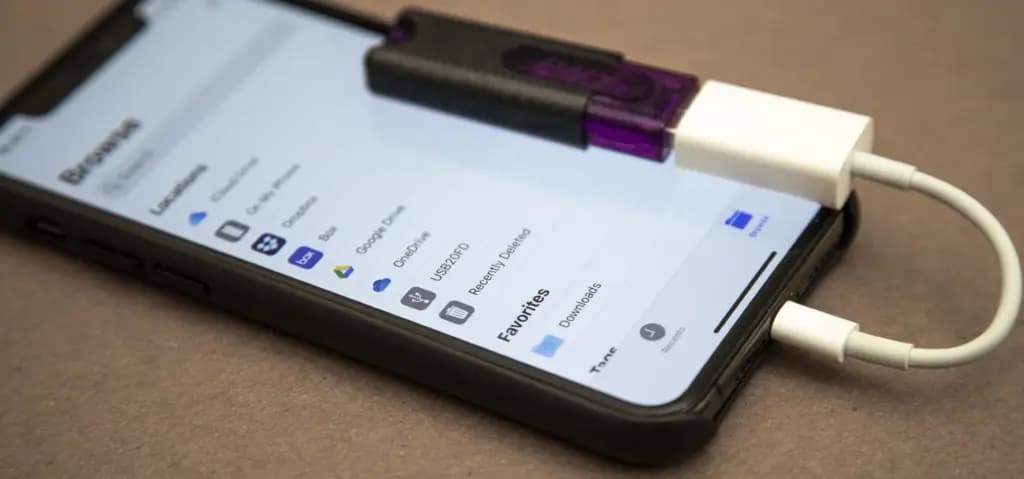
Some drives are designed specifically for smartphones and come in a dual-connector format with both USB-C and USB-A on the same device. For anyone who regularly moves large files between a phone and a computer, this is one of the most practical uses of the USB-C port.
Google Pixel Watch 5 (45mm)

Robert Haba is the founder and editor-in-chief of Droid Tools. A lifelong gadget enthusiast with over a decade following the Android ecosystem, he built this publication to cut through the noise and give readers honest, real-world coverage of the tech they actually use.
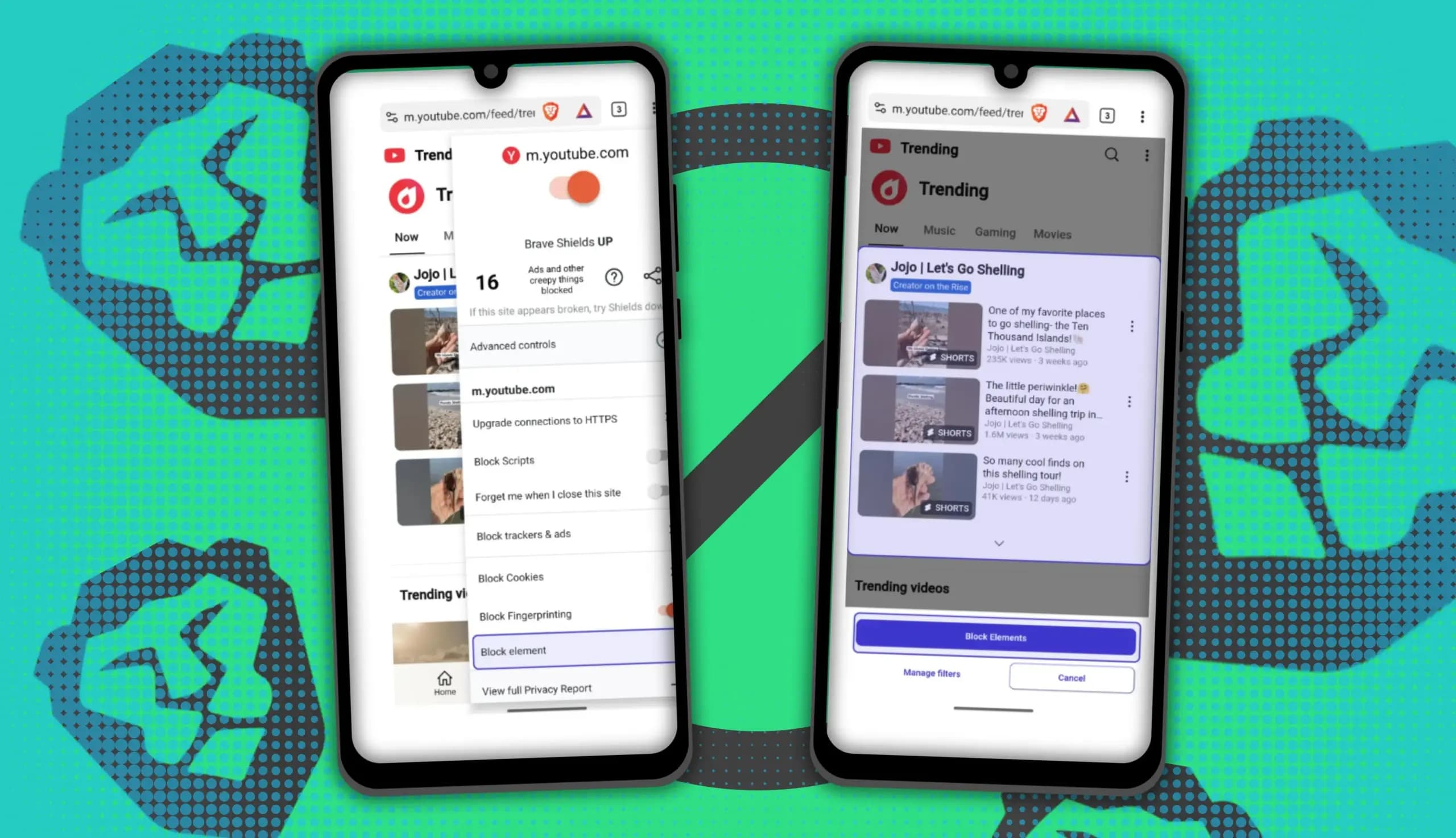
You can block ads on Android more effectively by pairing Brave’s Aggressive Shields setting with the system’s Private DNS feature. The setup filters ads at both the browser and system levels, takes only a few minutes to configure, and avoids the battery drain and VPN conflicts that come with dedicated ad-blocking apps. Why one ad […]

Behind a two-tap recharge sits a surprising amount of plumbing. Every prepaid network has its own rules about what can be topped up, in which denominations, and how quickly credit posts to a SIM. MobileTopUP hides that complexity behind a single form: pick a country, enter a number, choose an amount. What the coverage map actually covers […]
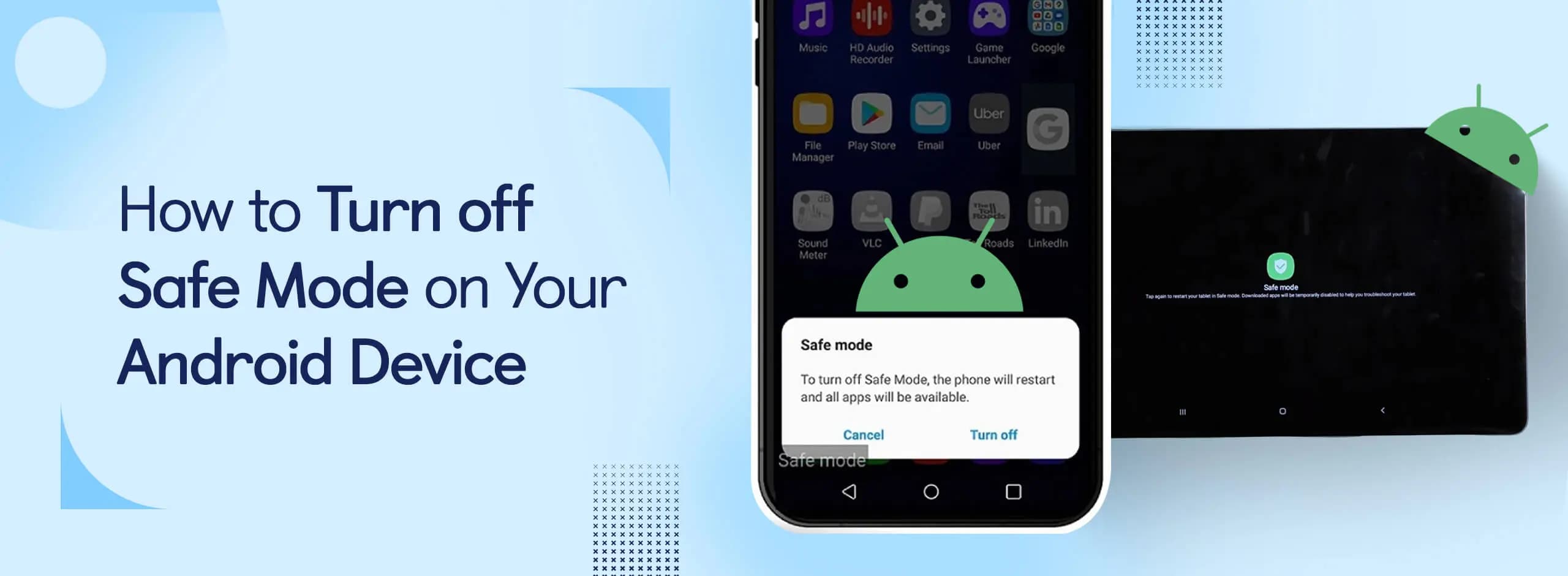
Knowing how to turn off Safe Mode on Android comes in handy, since Safe Mode is a built-in troubleshooting tool that disables every third-party app on a phone and switches on Airplane Mode, making it easier to isolate an app causing lag, battery drain, or other issues. It's also useful for safely deleting a suspected […]
Opening a brand-new phone has a particular excitement. After removing the plastic, you move your pictures, log into your Google account, and begin taking your first snapshot. However, we frequently overlook a few crucial settings that can improve our phone in all that excitement. I looked at a few options on my current phone, a […]
The next story loads as you reach the end. You can also load it using the button.


Comments & Discussions
Join the conversation! We use Disqus to handle comments. Click the button below to load the comment section.