Motorola Quick Launch lets users double-tap the back of the phone to trigger a custom action without touching the screen. According to AT&T's support documentation for the Razr+ 2025, when Quick Launch is enabled, that double-tap can perform actions like taking a screenshot or returning to the home screen. That specific wording — "certain options …

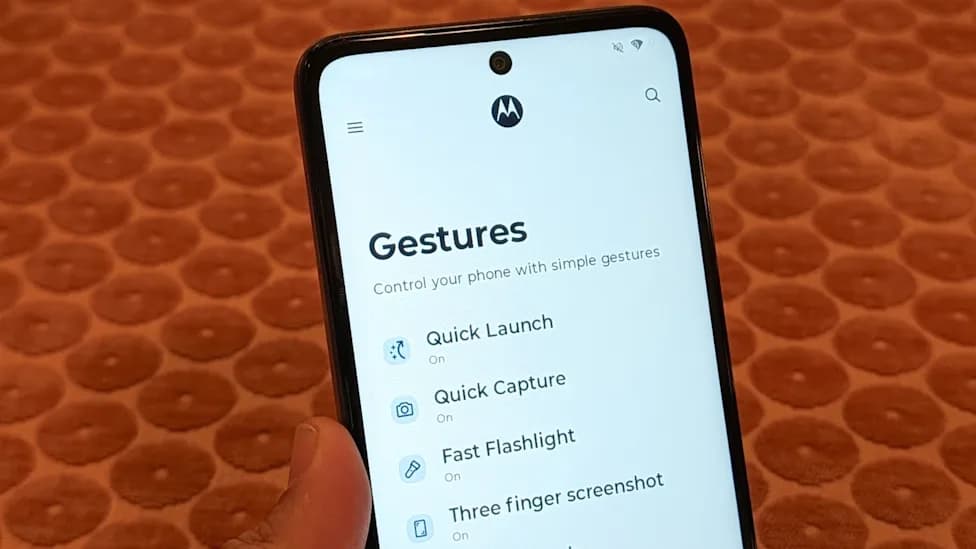
Motorola Quick Launch lets users double-tap the back of the phone to trigger a custom action without touching the screen. According to AT&T’s support documentation for the Razr+ 2025, when Quick Launch is enabled, that double-tap can perform actions like taking a screenshot or returning to the home screen. That specific wording — “certain options like” — is deliberate: it’s not an exhaustive list, and what follows here covers only what AT&T explicitly documents.
By the end of this guide, Quick Launch will be enabled, an action will be assigned, and there will be a clear picture of what the feature can and can’t do.
One thing worth addressing before setup: app launching. Official documentation describes Quick Launch as triggering “custom actions,” which implies configurability beyond the two named examples. But AT&T’s support pages don’t confirm app launching as a guaranteed option across all compatible phones. The action menu inside settings is where to check — if app shortcuts appear, they’re available to use. If they don’t, the explicitly documented actions are still useful in their own right.
This question comes up often enough to deserve a direct answer. The short version: maybe — and it depends on the specific device and software version.
AT&T’s documentation uses the phrase “custom actions” across multiple device pages, which leaves room for options beyond the two named examples. Support pages for both the Moto G 2025 and Moto G 2026 describe Quick Launch as enabling a double-tap to trigger custom actions, without specifying a fixed list. That language is consistent across models, but it doesn’t confirm that every phone will expose an app-launch option in the action selector.
The practical approach is to go through the setup steps, open the action menu, and see what the specific device actually offers. If an app-launch option is listed, it’s available to use. If it isn’t, the documented actions are the reliable baseline — not a consolation prize. Treat app launching as a device-specific possibility to check, not a feature that can be counted on before looking.
AT&T documents Quick Launch support on several 2025 and 2026 Motorola phones. Based on available support pages, the current list includes the Razr Ultra 2025, Razr+ 2025, Moto G 2025, Moto G 2026, and Moto G Play 2026. That range covers both premium foldables and budget handsets, so the feature isn’t exclusive to any particular tier.
If a phone isn’t on that list, it’s worth checking for pending software updates before assuming the feature isn’t available. Support documentation doesn’t always keep pace with software rollouts, and the device’s own support page is the most reliable place to verify. Some older Motorola hardware may not support the feature regardless of software version.
Before starting: confirm the device is one of the supported models above and that its software is current. The steps below reflect AT&T’s documented setup path for Gestures & Motion across recent Moto devices.
Step 1: Open Settings
Tap the gear icon from the home screen, or swipe up to the app tray and find Settings there. Alternatively, pull down the notification shade and tap the settings shortcut in the top corner.
Step 2: Navigate to Moto Actions or Gestures & Motion
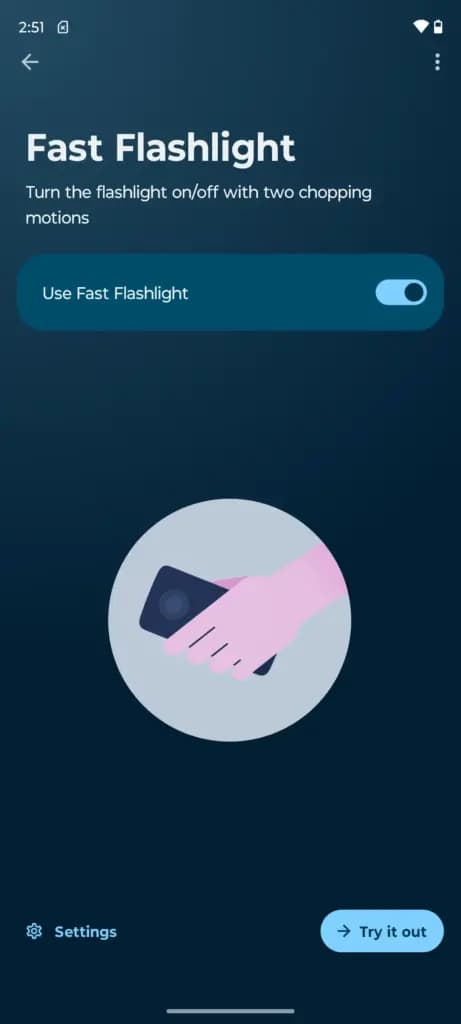
Look for either Moto Actions or Gestures & Motion in the Settings menu. The label can vary by model — on some recent Motorola software it may appear under Gestures. The Razr+ 2025 tutorial lists Quick Launch alongside other gesture features like Fast Flashlight and Three-Finger Screenshot, so spotting any of those confirms the right section has been found.
Step 3: Select Quick Launch
Tap Quick Launch from the gesture list. On supported phones, the feature controls will appear, including a toggle to enable it.
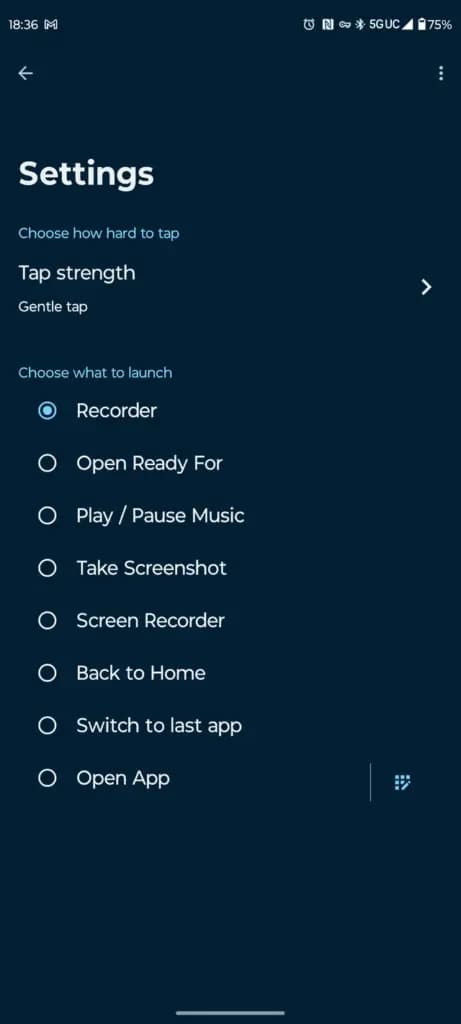
Step 4: Enable Quick Launch and assign an action
Turn the toggle on, then select an action from the available options. AT&T explicitly names taking a screenshot and returning to the home screen as examples of what Quick Launch can do on the Razr+ 2025.
Which action makes sense depends on usage patterns. Frequent screenshot takers will find the back-tap replaces whatever multi-step method they’re currently using. For anyone who regularly drills out of nested apps and menus, the home screen return is the more useful default. Neither is permanent — returning to this menu and swapping the action at any time is straightforward.
If the action menu shows options beyond those two, including any app-launch shortcuts, those are genuine choices worth taking. The “custom actions” language in AT&T’s documentation across multiple device pages suggests some phones may surface additional options — but they shouldn’t be expected on devices that don’t show them.
Step 5: Test the gesture
Open any app and double-tap the back of the phone firmly. If nothing happens, return to settings and confirm the toggle is on and an action is assigned. Both conditions need to be true for the gesture to register.
It’s worth being specific about what AT&T names, because “taking a screenshot or returning to the home screen” can sound underwhelming until the frequency of both is considered.
Screenshot via back tap. Most Motorola phones already offer multiple screenshot methods — the Razr+ 2025 support page documents Three Finger Screenshot as a separate gesture, for example. Quick Launch adds another route. Whether the back-tap is more convenient than the existing method depends entirely on how the phone is held and which hand is being used. It’s a genuine alternative, not a universal upgrade.
Home screen return. This provides a fast exit from wherever the user currently is, without reaching for a navigation button. On a foldable like the Razr+ 2025, where the display and navigation bar layout differs from a standard slab phone, having a consistent back-of-device gesture for home screen return has practical logic. On a phone where the home gesture is already easy to reach, it’s a smaller win.
Both of these are things most people do throughout the day. The case for Quick Launch isn’t novelty — it’s doing familiar things from a different physical input that may better suit how the phone is already held.
This ultimately comes down to habit and grip. Anyone who takes frequent screenshots or navigates home repeatedly may find the back-tap genuinely faster once it becomes muscle memory. People who hold the phone in one hand while the other is occupied have more to gain, since both documented actions can otherwise require adjusting the grip.
If navigation is primarily by swipe gestures and screenshots are rare, Quick Launch is unlikely to change anything meaningful. The honest approach: enable it, assign an action, use the phone normally for a day, and decide based on whether the back of the device was actually reached for. If the gesture becomes instinctive, leave it on. If it goes forgotten, disable it through the same Moto Actions or Gestures & Motion menu.
A few things to check if the gesture isn’t registering or is causing unexpected behavior.
The gesture isn’t firing. First, confirm the toggle is on and an action is selected — both are required. If settings look correct, consider whether a phone case might be reducing sensitivity to taps. This isn’t documented in AT&T’s support pages, but it’s a reasonable first variable to rule out: test the gesture without the case and compare.
The feature doesn’t appear in settings. Check for software updates before concluding the phone doesn’t support it. AT&T documents Quick Launch on several 2025 and 2026 Motorola models, but it may not be present on every device or software version. The model’s own AT&T support page is the definitive reference.
The action selector doesn’t show the desired option. If app launching isn’t listed in the action menu, current documentation doesn’t confirm it will be added. Work with what the device actually offers.
Quick Launch is a narrow feature that works well for the right user. AT&T documents it on phones ranging from the Razr Ultra 2025 to the budget Moto G Play 2026, so it’s accessible across a meaningful portion of Motorola’s current lineup without any additional purchase or unlock required.
Setup takes a few taps. The real question is whether the gesture fits the way the phone is already held and used. Assigning it to screenshot, using the phone normally, and revisiting settings once — that’s the whole test.
Google Pixel Watch 5 (45mm)

Cristian Penisoara is a Guides Writer and Android specialist at Droid Tools. An Android user since version 2 and a professional event photographer, he combines technical curiosity with a detail-oriented approach - every guide he publishes is tested step-by-step on a real device before it goes live.

Behind a two-tap recharge sits a surprising amount of plumbing. Every prepaid network has its own rules about what can be topped up, in which denominations, and how quickly credit posts to a SIM. MobileTopUP hides that complexity behind a single form: pick a country, enter a number, choose an amount. What the coverage map actually covers […]
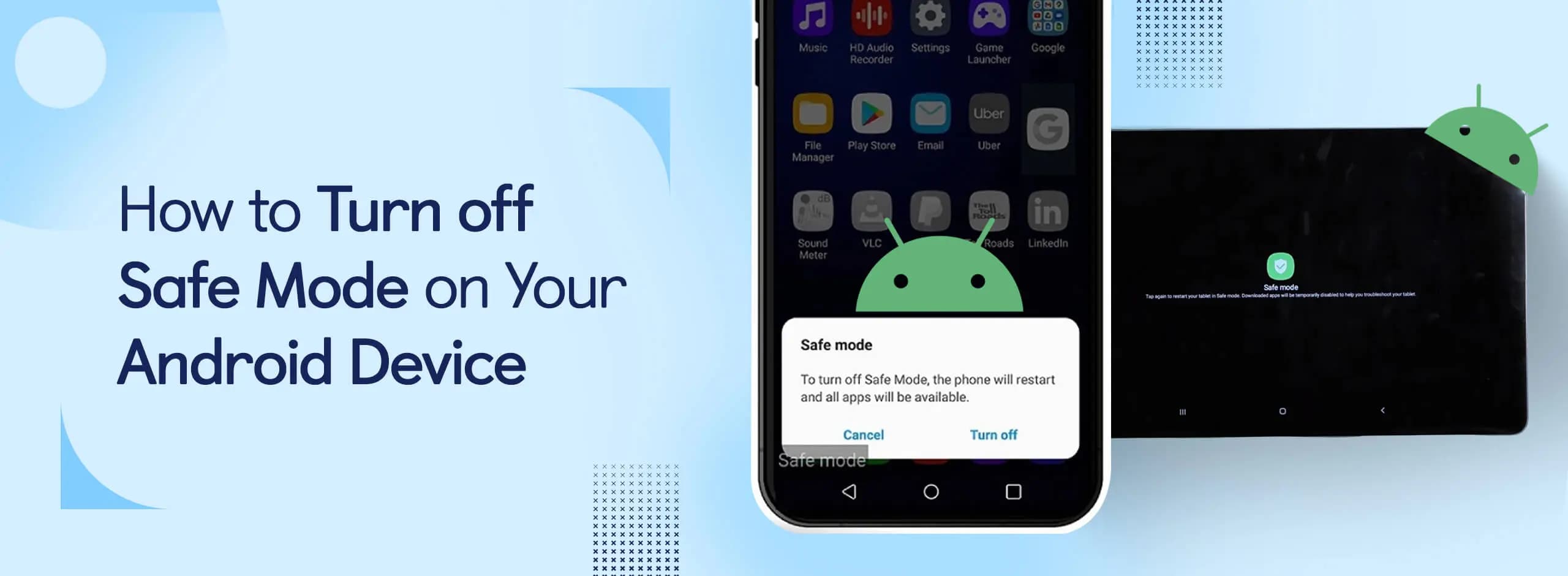
Knowing how to turn off Safe Mode on Android comes in handy, since Safe Mode is a built-in troubleshooting tool that disables every third-party app on a phone and switches on Airplane Mode, making it easier to isolate an app causing lag, battery drain, or other issues. It's also useful for safely deleting a suspected […]
Opening a brand-new phone has a particular excitement. After removing the plastic, you move your pictures, log into your Google account, and begin taking your first snapshot. However, we frequently overlook a few crucial settings that can improve our phone in all that excitement. I looked at a few options on my current phone, a […]
If your Android phone won’t turn on, connect it to a tested wall charger for at least 30 minutes, then hold the Power button for several seconds. If nothing happens, inspect the cable, adapter, outlet, charging port, and physical buttons before attempting a forced restart. A phone that appears completely dead may actually have a […]
The next story loads as you reach the end. You can also load it using the button.


Comments & Discussions
Join the conversation! We use Disqus to handle comments. Click the button below to load the comment section.