Portable tech exists on a spectrum. A desktop setup stays home. A laptop travels. A phone handles the street-level stuff. And when even pulling out a phone to skip a song feels like too much effort, a smartwatch steps in. It's the layer of tech that lives on your wrist, always available without the friction. ...
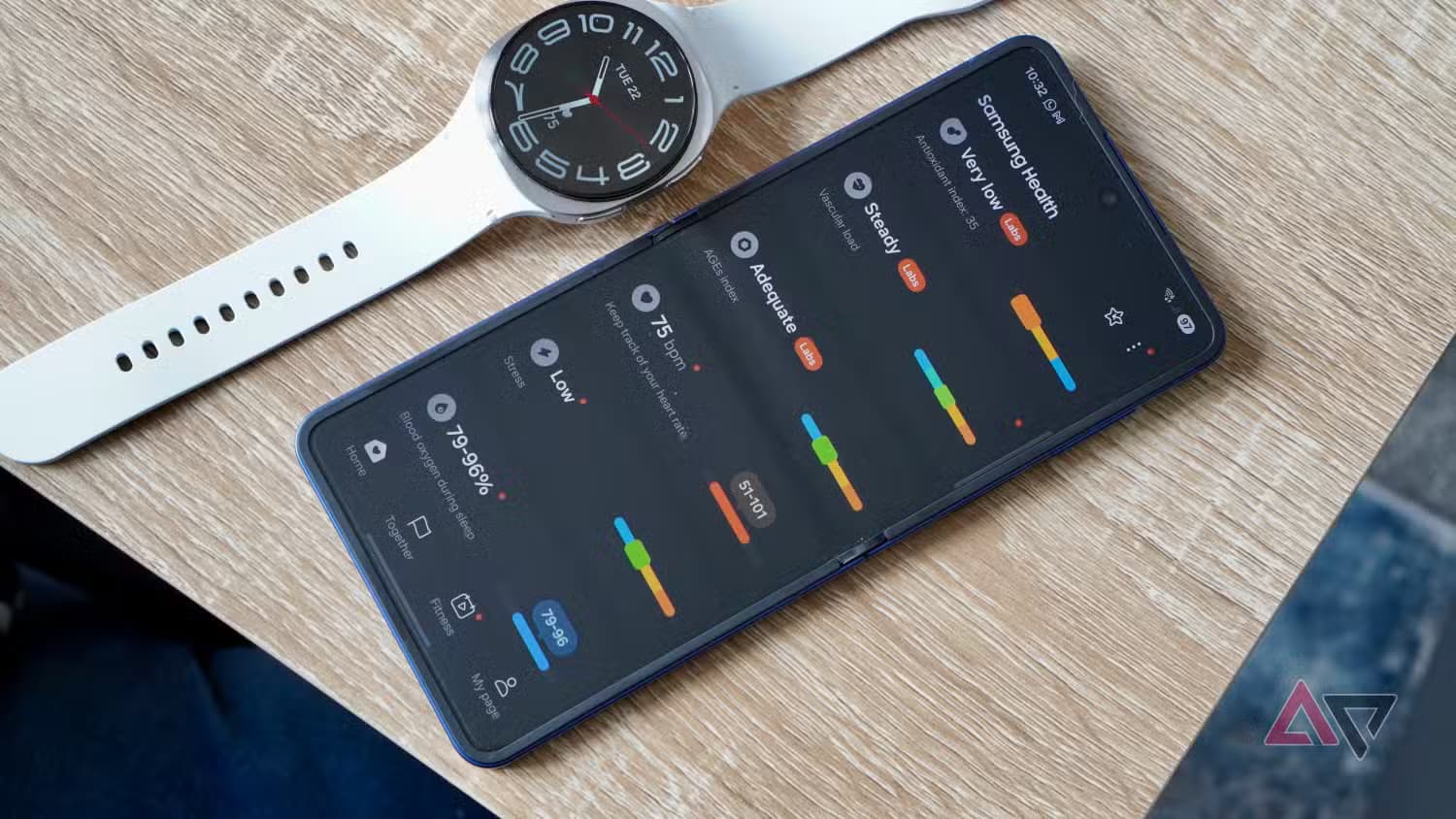
Portable tech exists on a spectrum. A desktop setup stays home. A laptop travels. A phone handles the street-level stuff. And when even pulling out a phone to skip a song feels like too much effort, a smartwatch steps in. It’s the layer of tech that lives on your wrist, always available without the friction.
Smartwatches also offer things a phone simply can’t. Samsung’s Galaxy Watch tracks heart rate, calories, blood pressure, and stress levels throughout the day. But all of that constant monitoring comes at a cost – battery life. It’s one of the most common reasons people give up on smartwatches altogether: the thing dies before the day is done.
Wear OS 7 is bringing meaningful battery improvements to compatible smartwatches, but that update won’t reach every device right away. In the meantime, there are practical steps to stretch a Galaxy Watch from one day to as many as three. These involve dialing back features that aren’t essential, keeping the software current, and knowing where to look in the settings.
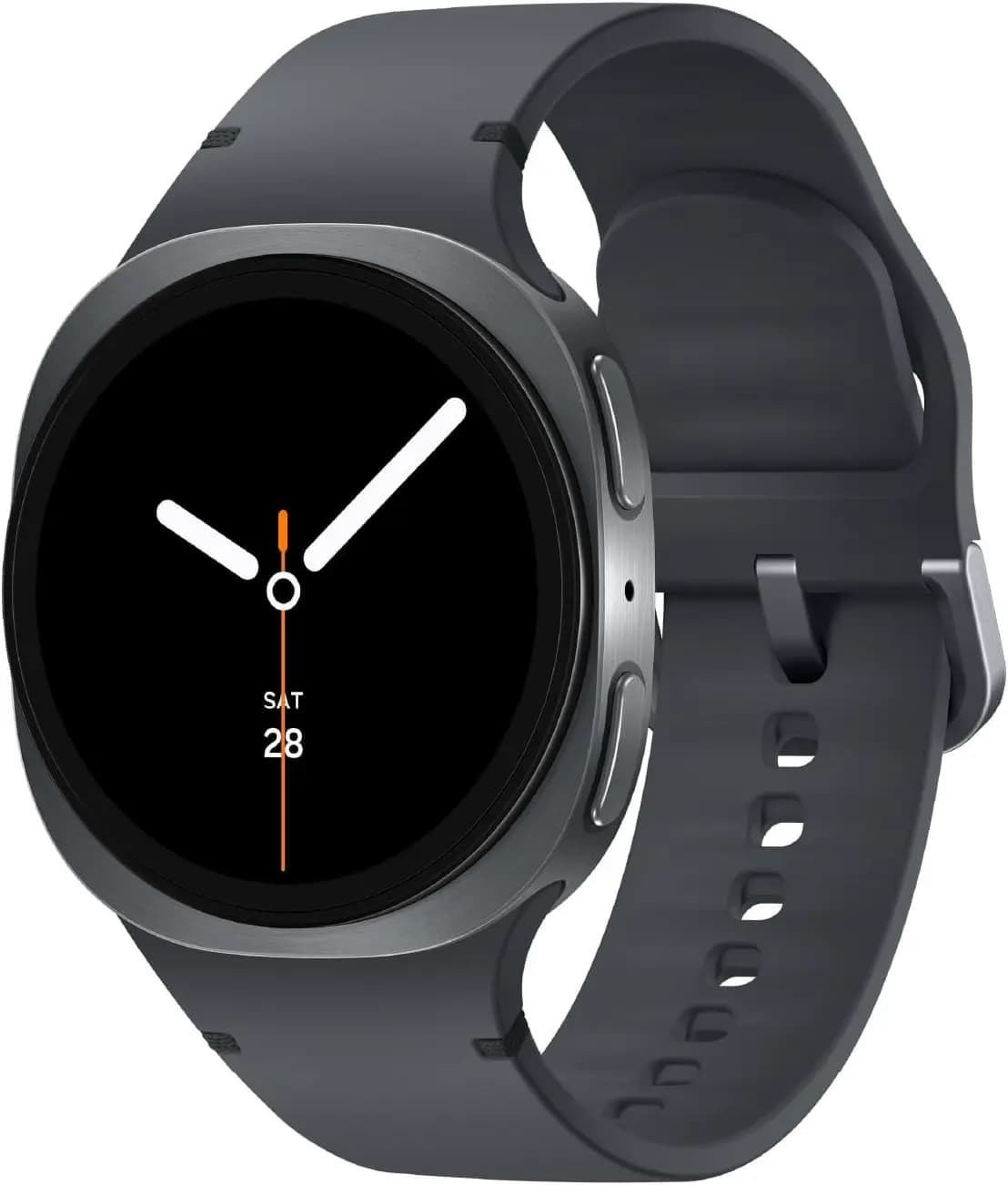
1. Reduce how often health trackers run
Health monitoring is the whole point of wearing a smartwatch for many people. Tracking heart rate, blood pressure, calories, and other stats throughout the day is genuinely useful — but it’s also one of the biggest contributors to battery drain.
By default, the Galaxy Watch measures certain health metrics either continuously or every 10 minutes. Running those sensors that frequently adds up quickly. Changing how often they activate can make a noticeable difference.
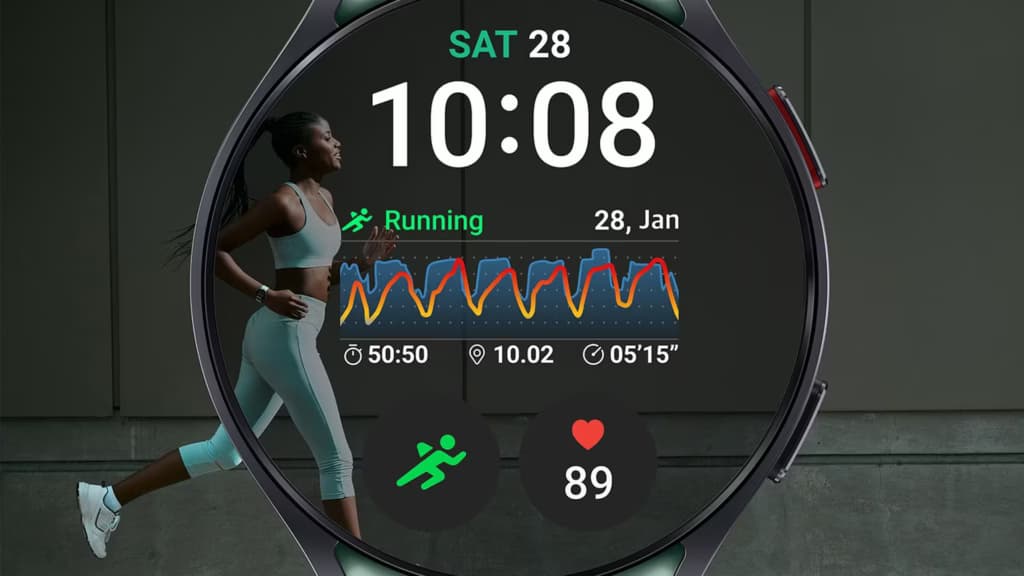
To adjust these settings, scroll down on the watch to open Settings, go to Health, and select the specific tracker to change. Heart rate and stress sensors are set to update every 10 minutes at rest — both can be switched to manual-only, meaning they only activate when specifically triggered. This doesn’t affect workout tracking, which continues to monitor heart rate continuously when exercising. Additionally, heading to Settings > Health > Stress > Sleep and disabling overnight sensors like blood oxygen and body temperature monitoring can save meaningful battery while asleep.
2. Turn off the always-on display
The display is typically the biggest battery drain on any device, and smartwatches are no exception. A phone screen isn’t active unless it’s being used, but a smartwatch with always-on display keeps showing the time even when the wrist is at rest — and that steady trickle of power adds up.
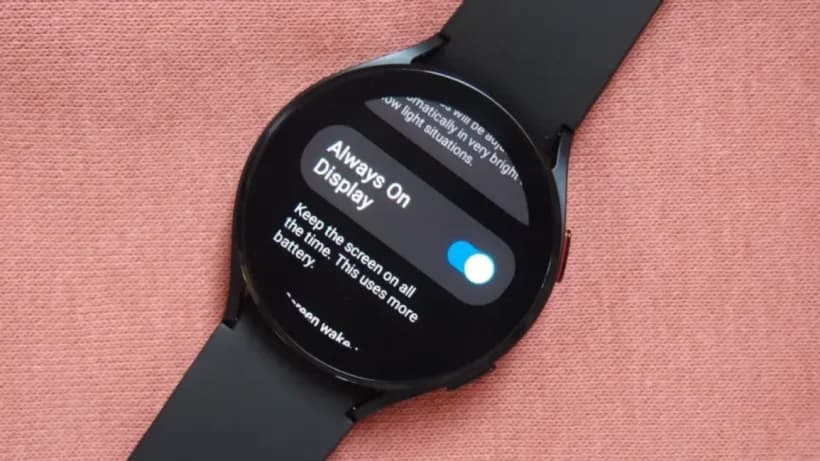
Turning off always-on display stops the screen from running when not in active use. The watch face only wakes when the wrist is raised or the screen is touched. The toggle for this is under Settings > Display > Always on Display. It can also be accessed by swiping down and tapping the watch icon in the Quick Panel.
For those who don’t want to give it up entirely, Sleep Mode is a middle ground. Hold a palm over the watch screen until it darkens, and the display stays off without fully disabling always-on. Lowering screen brightness under Settings > Display is another simple adjustment that helps across the board.
3. Disable frequent syncing
The Galaxy Watch works best when tightly connected to the Android ecosystem — syncing health data to the phone, displaying Live Update notifications with Wear OS 7, and essentially serving as a second screen. That tight integration is genuinely useful, but constant syncing pulls on the battery throughout the day.
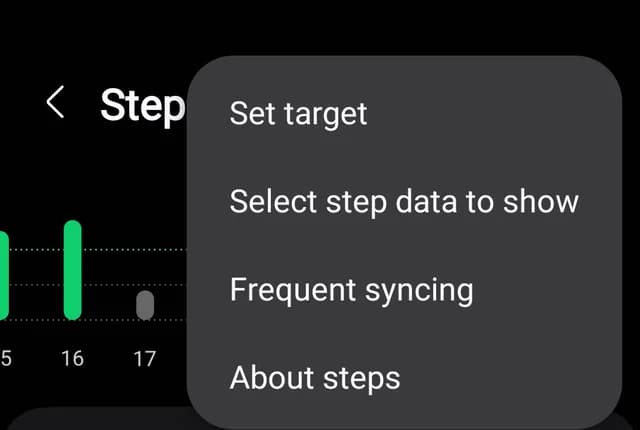
Disabling frequent syncing in the Samsung Health app provides an immediate improvement. The trade-off is that health data won’t update in real time on the phone, but for most people, checking step counts or heart rate trends a few times a day rather than constantly is perfectly fine.
Inside Samsung Health, navigate to Steps, tap the three-dot menu, and select Frequent Syncing to disable it. If the option doesn’t appear, uninstalling and reinstalling Samsung Health from the Play Store typically resolves the issue.
4. Keep the system and apps updated
Software updates often include battery optimizations that older versions simply don’t have. Running an outdated OS or an app that hasn’t been updated can mean missing out on efficiency improvements — and in some cases, apps optimized for a newer system version may run less efficiently on an older one.
To update the Galaxy Watch’s system software, go to Settings > Software Update on the watch, or use the Galaxy Wearable app on the paired phone by going to Settings > Watch software update > Install. An active internet connection and a connected phone are required.
Third-party apps can be updated through the Google Play Store app on the watch, the same way as on a phone. Automatic updates can be enabled by going into Settings within the Play Store app and turning on Auto-update apps. For native Samsung apps, go to Settings > Apps > Samsung app updates on the watch to update individually or tap Update all.
5. Use power saving mode for an instant battery boost
Tweaking individual settings one by one takes time, and when a Galaxy Watch is down to a few hours of charge with a long day still ahead, there’s a quicker option. Power saving mode handles it in one tap.
Enabling power saving immediately turns off the always-on display, limits background network activity and app processes, reduces CPU speeds, disables syncing between devices, cuts Wi-Fi, and pauses system updates. It’s a significant cutback, but it’s designed for exactly these situations — when battery life matters more than features for a few hours.
Power saving can be enabled by going to Settings > Battery and toggling on Power saving.
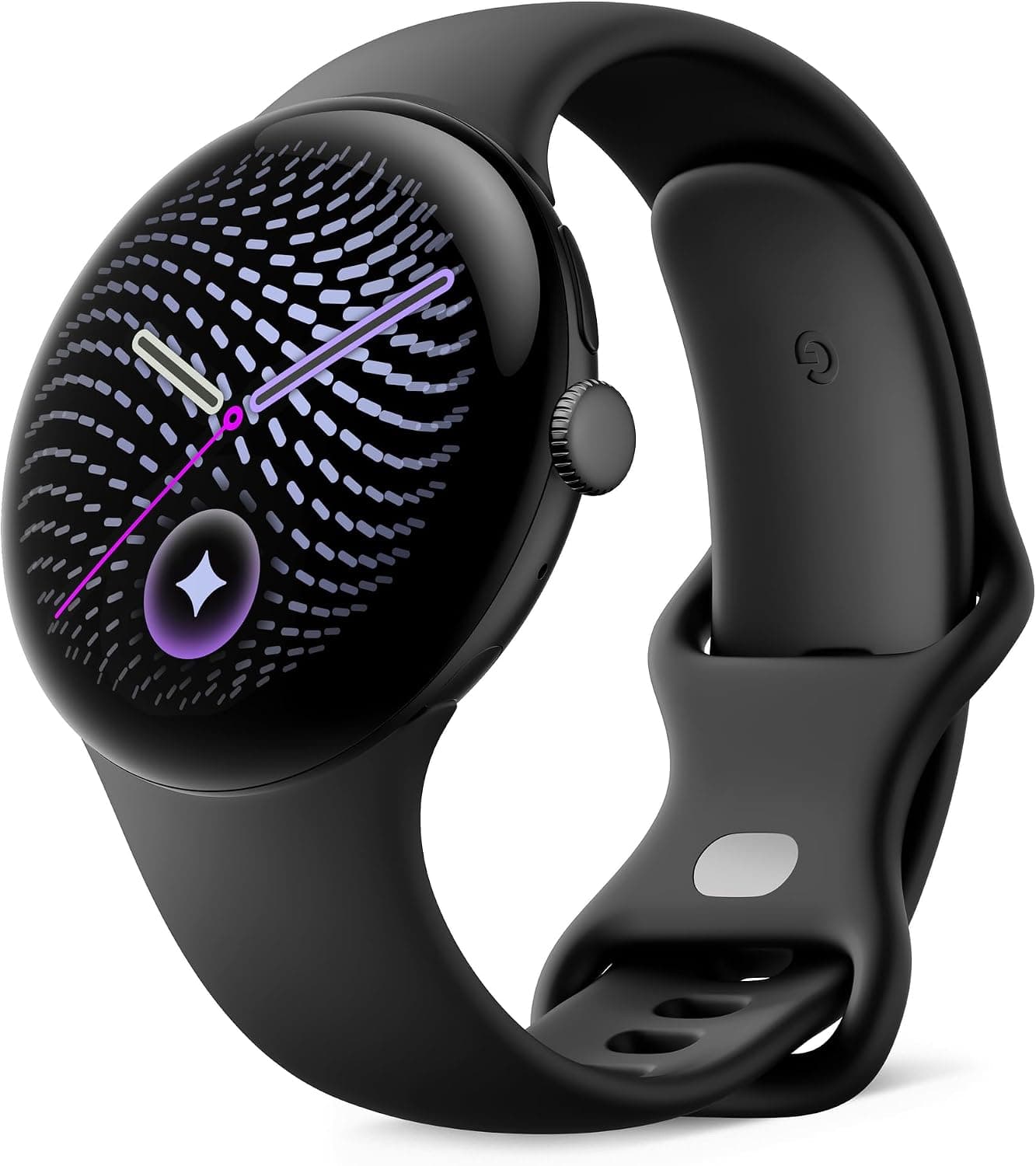
Google Pixel Watch 5 (45mm)

Cristian Penisoara is a Guides Writer and Android specialist at Droid Tools. An Android user since version 2 and a professional event photographer, he combines technical curiosity with a detail-oriented approach - every guide he publishes is tested step-by-step on a real device before it goes live.
A traveler recovered a lost smartwatch in ten minutes using Pixel Watch Find Hub settings. Learn how to configure location toggles and ring missing devices.

Track the Google Pixel update schedule, including seven-year lifespans for newer models, quarterly patch shifts, and dual Android OS release windows.

Google explained how to manage Android time zones as Canadian regions end seasonal time changes, offering steps for automatic and manual clock adjustments.

Quick Share for Windows transfers files from Android to your PC over Wi-Fi at rates up to 100MB/s, bypassing email and third-party cloud uploads.
The next story loads as you reach the end. You can also load it using the button.


Comments & Discussions
Join the conversation! We use Disqus to handle comments. Click the button below to load the comment section.