Google Quick Share for Windows lets Android users send files, photos, and web links directly to a PC over local Wi-Fi or direct peer-to-peer connections. Speeds reach 100MB/s without third-party phone apps, though Samsung PCs require a separate version from the Microsoft Store.

Moving files between a smartphone and a personal computer often drives people toward awkward workarounds. Users routinely attach photos to draft emails or upload media libraries to cloud storage accounts before downloading them onto a desktop. Quick Share for Windows provides a direct alternative that integrates with the sharing tools already present across modern Android devices. The desktop program creates a direct local bridge for photos, videos, documents, and archives, avoiding remote servers and third-party storage entirely.
Transferring screenshots, camera images, high-resolution video clips, PDF documents, and project folders forms a routine part of daily computer workflows. Keeping that data pipeline fast and reliable prevents unnecessary friction. While Apple hardware relies on AirDrop to pass items between macOS computers and iPhones, Google and Samsung established an equivalent foundation across the Android and Windows ecosystem.

Samsung originally introduced Quick Share as an exclusive capability for Galaxy hardware in 2021. In early 2024, Google and Samsung merged Samsung Quick Share with Google Nearby Share into a unified file-sharing protocol operating under the Quick Share name. That consolidation brought official support to Windows through a standalone desktop client.
Even though the Windows desktop utility has been available for roughly two years, general awareness remains low among Android owners. Many users continue relying on manual file transfers because Google has provided limited marketing for the desktop client. Once configured, the application functions on Windows in the same manner as its mobile counterpart.
The transfer process requires minimal effort from either device. To dispatch an item from an Android handset, open the document or photo, tap the share icon, select the Quick Share prompt, and click on the target computer. Users can also swipe down from the top of the screen to reveal the Quick Settings panel, activate the Quick Share tile, and pick the destination PC directly from that interface.
Within seconds of confirming the prompt, the file downloads onto the receiving machine and becomes available for immediate use. Sending records in the opposite direction from Windows to an Android phone follows identical logic through the desktop interface. The utility handles virtually all standard formats, including high-resolution photographs, video clips, voice memos, PDF manuals, compressed archives, program installers, and complete folder directories.
Beyond static files, the system transmits plain text snippets and web links. This removes the inconvenience of launching chat apps such as Slack or Facebook Messenger simply to paste a URL or send a short note to a computer. Device visibility controls sit in an accessible drop-down menu on both platforms. Users can restrict discovery entirely, limit access to personal Google devices, allow registered contacts, or open visibility to everyone nearby for transient transfers.
Transfer performance represents another practical strength. Quick Share routes data through local Wi-Fi, keeping throughput high. Actual transmission rates fluctuate based on file types, hardware antennas, physical distance, and Wi-Fi frequency bands. Speeds generally hover between 30MB/s and more than 100MB/s. At those speeds, a batch of full-resolution images moves from phone to desktop in seconds.

Setting up the desktop application requires only a few minutes. To start the process, download the official installer directly from Android’s website. Launch the installation package, complete the on-screen steps, and sign in using a Google account to link personal hardware.
For reliable discovery, both the computer and the mobile device must have Wi-Fi and Bluetooth turned on. Windows users must set their local network profile to Private. This ensures that Windows firewall policies permit incoming discovery requests from trusted local hardware. To adjust this setting, right-click the network icon in the taskbar, select Network & internet settings, open Properties for the active connection, and choose Private network under the network profile type.
After both systems recognize each other, users can verify operation by sending a test photo from the handset to the PC. During initial setup, the software can be set to run automatically upon Windows startup, ensuring background readiness for incoming transmissions. The software stores received items in a dedicated Quick Share folder inside the user Downloads directory, though this path can be altered anytime within the application settings menu.
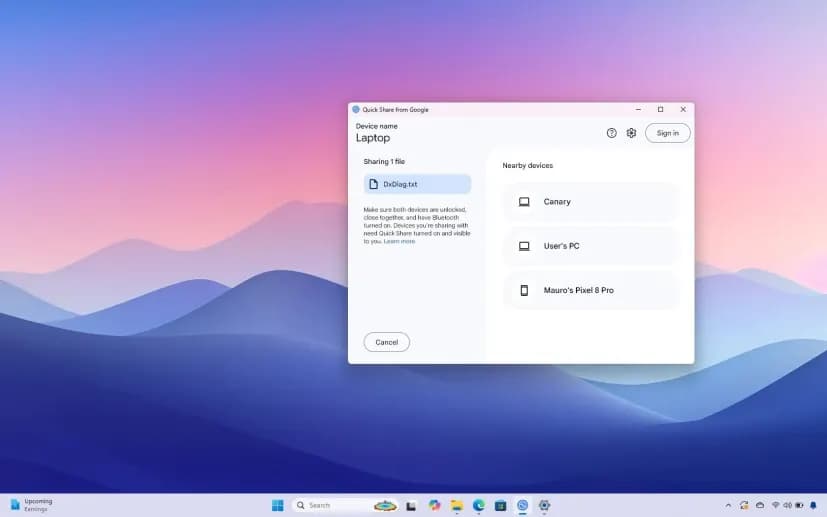
A few specific hardware behaviors influence how Quick Share operates across diverse setups. While official documentation states that Bluetooth is mandatory for handshake discovery, tests demonstrate that desktop computers lacking Bluetooth can still process transfers successfully if both machines reside on the same local network.
Laptop users enjoy added flexibility when traveling away from fixed home or office routers. Quick Share does not require active internet access or an established local area network when running on portable hardware with both Wi-Fi and Bluetooth active. When two devices are positioned within 16 feet (5 meters) of one another, Quick Share forms a temporary direct peer-to-peer (P2P) wireless link. This ad-hoc wireless bridge allows rapid file transfers during travel, remote field work, flight transit, or local network outages.
One notable limitation involves Samsung hardware. Google’s standalone Quick Share installer may refuse to run or fail to pair properly on Samsung PCs. Owners of Samsung Galaxy Book2 and newer Galaxy Book laptops need Samsung’s proprietary build of Quick Share instead. This variant comes factory-installed on recent Galaxy Book models, and users can obtain or update it directly through the Microsoft Store.
Quick Share remains convenient because it operates without requiring any extra software installations on the mobile device. The desktop program communicates directly with services already embedded in Android system software.
A comparable built-in option is Microsoft Phone Link, which comes preinstalled on most Windows 11 computers and connects to the Link to Windows application on Android. Phone Link covers broader device management, displaying mobile notifications, handling phone calls, syncing photos, and mirroring text conversations on the desktop monitor. However, Phone Link demands extensive system permissions across personal calls, messages, and device logs, which discourages users who merely want simple file movement without granting wide administrative access.

Independent open-source tools provide another route for wireless data transfers. LocalSend is a community-developed, free utility that supports Windows, Android, macOS, iOS, and Linux. It functions without internet access across local networks, making it a flexible cross-platform choice for mixed-device households. Similarly, KDE Connect provides an open-source bridge capable of clipboard synchronization, file transfers, notification mirroring, and remote cursor input.
For individuals who want dependable, high-speed transfers without excessive permissions or supplementary mobile downloads, Quick Share for Windows fulfills daily computing needs with minimal friction.

Apple AirPods Pro 3

Robert Haba is the founder and editor-in-chief of Droid Tools. A lifelong gadget enthusiast with over a decade following the Android ecosystem, he built this publication to cut through the noise and give readers honest, real-world coverage of the tech they actually use.

Learn how to turn off Pixel camera AI features like Auto Best Take and Auto Edit on newer Google phones to prevent unwanted photo adjustments.
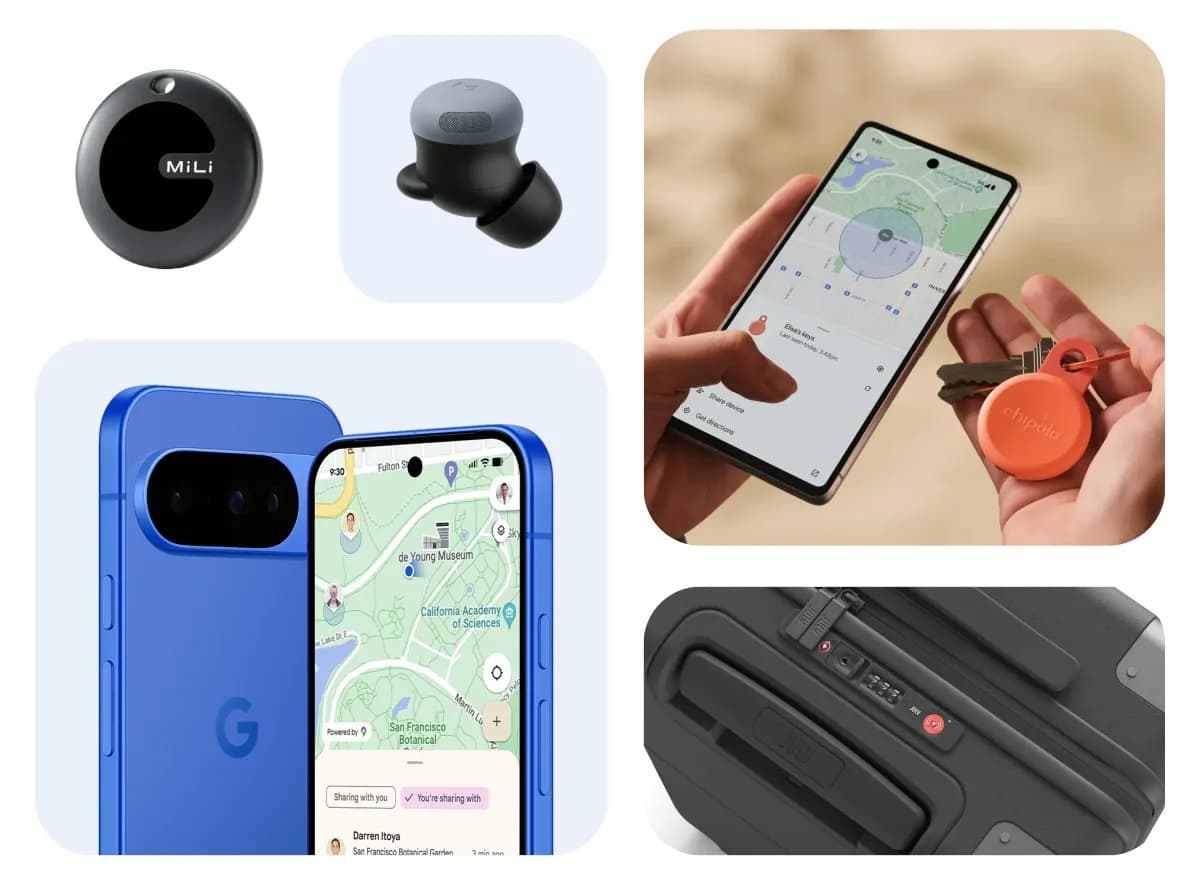
A traveler recovered a lost smartwatch in ten minutes using Pixel Watch Find Hub settings. Learn how to configure location toggles and ring missing devices.

Track the Google Pixel update schedule, including seven-year lifespans for newer models, quarterly patch shifts, and dual Android OS release windows.

Google explained how to manage Android time zones as Canadian regions end seasonal time changes, offering steps for automatic and manual clock adjustments.
The next story loads as you reach the end. You can also load it using the button.


Comments & Discussions
Join the conversation! We use Disqus to handle comments. Click the button below to load the comment section.