


The major update of Android 16 has finally arrived, and Google Pixel owners can now get the QPR1 update. This is how to set it up.
The long-awaited Android 16 has finally come after a well-known initial release earlier this year. With the first stable release of Android 16 QPR1 currently accessible on Google Pixel devices, the massive Material 3 Expressive redesign is officially live.
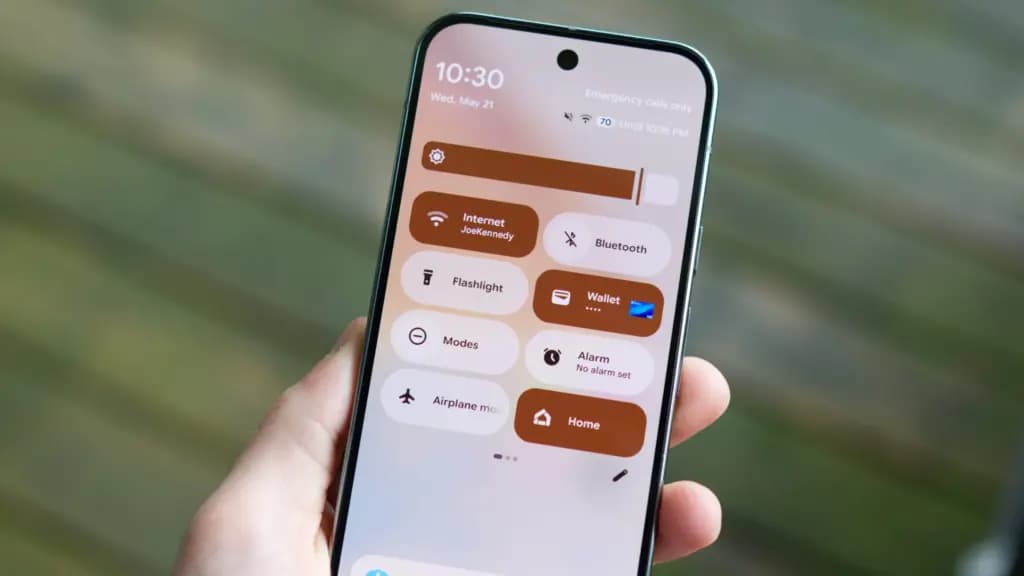
Which Pixel models are capable to running Android 16 QPR1?
Android 16 QPR1 is now available on more devices than ever before, thanks to Google’s extended software support schedule. Every Pixel published since 2021 is on the list:
- Pixel 6
- Pixel 6 Pro
- Pixel 6a
- Pixel 7
- Pixel 7 Pro
- Pixel 7a
- Pixel Tablet
- Pixel Fold
- Pixel 8
- Pixel 8 Pro
- Pixel 8a
- Pixel 9
- Pixel 9 Pro
- Pixel 9 Pro XL
- Pixel 9 Pro Fold
- Pixel 9a
In the meanwhile, this update is pre-installed on the Pixel 10, Pixel 10 Pro, and Pixel 10 Pro XL.
How to get Android 16 QPR1 on your Pixel device
Downloading an OTA update is the primary method for installing Android 16 QPR1 on a Pixel phone. To accomplish this, select “Check for update” under Settings > System > Software updates. It could be able to pull the update a bit quicker than you’d receive a notification, but it might not function right away.
As an alternative, you can manually sideload the update.
Alternatively, you can sideload the update manually.
To do this, follow the steps below:
- Download the needed files.
- Boot into Recovery mode.
- Navigate to ADB sideload.
- Connect the handset to a computer with ADB tools installed.
- Enter the sideload command.
- Reboot your phone.
Before installing an OTA file, you need unlock your bootloader or, at the absolute least, enable OEM Unlock in developer options, even though this procedure is usually safe.
Download Android 16 QPR1 files
You must first download the necessary files in order to install Android 16 QPR1 on your Pixel.
The OTA file is available for download on Google’s OTA Image hosting website. You must scroll down to make sure you are getting the file that is linked to your device because that website has OTA files for sideloading several updates, including Android 16 QPR1, on all Pixel and Nexus devices. OTA downloads are available HERE for Android 16 QPR1. Examine each device’s most recent build.
Boot into Recovery mode
Your Pixel will then need to boot into recovery mode. Turn off your phone completely to accomplish this. Next, press and hold the Power and Volume down buttons simultaneously until you reach the Bootloader screen. If you see an Android figure lying down on the screen, you know you’re in the proper area.
To access Recovery mode, use your volume buttons to scroll down. Click the power button to select this. As an alternative, you can use the reboot recovery command if you’re already connected to a computer via ADB.
A tiny Android with an exclamation point over it should now be visible to you. To fully enter Recovery mode, press the Power and Volume up buttons for approximately one second. You will enter Recovery after you release the Volume Up button.
Go to ADB sideload
Scroll down to Apply update via ADB using the volume buttons, then press the power button to choose it. This will start a largely blank screen with instructions on how to sideload an OTA toward the bottom.
Connect your device to a computer with ADB tools installed
Since there is no other means to move the downloaded OTA file to your phone, this step is crucial. ADB and Fastboot utilities must be kept close at hand. You can install Android Studio in its entirety or use the Command Line tools to obtain ADB tools from the Android Developers website. Additionally, you can utilize ClockWorkMod’s Universal ADB Drivers, which may facilitate the process for Windows devices.
For a quick and simple installation process, I personally unload the tools from the Android Developers website and add a shortcut to “cmd.exe.” The downloaded software build must be placed in the same folder as the “cmd.exe” file in order to accomplish this.
Sideload command
Now that you have everything set up, you may sideload the OTA file. Make sure the ADB tools folder is in the Command Prompt on Windows, then enter adb sideload. If you’re using Linux or macOS, follow the identical steps in Terminal (make sure your Terminal is pointing to the correct folder by using the “cd” and “ls” commands; if you need assistance, Google it) but enter “./adb sideload.” Then, to begin the procedure, enter the file name of the.zip folder you obtained from Google and press Enter.
Your computer and phone should display a dialog box that explains the sideload and installation procedure if everything is operating as it should.
Reboot device
Google Pixel Watch 5 (45mm)


Samsung Galaxy Watch 8

Google Pixel Watch 4

Keep Reading
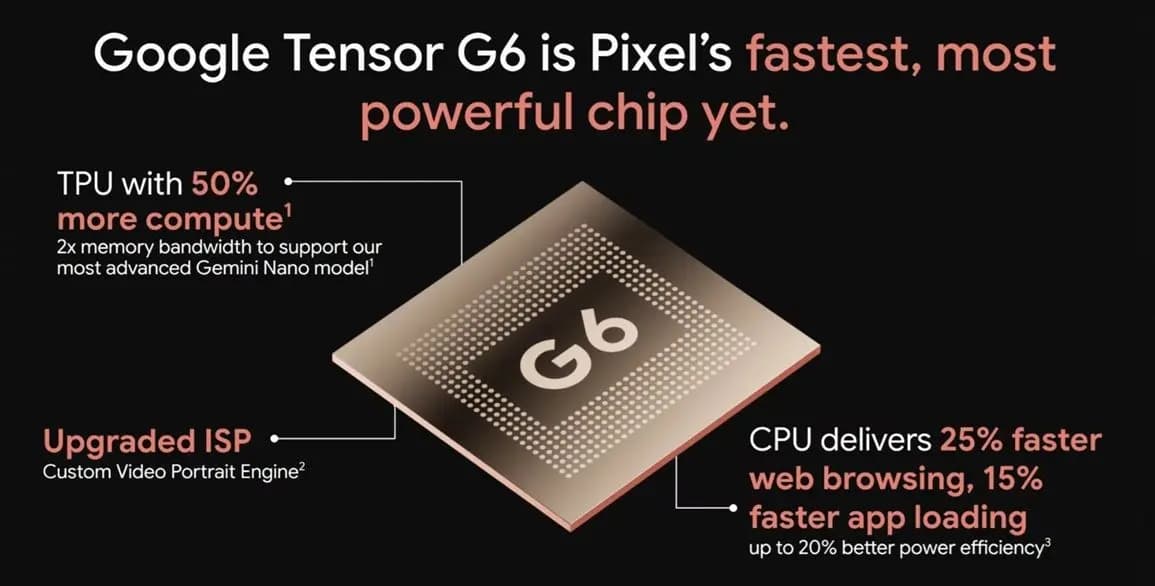
Google Tensor G6 is the custom processor powering the Pixel 11 series and Pixel 11 Pro Fold, with Google prioritizing energy efficiency and on-device AI over benchmark-leading specifications. The chip brings an upgraded CPU, a faster TPU, a new ISP, and a custom modem, enabling features that include 4K Portrait Video, Instant Night Sight, and […]
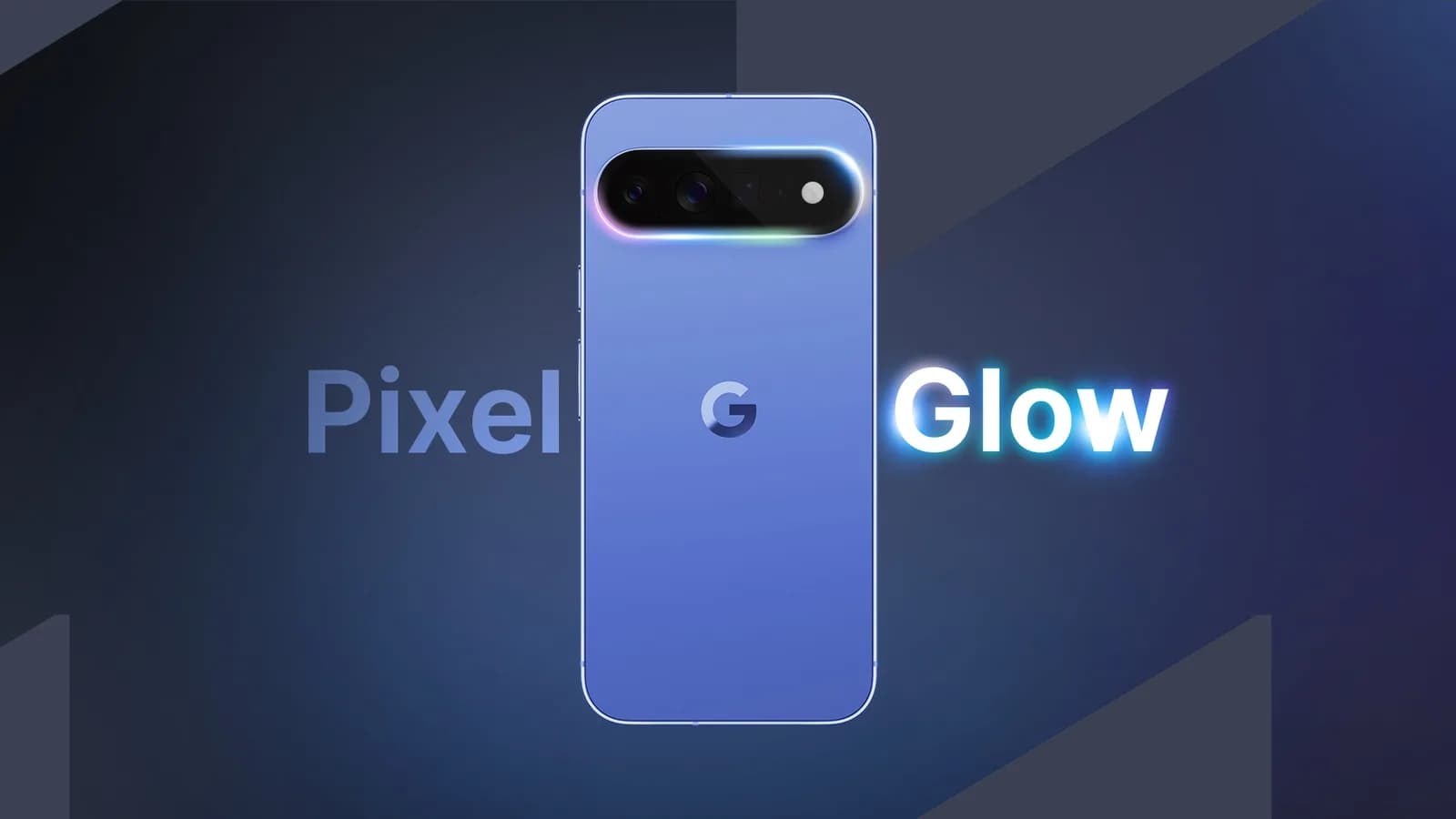
Google Pixel HiLight is the official name of the ambient LED system built around the camera flash on Google’s new Pro phones. Previously known through leaks as Pixel Glow, the feature can show favorite-contact calls and Gemini activity while the phone remains face down. It is exclusive to the Pixel 11 Pro, Pixel 11 Pro […]
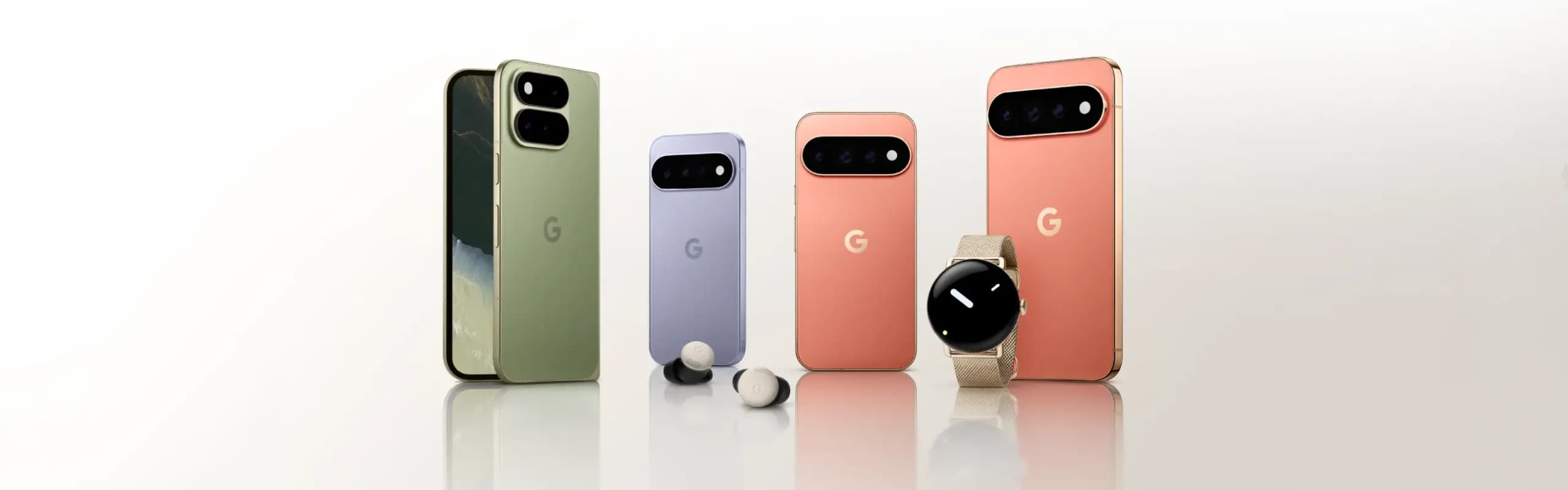
While the actual Made by Google 2026 event is still eight hours away, Google has already fully detailed the Pixel 11, Pixel Watch 5, and Pixel Tag. Here’s a rundown of everything announced at Made by Google 2026, covering the Pixel 11 lineup along with the new watch and tracker hardware. Pixel 11 The Pixel […]
Google will begin shutting down Google Assistant on Android phones starting September 4, moving users over to Gemini as the company’s default mobile voice assistant. The change comes via an email Google has started sending to users, as reported by Ars Technica. Rollout Will Happen Gradually The transition won’t happen for everyone on the same […]
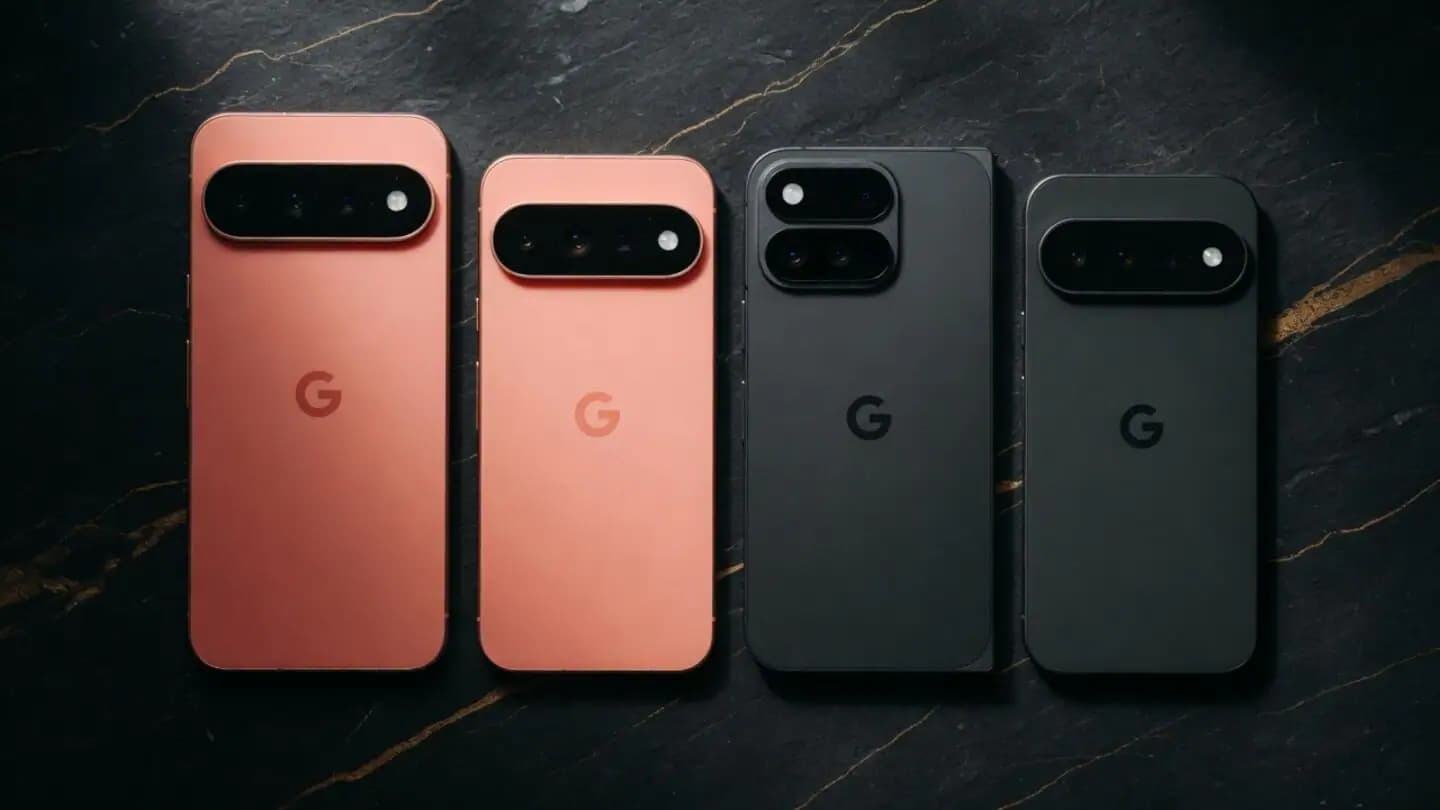
Google is set to unveil its Pixel 11 series on August 12, with the Pixel 11, Pixel 11 Pro, Pixel 11 Pro XL, and Pixel 11 Pro Fold expected to headline the company’s annual hardware event. Google is also expected to announce the Pixel Watch 5 and could introduce the Pixel Tag, its first Bluetooth […]
WhatsApp is finally addressing one of the biggest gaps in its web client, as WhatsApp Web now supports audio and video calls. This requires no download or installation, since it’s built directly into WhatsApp Web, which has also picked up support for screen sharing, reactions, and a dedicated Calls tab showing full call history and […]
Comments & Discussions
Join the conversation! We use Disqus to handle comments. Click the button below to load the comment section.