If you need to find a lost Android phone, open Google Find Hub in a browser or use the Find Hub app on another Android device. Sign in with the Google Account connected to the missing phone, select it, and check its current or most recent location. You can then make it ring, mark it ...
If you need to find a lost Android phone, open Google Find Hub in a browser or use the Find Hub app on another Android device. Sign in with the Google Account connected to the missing phone, select it, and check its current or most recent location. You can then make it ring, mark it as lost, display contact information, or erase it remotely.
The sooner you do this, the better. A phone that still has power and an internet connection gives Find Hub more options, but Google’s offline network may also help locate supported devices that are disconnected—or even powered off.
Google Find Hub is Android’s built-in system for locating phones, tablets, Wear OS watches, headphones, tracker tags, and other supported devices.
When a Google Account is added to an Android device, Find Hub is normally enabled automatically. Google says Android devices store encrypted recent locations and participate by default in a crowdsourced network that uses end-to-end encrypted location information.
To receive help from the offline network, the phone should have a PIN, pattern, or password. Google also notes that the most recent location is available to the first Google Account activated on the device. Google documents these requirements in its Find Hub support guide.
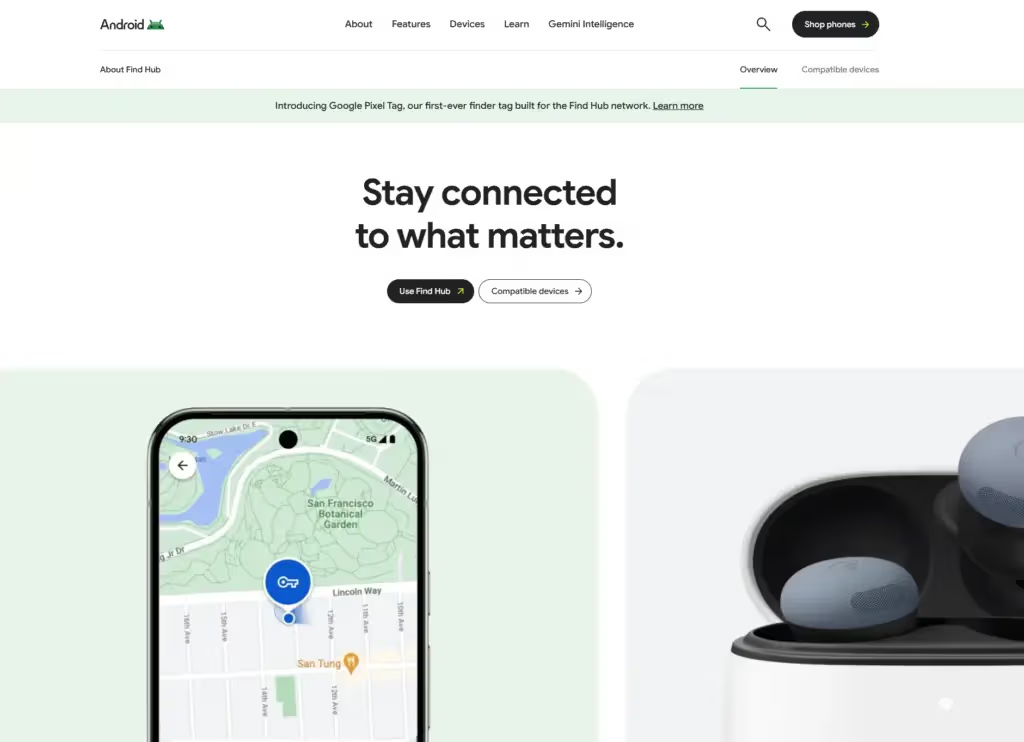
You can access Find Hub from a computer, tablet, iPhone, or any other device with a web browser.
Selecting a phone through Find Hub sends a notification to that device. If its current position is unavailable, the map may show its last known location instead.
Treat the map as an estimate. GPS, nearby Wi-Fi networks, mobile towers, the device’s settings, and whether it is indoors can all affect location accuracy.
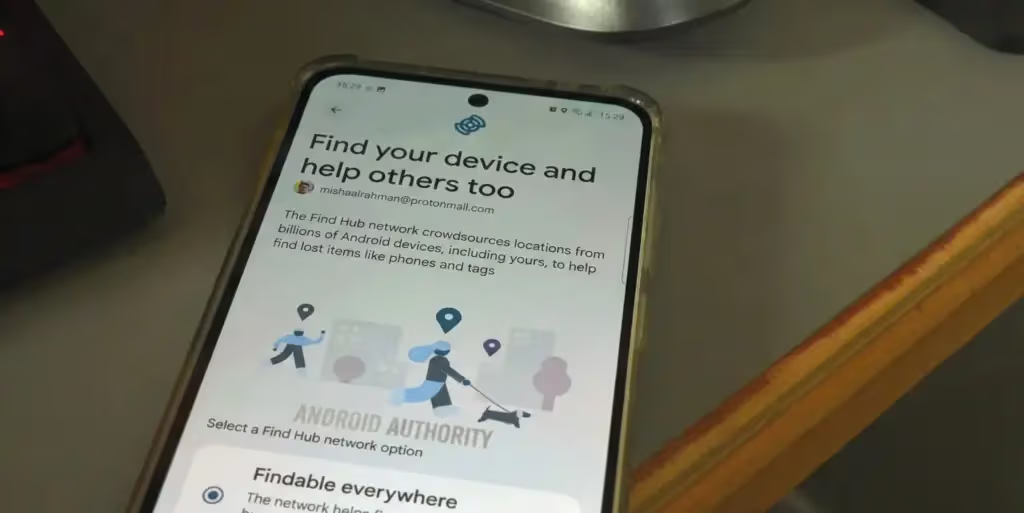
You can also locate the phone through the Find Hub app.
Guest mode is useful when you do not have immediate access to a computer. Remember to sign out after using another person’s device.
Supervised devices managed through Family Link may automatically appear under the Family devices tab.
The three main recovery options do very different things.
| Find Hub action | What it does | When to use it |
|---|---|---|
| Play sound | Rings the phone at full volume for five minutes | The phone is probably nearby |
| Mark as lost | Locks the phone and can display a message and contact details | The phone is outside your immediate reach |
| Factory reset | Permanently deletes data stored on the phone | Recovery appears unlikely and sensitive data is at risk |
Start with the least destructive option. Once the phone has been erased, Find Hub can no longer report its location.
If the map suggests that the phone is at home, in the office, or somewhere else nearby, select Play sound.
Find Hub rings the device at full volume for five minutes, even when it is set to silent or vibrate. This makes it more useful than simply calling your number from another phone.
If the phone is connected to wireless earbuds, those earbuds must be turned on and outside their charging case before they can play the alert.
Some devices also offer Find nearby. When you are within approximately 10 meters, Find Hub may display an indicator that fills in as you approach the missing device. Availability depends on the phone and its supported hardware.
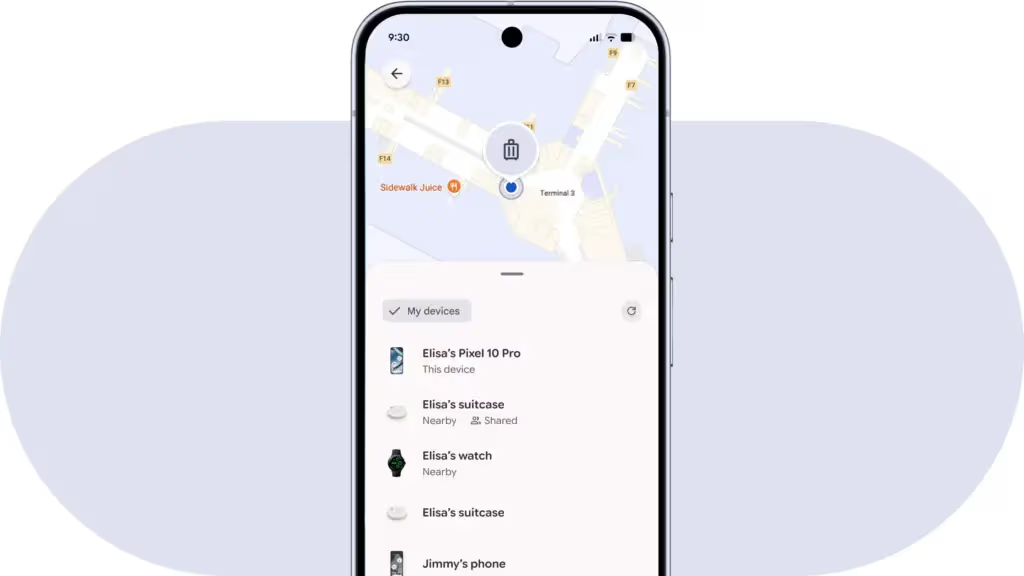
Use Mark as lost when the phone is no longer nearby but may still be recoverable.
The phone will be protected by its existing PIN, pattern, or password. Your message and contact details can appear on its lock screen, allowing someone to return it without gaining access to its contents.
Avoid placing sensitive information in the message. A secondary phone number or the number of a trusted friend is safer than publishing an address.
On Android 17 and newer, Google says a compatible phone with Fingerprint or Face Unlock can require both its screen-lock credential and biometric authentication after it is marked as lost. This protection also restricts access to notifications, widgets, and quick actions.
If the map points to an unfamiliar private location and you believe the phone was stolen, do not attempt to recover it by confronting someone. Record the available location details and contact local law enforcement.
Find Hub can sometimes locate a phone that does not have an active internet connection. Its success depends on how offline finding was configured before the device disappeared.
Android currently offers several offline-finding settings:
Other participating Android devices detect supported nearby items through Bluetooth and securely report their location to Find Hub. Google states that these location reports are end-to-end encrypted.
Some supported phones can remain discoverable for several hours after they are switched off or their battery runs out. Google specifically lists the Pixel 8 series as an example, but this capability is not available on every Android phone.
For powered-off finding to work:
If the missing phone does not support this feature, Find Hub may still display an encrypted recent location saved before it went offline. Google explains the available offline-finding modes in its preparation guide.
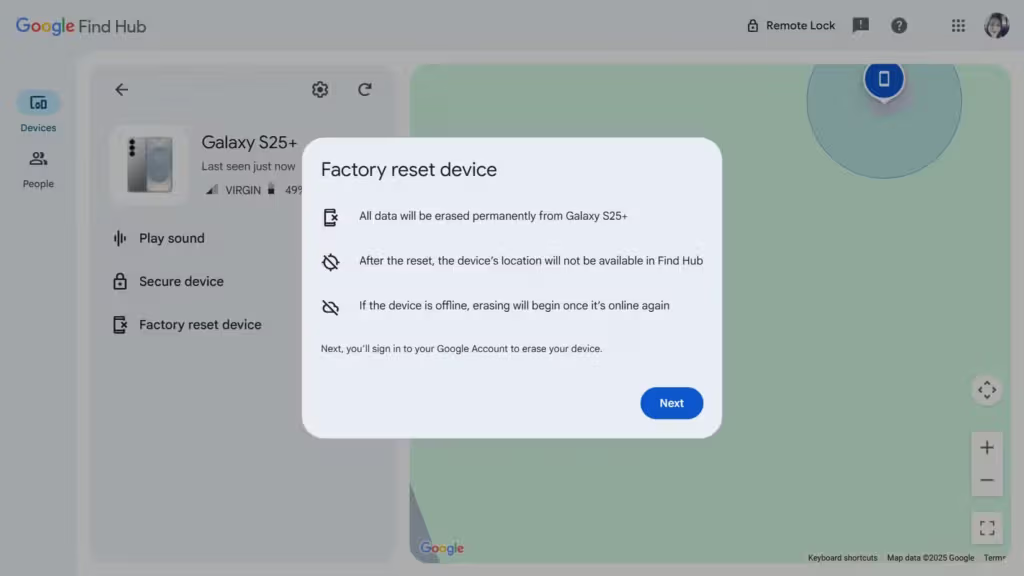
Remote erasure should be the final option. Use it when the phone appears stolen, recovery is unlikely, and protecting the information stored on it is more important than continuing to track it.
To erase the device:
A factory reset permanently deletes the data stored on the phone. Google warns that it may not delete data from an installed SD card.
After erasure, the phone’s location will no longer be available through Find Hub. If you recover the device later, you will need the Google Account password previously associated with it before it can be used again.
If important information exists only on the missing phone, check whether it was synchronized before erasing it. Google Photos, Contacts, Drive, app data, and device backups may already contain copies. Preparing in advance by learning how to back up an Android phone reduces the risk of losing irreplaceable information.
A missing phone may not appear or may show no current location for several reasons.
Check the following:
If two-step verification blocks access to your Google Account because the missing phone was your only authentication method, use a backup code, another signed-in device, a security key, or another recovery method configured on the account.
If you cannot recover the phone, secure the associated Google Account and contact your carrier about suspending the SIM or mobile service.
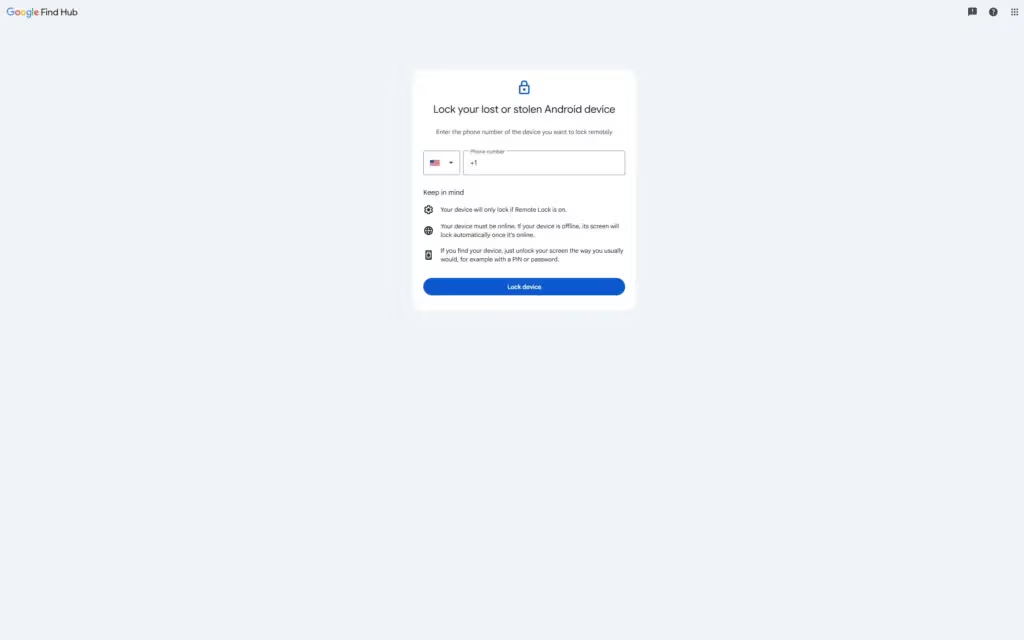
Android also offers Remote Lock, but it must be enabled before the phone is lost. It uses the phone’s verified number to lock the device through android.com/lock.
Remote Lock requires:
If the phone is offline when the request is submitted, Google says the screen will lock automatically after it reconnects. Remote Lock can be used twice within a 24-hour period.
Remote Lock only secures the screen. You must still sign in to Find Hub to locate, mark, or erase the phone. Setup and availability can vary by Android version and device model. Google provides the current requirements in its theft-protection documentation.
Find Hub is most effective when configured in advance.
Open:
Settings > Location > Use location
Menu names can vary slightly between Pixel, Samsung Galaxy, Xiaomi, OnePlus, Motorola, and other Android devices.
Open:
Settings > Security > Find Hub
Make sure Allow device to be located is enabled.
If that path is not available, search for “Find Hub” inside Settings.
Open:
Settings > Google > All services > Find Hub > Find your offline devices
Select the network option that matches your privacy and recovery preferences. You will need a PIN, pattern, or password to receive help from the offline network.
Do not rely on the phone itself as your only way to access your Google Account. Save backup codes securely or configure another authentication method.
Visit the Find Hub website while you still have the phone. Confirm that:
A two-minute test now is much easier than discovering a configuration problem after the phone disappears.
Possibly. Find Hub may show an encrypted recent location or use nearby participating Android devices to locate supported hardware. Offline finding must have been configured before the phone was lost.
Yes. Play sound rings the phone at full volume for five minutes, even when it is set to silent or vibrate.
Yes. Open Find Hub on another Android device and choose Sign in as guest. The owner of the missing phone must then sign in with the appropriate Google Account.
No. Powered-off finding requires compatible hardware and the correct settings. Google identifies the Pixel 8 series as one supported example, but availability varies between devices.
All data stored on the device is permanently deleted, although an SD card may not be erased. Find Hub can no longer display the phone’s location, and the original Google Account password will be required if the device is recovered.
Mark it as lost when recovery still appears possible. Erase it only when protecting its stored data is more important than continuing to locate it.
If your Android phone has just disappeared, use this order:
Find Hub cannot guarantee that every missing device will be recovered. Its effectiveness depends on the phone’s battery, connectivity, security settings, supported hardware, and the preparation completed before it went missing. But when those pieces are in place, it provides a clear path from locating the phone to securing the information stored on it.
Apple Watch Series 12

Robert Haba is the founder and editor-in-chief of Droid Tools. A lifelong gadget enthusiast with over a decade following the Android ecosystem, he built this publication to cut through the noise and give readers honest, real-world coverage of the tech they actually use.

Learn how to turn off Pixel camera AI features like Auto Best Take and Auto Edit on newer Google phones to prevent unwanted photo adjustments.
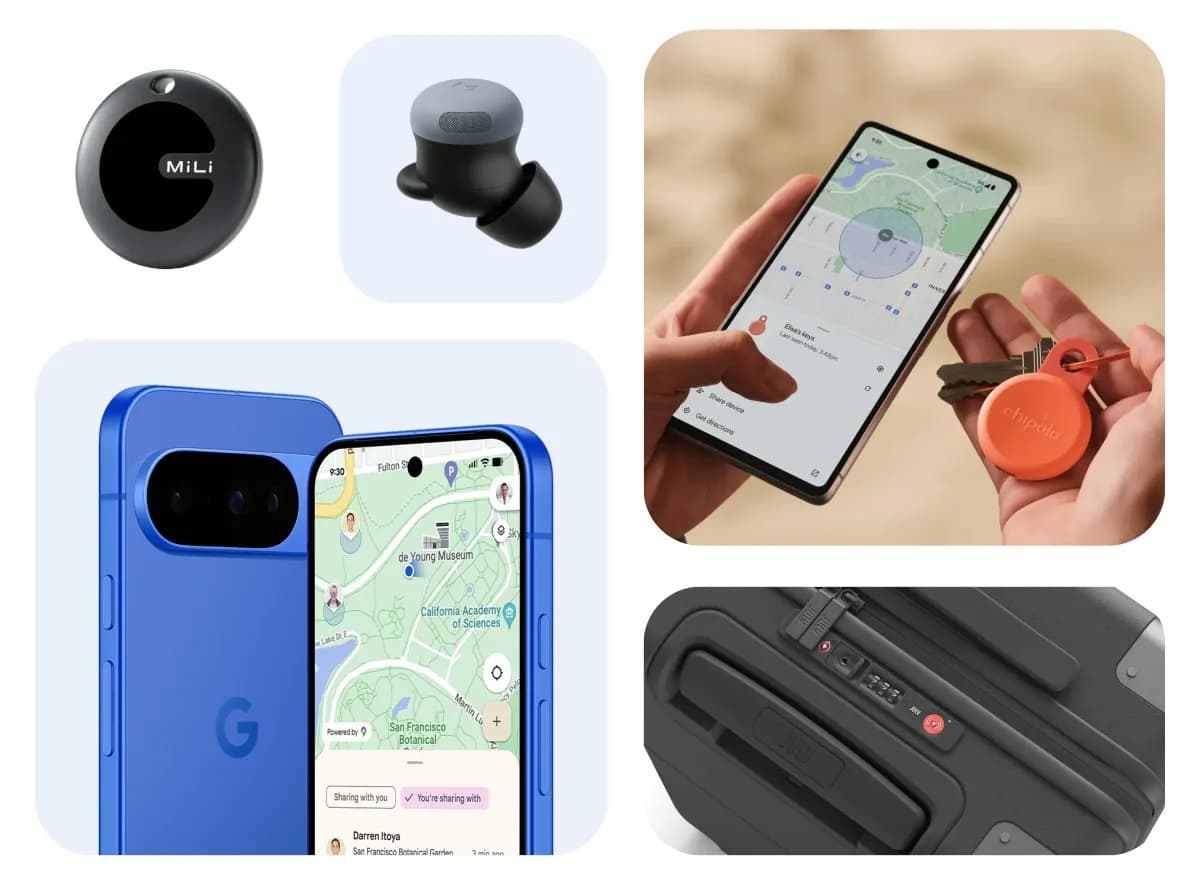
A traveler recovered a lost smartwatch in ten minutes using Pixel Watch Find Hub settings. Learn how to configure location toggles and ring missing devices.

Track the Google Pixel update schedule, including seven-year lifespans for newer models, quarterly patch shifts, and dual Android OS release windows.

Google explained how to manage Android time zones as Canadian regions end seasonal time changes, offering steps for automatic and manual clock adjustments.
The next story loads as you reach the end. You can also load it using the button.


Comments & Discussions
Join the conversation! We use Disqus to handle comments. Click the button below to load the comment section.