Sideloading Android apps carries risks from modified files and missing automatic updates. Checking release sources, inspecting signatures with APK Analyzer, keeping Google Play Protect active, and using Obtainium or APKUpdater reduce risks, though neither update managers nor Google Play Protect can promise every file is safe.
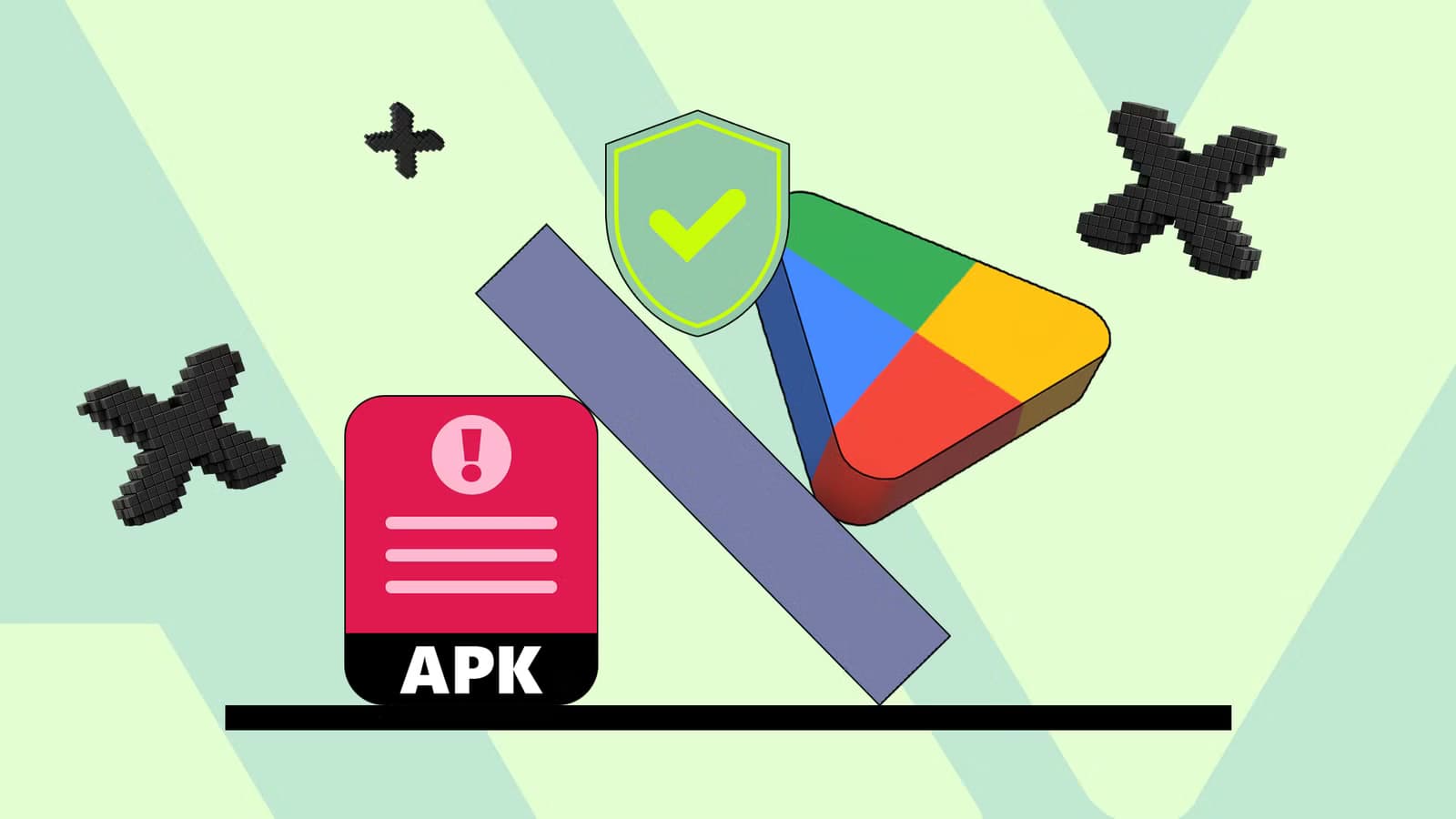
Downloading apps outside the Google Play Store gives access to apps not available in the store. While installing APKs is usually easy, users must ensure the files are real and trustworthy because many fake or modified apps exist online. Sideloaded apps also do not update automatically like Play Store downloads, which means users have to check multiple websites to find new versions.
Being mindful of where APKs come from, checking app signatures, and using update managers like Obtainium help improve decisions when sideloading. These methods do not eliminate every risk, though they improve sideloading decisions.
Before installing an APK, users should check the developer’s website or official release page. Third-party sites make it hard to tell who uploaded a file or if the download is safe. Sources such as F-Droid and GitHub show who made the app along with release details. Extra caution is necessary with sites that offer modified or unlocked versions of popular apps. Free premium features sound tempting, but modified APKs can contain unwanted code or request permissions they should not need.
Even on recognizable sites, users should verify that the file matches the developer’s version. APK Analyzer allows users to open a downloaded APK before installing it to inspect its signing certificate, permissions, version info, and other details.
Keeping Google Play Protect turned on adds an additional scan for harmful software. Play Protect scans every app on the device, including apps installed from outside the Play Store. To verify that it is active, open the Play Store, tap the profile icon, select Play Protect, and ensure that ‘Improve harmful app detection‘ is enabled.
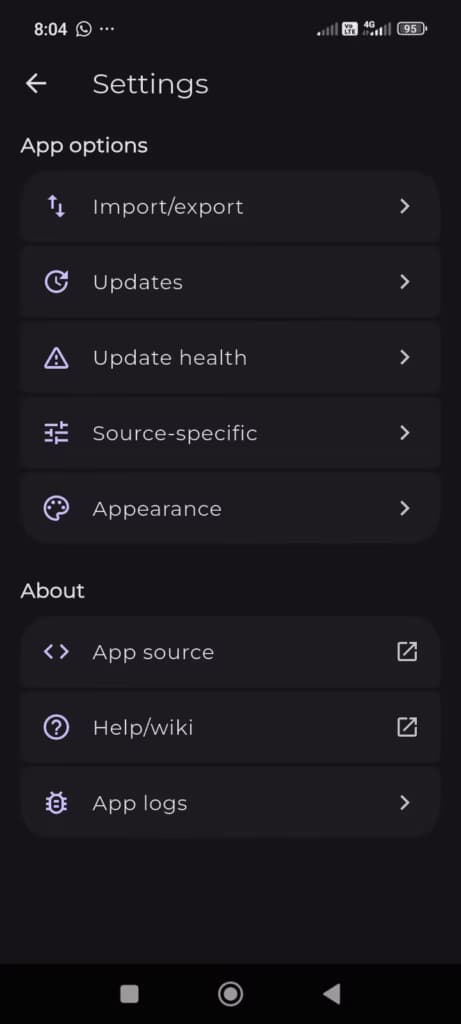
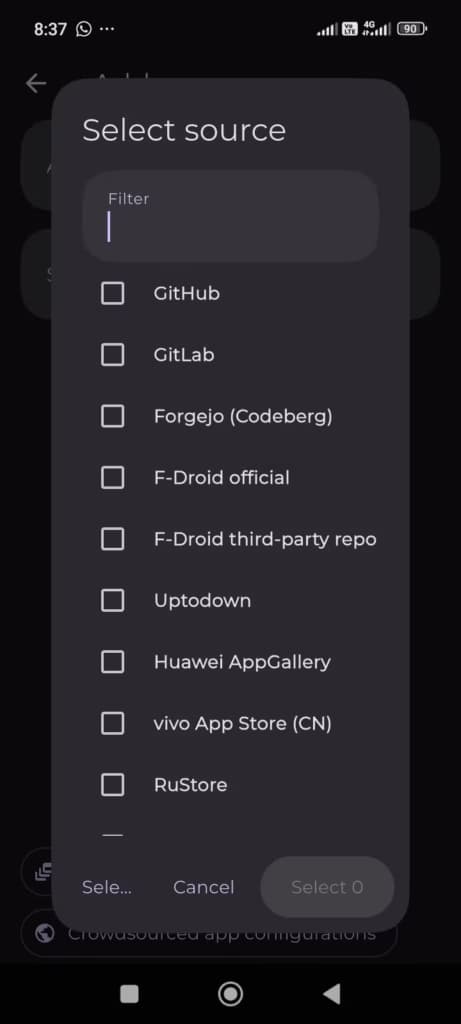
Tracking updates manually across various developer websites is inconvenient. Update managers simplify this process by checking for new releases in one place.
Obtainium provides direct links to sources like F-Droid, GitHub, and others. Users add an app using its release page, and Obtainium checks that source for newer versions. This removes the need to remember and visit multiple websites. APKUpdater offers another option for users who want to check several supported repositories. With either tool, users must still check the source of an update before installing it, as finding an updated APK does not guarantee it is the right file.
Android requires permission before an app can install an APK. Users must grant permission to the app handling the installation, such as a file manager, and can turn that permission off once the installation finishes. Users should also review the permissions requested by the APK itself. Any app asking for access to contacts or text messages without an obvious reason calls for caution before installation.
Android updates require matching signing keys. The operating system only allows an app to update if the new APK is signed with the same key as the currently installed version. If the developer does not explain why an update has a different signature, users should avoid installing it and check the developer’s release notes for an explanation.
If an update fails because the signing keys do not match, users should not immediately uninstall the existing app. Because uninstalling deletes local data, users should first confirm whether they downloaded the correct release and only uninstall if they understand why the update failed.
Installing APKs allows users to run software outside the Google Play Store. Checking developer release pages, verifying signatures, reviewing permissions, and keeping Google Play Protect active are practical first steps. Update managers such as Obtainium and APKUpdater eliminate the need to check multiple websites for updates. Neither update managers nor Play Protect can guarantee that every file is safe. Sticking to trusted sources and inspecting files allows users to sideload with more confidence.

Apple AirPods Pro 3

Robert Haba is the founder and editor-in-chief of Droid Tools. A lifelong gadget enthusiast with over a decade following the Android ecosystem, he built this publication to cut through the noise and give readers honest, real-world coverage of the tech they actually use.
Learn how to use Gemini hands-free to control device settings, place calls, dictate messages, and handle tasks from the lock screen.

Learn how to turn off Pixel camera AI features like Auto Best Take and Auto Edit on newer Google phones to prevent unwanted photo adjustments.
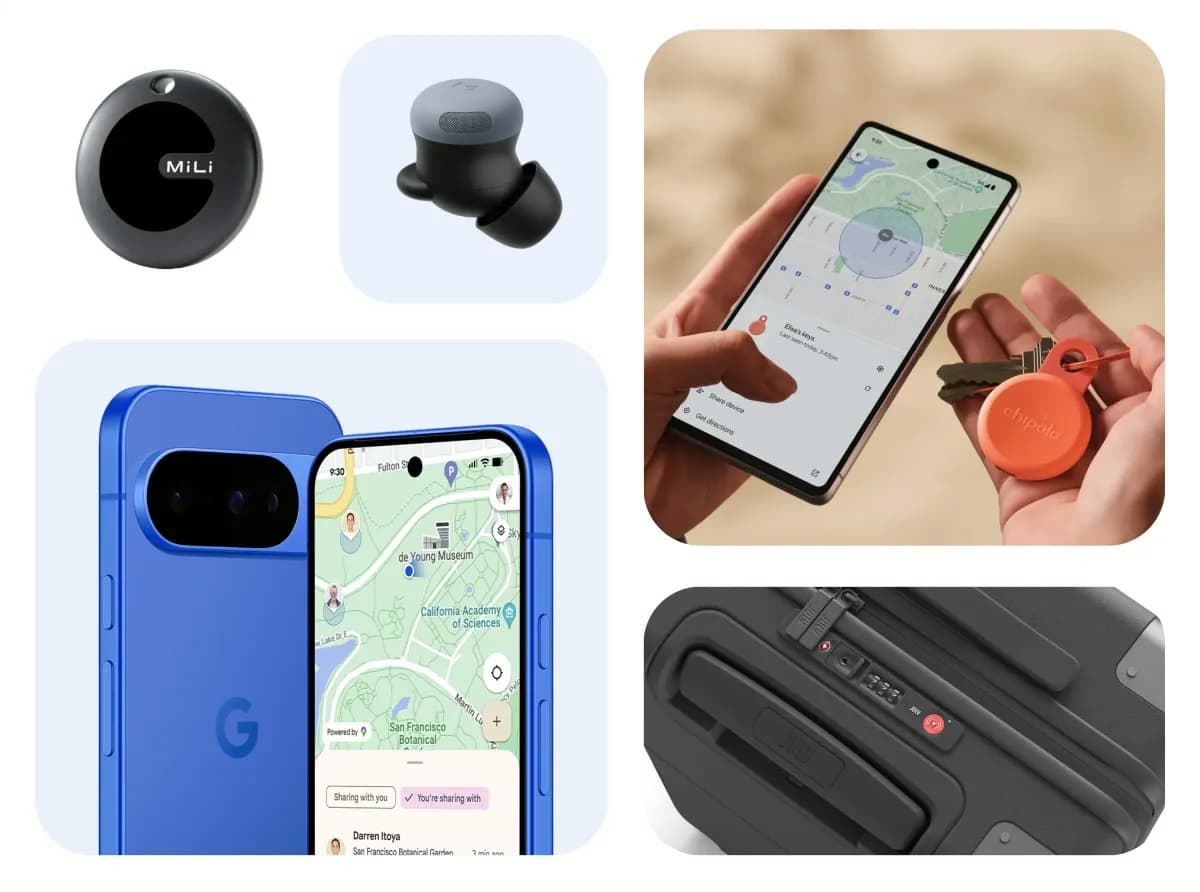
A traveler recovered a lost smartwatch in ten minutes using Pixel Watch Find Hub settings. Learn how to configure location toggles and ring missing devices.

Track the Google Pixel update schedule, including seven-year lifespans for newer models, quarterly patch shifts, and dual Android OS release windows.
The next story loads as you reach the end. You can also load it using the button.


Comments & Discussions
Join the conversation! We use Disqus to handle comments. Click the button below to load the comment section.