Overnight charging subjects phone batteries to prolonged high voltage and heat, accelerating cathode degradation. Modern Android phones mitigate this wear through adaptive charging routines tied to morning alarms or strict 80 percent charge limits, while disabling bedside wireless fast charging curtails added thermal stress.

Smartphones have reached a point where many owners worry far more about long-term battery health than peak fast-charging speeds. Plugging a device in before going to sleep remains a common routine, often helping people keep their hands off their screens late at night. Yet daily overnight charging carries a hidden cost for internal hardware. In one real-world test, a reviewer observed that a Samsung Galaxy S25 Ultra suffered noticeable battery degradation after eighteen months of nightly charging, resulting in significantly shorter screen-on time during daily use.
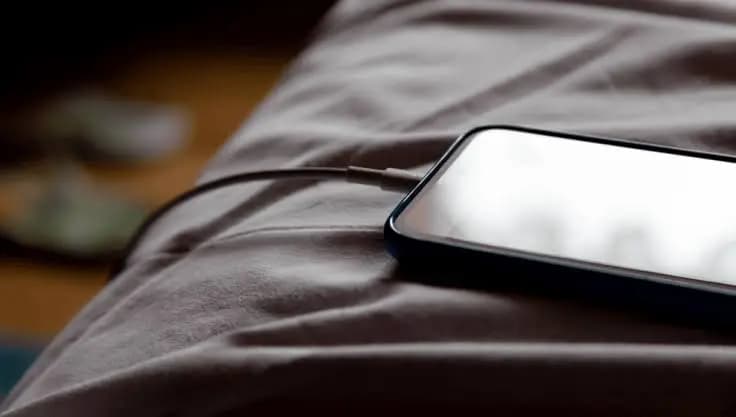
Modern handsets rely on sophisticated power-management integrated circuits and software safeguards to regulate incoming power. These components prevent catastrophic failures and mechanical overcharging, but they cannot stop the natural chemical aging of lithium-ion cells or the physical impact of heat. The process of charging generates warmth, and exposing a cell to elevated temperatures over extended periods gradually damages its chemistry.
Internal voltage creates an even greater concern during prolonged bedside charging. As a lithium-ion battery nears maximum capacity, its internal voltage climbs to 4.4 volts or higher. Holding a cell at this elevated tension for six to eight continuous hours subjects internal materials to heavy structural stress. That extended saturation triggers undesirable chemical reactions and degrades the cathode structure, permanently eroding the amount of energy the cell can retain. Certain phone models also resume charging as soon as the level dips slightly below full, generating repetitive micro-cycles throughout the night. Chemical degradation accelerates when a battery remains parked at maximum voltage for hours. Brief exposure to full capacity right before morning introduces minimal strain compared to hours of continuous saturation.
Users concerned about battery longevity do not need to give up bedside charging entirely. Google and Samsung now provide operating-system tools specifically built to address overnight power delivery. On Google Pixel hardware, this feature is called Adaptive Charging. Samsung Galaxy devices handle the same function under the name Sleep Time Protection.
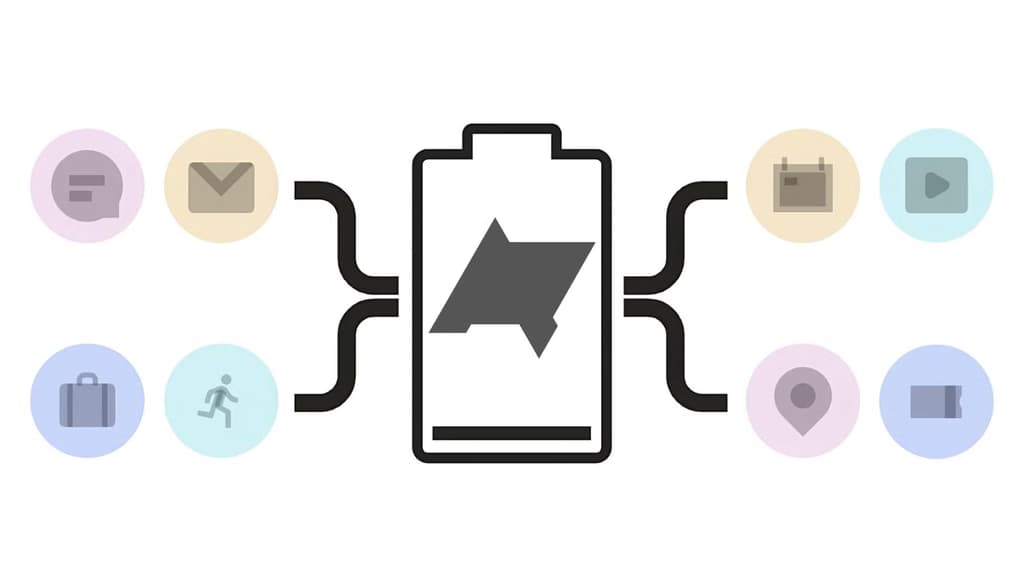
Activating these automated routines takes only a few taps in system preferences. On a Samsung Galaxy phone, open Settings, tap Battery, select Battery Protection, and turn on the Sleep time protection toggle. On a Google Pixel handset, navigate to Settings, choose Battery, tap Battery Health, and switch on Adaptive Charging.
Once enabled, these modes observe daily sleep patterns and synchronize with active morning alarms. The phone quickly charges up to 80 percent before the user falls asleep, halts power intake during the night, and finishes the remaining 20 percent just before the morning alarm rings. The handset still reaches full charge by morning, spending roughly twenty minutes at peak voltage instead of six to seven hours.
These adaptive schedules depend heavily on set morning alarms and consistent sleep routines. Shift workers or individuals with irregular hours require a more predictable safeguard, which is where hard charge caps become useful. Restricting maximum charge previously required third-party software or root permissions, but current Android builds incorporate hard limits directly into core settings. On a Google Pixel running Android 11 or newer, navigate to Settings, tap Battery, select Battery Health, and access Charging Optimization to establish an 80 percent ceiling.
Samsung Galaxy owners can configure a similar cap by opening Settings, selecting Battery, tapping Battery Protection, and picking Maximum. Users can choose among several cutoff thresholds, typically 80, 85, 90, or 95 percent, with 80 percent recommended for optimal cell preservation. Once the phone reaches that selected cap, it stops charging the battery and draws operating power directly from the wall outlet to run background processes.
Nightstand wireless pads introduce an additional layer of heat that many device owners overlook. Wireless induction charging operates with less electrical efficiency than a standard USB cable, converting wasted energy into ambient heat. Leaving a handset on a wireless pad all night keeps the battery warm for hours.
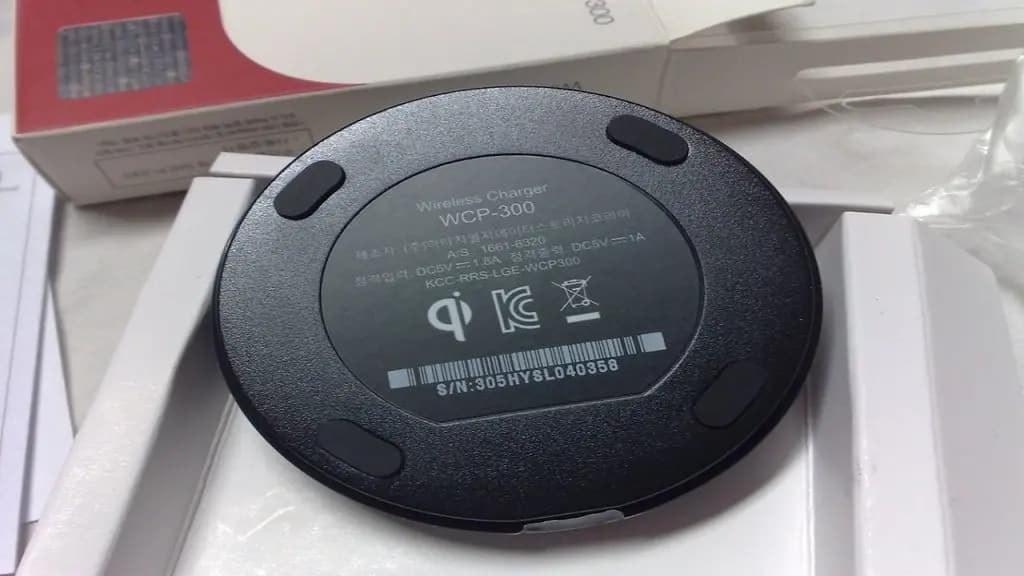
Enabling fast wireless charging magnifies this thermal burden. While Google Pixel handsets regulate wireless temperatures through background thermal throttling, Samsung Galaxy devices allow users to turn off fast speeds manually. Owners can open Settings, select Battery, tap Charging settings, and toggle off Fast wireless charging. Turning off standard Fast charging in the same menu is also recommended for anyone who alternates between wired and wireless connections overnight.
Capping charge limits at 80 percent and turning off fast bedside charging minimizes wear on internal battery cells over time. Users who still want a full 100 percent charge every morning can switch to adaptive overnight routines to avoid subjecting their devices to continuous high-voltage tension throughout the night.
Ring Indoor Cam 2K

Luiza Mosneagu is Reviews Editor at Droid Tools. A psychologist by training and tech writer by passion, she has tested over 60 Android devices since 2020 - always for a minimum of two weeks before writing a word. Her focus is camera quality, everyday usability, and cutting through marketing claims to tell you what a device is actually like to live with.

Learn how to turn off Pixel camera AI features like Auto Best Take and Auto Edit on newer Google phones to prevent unwanted photo adjustments.
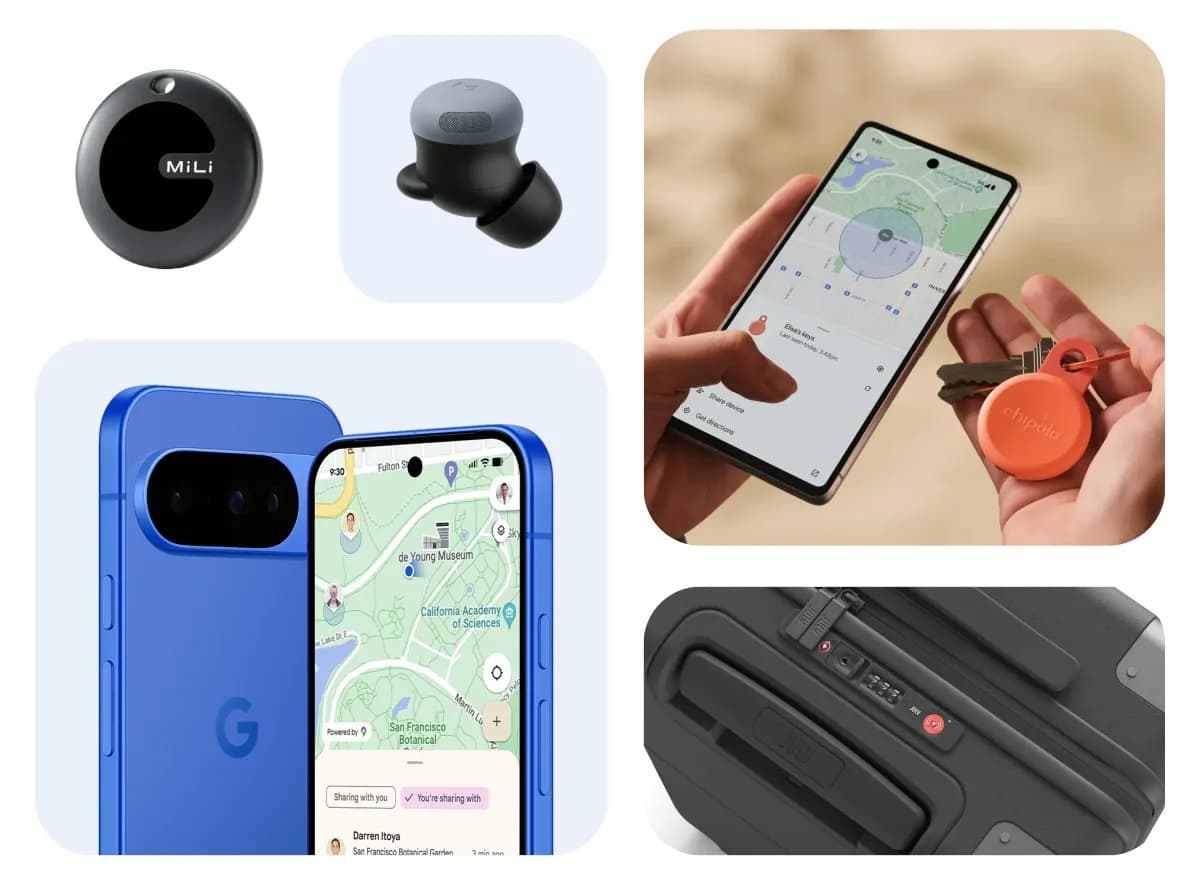
A traveler recovered a lost smartwatch in ten minutes using Pixel Watch Find Hub settings. Learn how to configure location toggles and ring missing devices.

Track the Google Pixel update schedule, including seven-year lifespans for newer models, quarterly patch shifts, and dual Android OS release windows.

Google explained how to manage Android time zones as Canadian regions end seasonal time changes, offering steps for automatic and manual clock adjustments.
The next story loads as you reach the end. You can also load it using the button.


Comments & Discussions
Join the conversation! We use Disqus to handle comments. Click the button below to load the comment section.