The safest way to free up storage on Android is to remove temporary files, delete offline downloads you can retrieve again, archive unused apps, and move backed-up photos or large files off the device. Start by checking what is using the space, then work from the least destructive options to the most destructive. Do not ...
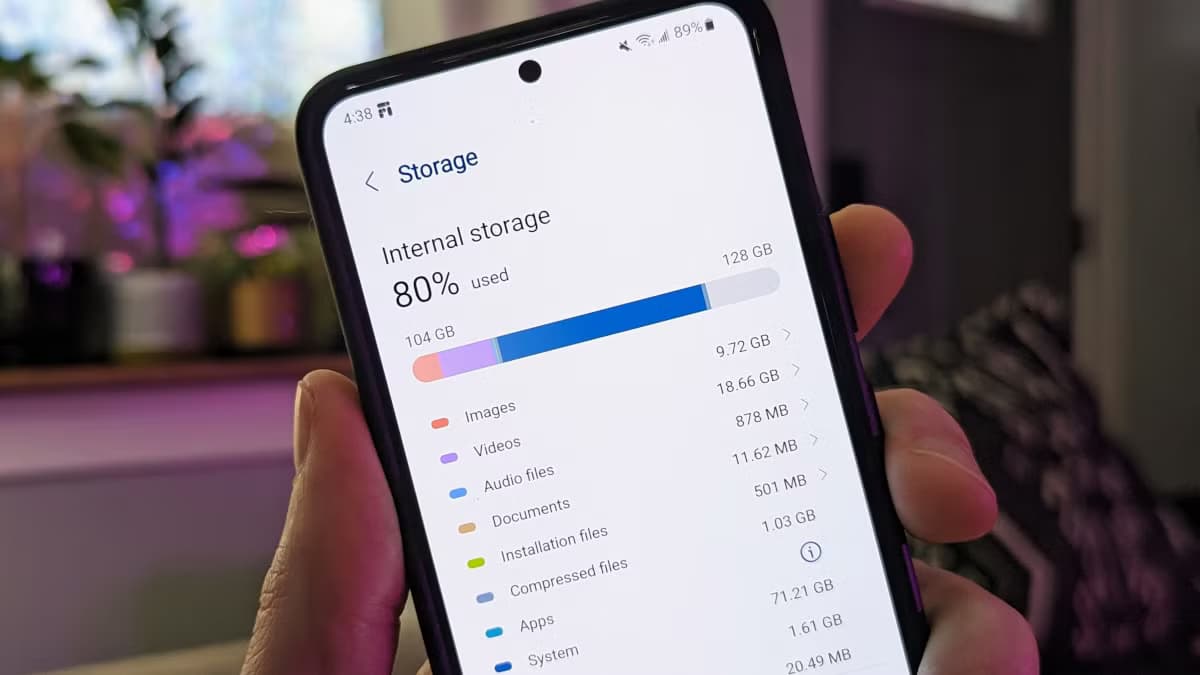
The safest way to free up storage on Android is to remove temporary files, delete offline downloads you can retrieve again, archive unused apps, and move backed-up photos or large files off the device. Start by checking what is using the space, then work from the least destructive options to the most destructive.
Do not tap Clear storage, delete unknown folders, or use Google Photos’ Free up space feature until you understand what each option removes. Some cleanup actions are reversible, while others permanently erase local files.
Before deleting anything, find the category responsible for the problem. A phone with 20 GB of videos needs a different cleanup strategy from one with an oversized app cache.
On many Android phones:
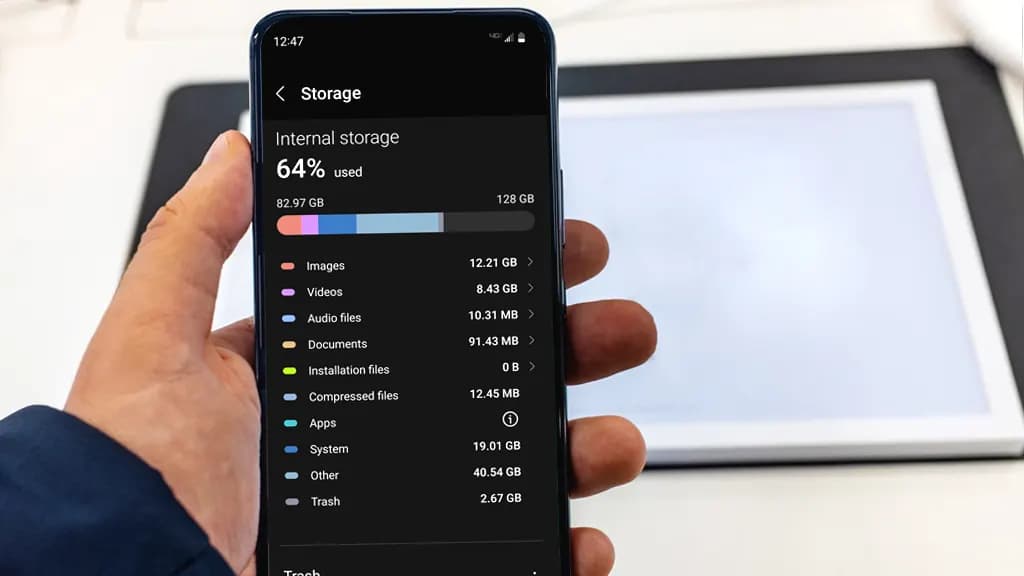
Depending on your device, Android may separate the used space into:
Tap a category to see more information when Android allows it.
If a single app occupies several gigabytes, clearing temporary files or removing offline content from that app may solve the problem. If photos and videos are the largest category, concentrate on backing them up and removing only the local copies.
Android uses the terms storage and memory for two different resources.
Storage holds apps, photos, videos, downloads, and other files. This is the space measured in gigabytes on a 128 GB or 256 GB phone.
Memory, also called RAM, is the temporary workspace used by running apps and Android itself. Closing an app can free RAM, but it does not normally create meaningful long-term storage space.
Some device-cleaning screens place storage and memory controls next to each other. Make sure you are managing storage if the phone says it is running out of space.
Routine cache removal should not affect personal files, but broader cleanup tools may recommend photos, videos, documents, and app data for deletion.
Before continuing, protect anything that cannot easily be replaced:
Our guide to backing up an Android phone explains how to create a Google backup and protect local files.
For especially important files, keep two independent copies—for example, one on a computer and another in cloud storage. Open a few files from the backup destination to verify that the transfer actually finished.
Offline media often consumes a surprising amount of storage. Streaming, podcast, navigation, and social media apps may keep downloaded content until you remove it manually.
Check apps you use for:
Remove downloads from inside the app that created them. This is usually safer than finding and deleting the files through a file manager because the app understands its own storage structure.
Google recommends managing downloaded movies, music, and other media through the application used to download them. The relevant option may be called Downloads, Offline content, Manage downloads, or Storage.
The benefit of starting here is simple: most of this content can be downloaded again later. Removing a cached TV episode is less risky than deleting a folder of family photos.
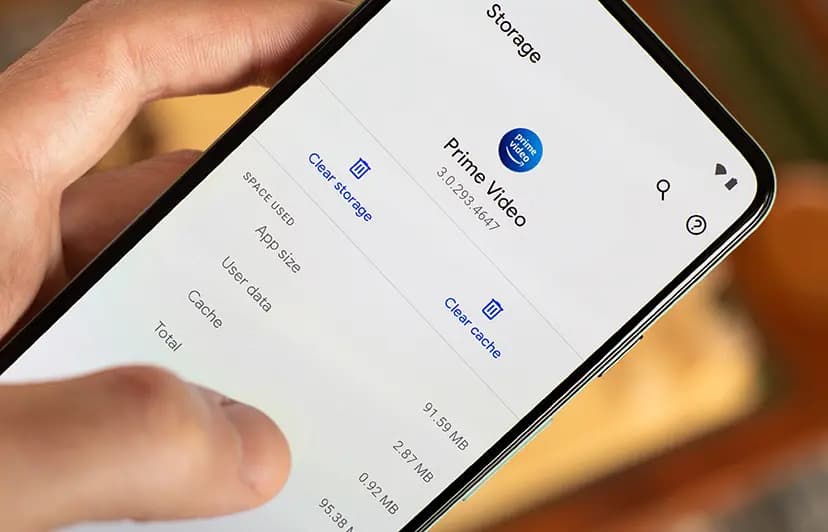
Apps create temporary files to load content more quickly. Web browsers may cache images, music apps may cache album artwork, and social apps may retain temporary media.
To clear an individual app’s cache on many Android devices:
Menu names differ between manufacturers, but the app’s information page usually contains the storage controls.
Google explains that Clear cache deletes temporary data. The application might load more slowly the next time you open it because it must recreate or download some of that information. Google’s Android storage guide distinguishes this from clearing an app’s storage.
The two buttons have very different consequences:
| Option | What it normally does | Risk |
|---|---|---|
| Clear cache | Removes temporary files created by the app | Low |
| Clear storage or Clear data | Deletes the app’s locally stored information and resets it | High |
| Uninstall | Removes the app and may remove its local data | High |
| Archive | Removes the app software while retaining its icon and supported personal data | Lower |
Tapping Clear storage can sign you out, reset preferences, remove downloaded content, or erase locally stored app information. The exact result depends on the app.
Before using it, open the app and check whether its important information is synchronized with an account. If the app provides its own backup or export function, use that first.
Clearing cache is generally a temporary fix. The files can return as you continue using the app, so repeatedly clearing every cache is not a substitute for finding the underlying storage problem.
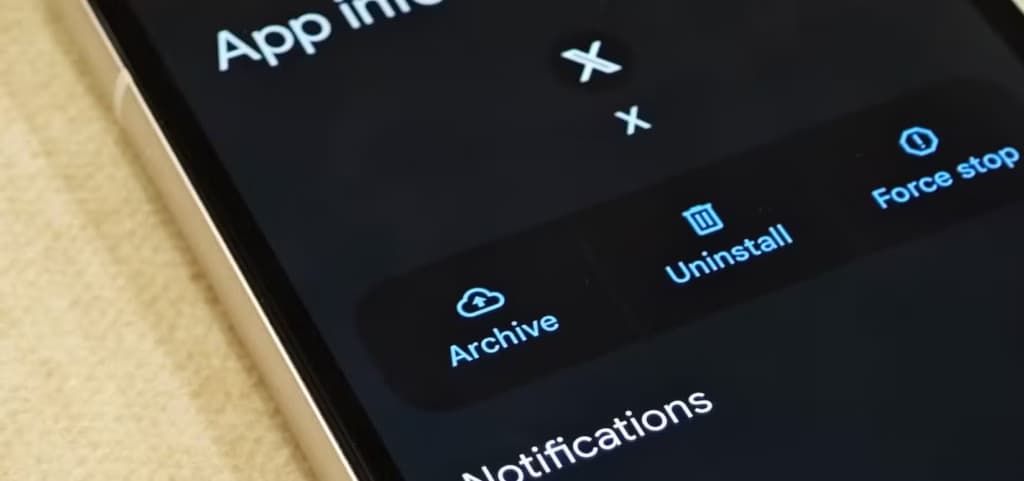
App archiving is useful when you rarely use an application but want to keep its icon and supported personal information.
When Android archives an app, Google says it removes the app software, permissions, and temporary files, stops its notifications, and retains its icon and data. You can restore it later by tapping the dimmed app icon, provided the app remains available from the relevant app store.
Manual archiving is available on supported devices running Android 15 or later:
An archived app has a dimmed icon with an archive symbol. Tap the icon to download the app again.
You can also allow a supporting app store to archive infrequently used apps automatically. Availability can depend on the device and app.
Google’s app archiving documentation notes that some archiving features require Android 15 or later and supported hardware.
Do not archive an application you may need without internet access. Restoring it requires another download, and the app must still be available through the app store.
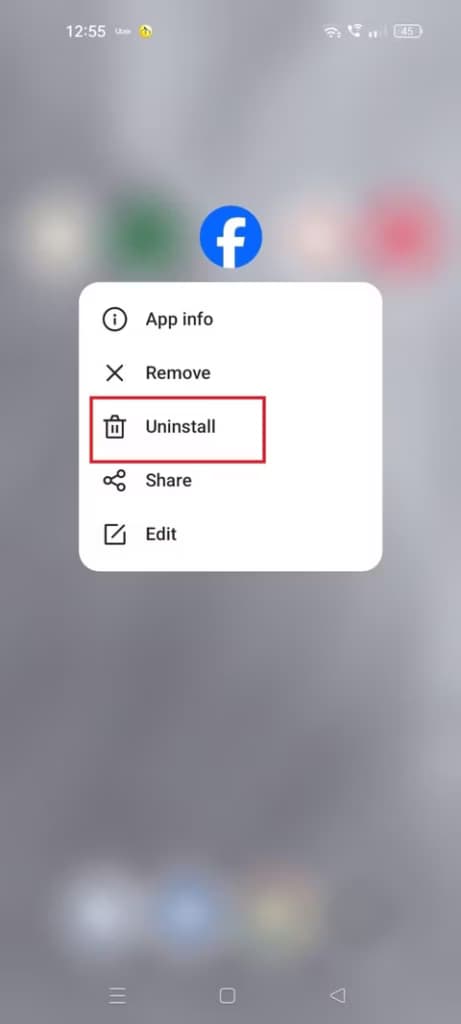
If an app has not been used for months and contains no important local data, uninstalling it can recover more space than repeatedly clearing its cache.
To review and uninstall applications through Google Play:
Paid apps associated with your Google Account can generally be downloaded again without buying them a second time. That does not guarantee that their local settings, projects, downloads, or progress will return.
Before uninstalling a large app, check:
System apps installed by the manufacturer may not offer a normal uninstall button. Some can be disabled, but disabling them may not recover as much storage as uninstalling a downloaded app.
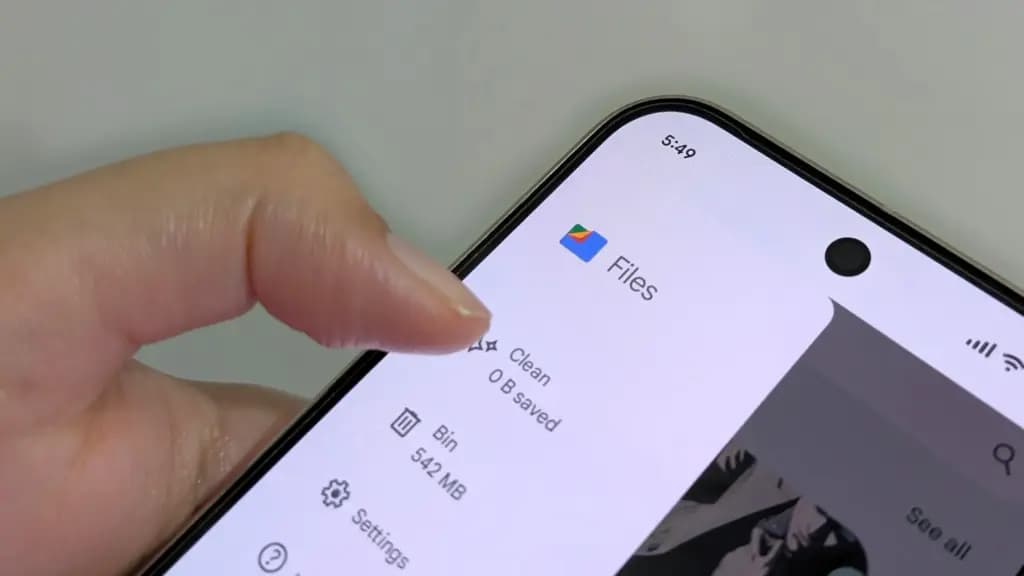
Files by Google can identify several common storage problems, including junk files and duplicates.
Open Files by Google, then tap Clean from the main menu. The available recommendation cards depend on what the app finds.
They may include:
On the Junk files card:
Google says junk files are temporary files created by apps and that removing them does not affect app settings. However, its Files by Google instructions also warn that files deleted through this particular cleanup action are permanently deleted.
Review the confirmation screen before proceeding.
Files by Google can also identify matching files:
Google marks one copy with an Original badge and recommends keeping that file. Still, open duplicates before deleting them when their names or locations matter. Two files that look identical might be stored in separate project or application folders for a reason.
Do not accept every cleanup recommendation automatically. “Large” means the file occupies significant space, not that it is unnecessary.
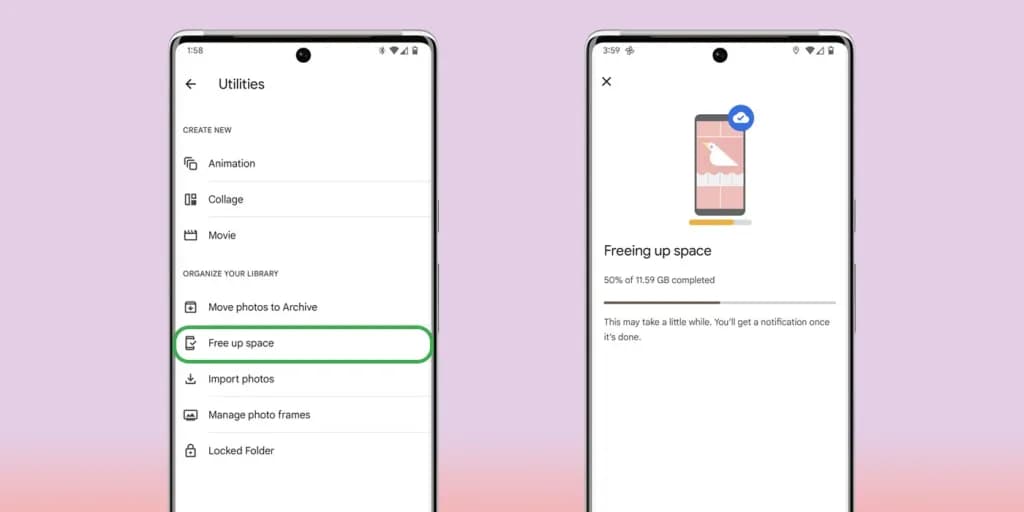
Photos and videos are often the largest removable category on an Android phone. Google Photos can remove local copies after they have been backed up to your Google Account.
Before using the feature:
Also review Photos settings > Backup > Back up device folders. Camera photos may be protected while screenshots, downloaded media, or images created by other apps remain local.
Once the backup has been verified:
This action deletes local copies from the phone. The backed-up versions remain accessible in Google Photos and at photos.google.com.
According to Google Photos Help, removed items can still be viewed, edited, shared, and managed through Google Photos. However, they may no longer appear in the phone manufacturer’s Gallery app, and you might not be able to view them without internet access.
There is an important difference:
Do not select photos and tap the regular Trash button when your goal is merely to remove local copies. Google warns that deleting a backed-up photo from the Photos app can also delete it from the Google Photos library and other devices using backup.
Large files do not need to remain in internal storage, but they do not necessarily need to be erased.
You can move them to:
After the transfer, open the destination and test several files. Compare folder names, file counts, and recent dates before deleting the originals.
Do not disconnect external storage while files are being copied.
For photos and videos, keeping their original folder structure can make the archive easier to understand. For documents, use descriptive folders rather than moving everything into one unsorted directory.
Gallery and file-management apps may retain deleted items in Trash for a limited time. This makes accidental deletion recoverable, but the files can continue using storage while they remain there.
Check:
Open the Trash and verify that it contains nothing important before emptying it.
Emptying Trash is normally permanent. Do not do it merely because a cleanup application recommends it.
Menu paths can vary between Android versions, but on a Pixel or a phone with a similar interface, start with:
If a particular menu is missing, use the search box in Settings for terms such as storage, archive apps, or clear cache.
On current Samsung Galaxy devices:
Samsung’s storage support guide also documents separate controls for app cache and device memory.
To clear an individual app cache:
Do not select Clear data unless you are prepared to reset that application.
Samsung’s Memory > Clean now option closes background apps and frees RAM. It does not provide the same long-term benefit as removing large files from internal storage.
Samsung My Files may keep deleted items in Trash for 30 days on supported phones. You may need to empty that Trash before the storage becomes fully available, but verify its contents first.
On many Xiaomi, REDMI, and POCO phones running MIUI or HyperOS:
Another common path is:
Xiaomi’s official guidance lists both the Storage and Security-app cleanup routes.
Be especially careful with Deep clean. Xiaomi warns that this feature can display videos, photos, applications, installation packages, large files, and app data. Its recommendations are not limited to harmless cache.
Xiaomi also advises against deleting unknown files from the Other category without inspecting their directories. These files can belong to apps, offline packages, or other data that an application still needs.
Do not delete a file simply because its name looks unfamiliar or because Android places it in the Other category.
Be careful with:
Avoid random “phone cleaner” apps that promise automatic optimization. A third-party cleaner may request broad access to files, photos, notifications, usage data, or installed applications. Android, Files by Google, and manufacturer tools already provide the controls needed for most cleanup tasks.
The System category contains Android and manufacturer software required for the phone to operate. You should not try to delete system files manually.
The Other category may combine:
To reduce it safely:
Do not attempt to erase protected Android folders by connecting the phone to a computer. Removing the wrong application or system files can cause data loss or app failures.
A phone that becomes full again within days probably has an application continuously downloading or generating data.
Check for:
Open Settings > Storage > Apps and compare the largest applications. If one app’s storage grows rapidly, use its internal controls or contact its developer before clearing all of its data.
Some storage usage will return naturally after cache removal. The goal is not to keep every cache at zero but to prevent temporary and unnecessary content from consuming most of the phone.
Start by deleting offline downloads that can be retrieved again, clearing individual app caches, and archiving unused apps. Then move important files elsewhere and use Google Photos’ Free up space option only after verifying that backup is complete.
Clearing an application’s cache normally removes temporary files rather than personal account data. However, always make sure you selected Clear cache, not Clear storage or Clear data.
The app is reset and its locally stored data is permanently deleted. You may be signed out, lose downloads and preferences, or erase information that was never synchronized.
It is designed to remove local copies that Google Photos considers backed up. Verify the correct account, wait for Backup complete, and check recent photos at photos.google.com first. The removed media may no longer be available in another Gallery app or while offline.
Google says Android app archiving retains the app icon and personal data while removing the software, permissions, temporary files, and notifications. Support depends on the Android version, device, and app store.
The System category contains Android, manufacturer software, and files needed for the phone to operate. Its size can change after updates. Do not try to delete system files manually.
Cache contains temporary data and may not be the primary storage problem. Photos, videos, games, messaging attachments, and offline downloads often occupy considerably more space.
Usually, yes. Apps available through Google Play can be downloaded again, and paid apps associated with your account generally do not need to be purchased again. Local app data may not return unless the app supports backup or synchronization.
A factory reset is rarely the first solution. It erases personal data and applications, while the same storage problem may return after apps and backups are restored. Use it only after backing up your data and exhausting safer cleanup options.
When Android storage is full, use this order:
This approach may take slightly longer than tapping a one-button cleaner, but it protects the files that matter. The objective is not simply to delete as much as possible—it is to recover useful space while keeping your photos, documents, conversations, and application data intact.
Google Pixel 11 Pro

Robert Haba is the founder and editor-in-chief of Droid Tools. A lifelong gadget enthusiast with over a decade following the Android ecosystem, he built this publication to cut through the noise and give readers honest, real-world coverage of the tech they actually use.

Track the Google Pixel update schedule, including seven-year lifespans for newer models, quarterly patch shifts, and dual Android OS release windows.

Google explained how to manage Android time zones as Canadian regions end seasonal time changes, offering steps for automatic and manual clock adjustments.

Quick Share for Windows transfers files from Android to your PC over Wi-Fi at rates up to 100MB/s, bypassing email and third-party cloud uploads.

Overnight charging exposes phone batteries to sustained high voltage and heat. Learn how Google Pixel and Samsung Galaxy settings stop cell degradation.
The next story loads as you reach the end. You can also load it using the button.


Comments & Discussions
Join the conversation! We use Disqus to handle comments. Click the button below to load the comment section.