Skip to content
Droid ToolsDroid Tools
Home

Explore

  • News
    430
  • OS
    272
  • Apps
    236
  • Phones
    191
  • Guides
    177
  • Wearables
    106
  • Reviews
    16

Latest Articles

  • OnePlus ColorOS 17 Rollout Sets Android 17 Dates as OxygenOS Retires
    OS

    OnePlus ColorOS 17 Rollout Sets Android 17 Dates as OxygenOS Retires

  • Android 17 November 2026 update comes with 12+ new features as Pixel Drop rolls out
    OS

    Android 17 November 2026 update comes with 12+ new features as Pixel Drop rolls out

  • Google Adds Step-by-Step Workout Guidance to Pixel Watch in November Pixel Drop
    Wearables

    Google Adds Step-by-Step Workout Guidance to Pixel Watch in November Pixel Drop

  • Pixel 11 Pro HiLight gains Google Messages support in November Pixel Drop
    Apps

    Pixel 11 Pro HiLight gains Google Messages support in November Pixel Drop

  • WhatsApp tests original media quality option and personal cover photos in Android beta
    Apps

    WhatsApp tests original media quality option and personal cover photos in Android beta

Live Offers

Deal Alerts

Browse reported discounts on phones, wearables, and accessories. Check the retailer for the current price and availability.

View All Deals

Latest Deal Alerts

  • Sony WF-1000XM6 earbuds drop to $238 in limited B&H Photo Video discount
    🔥 Offer

    Sony WF-1000XM6 earbuds drop to $238 in limited B&H Photo Video discount

  • Walmart cuts iVANKY ultra-slim magnetic power bank to $15 in 50% discount
    🔥 Offer

    Walmart cuts iVANKY ultra-slim magnetic power bank to $15 in 50% discount

  • 🔥 Offer

    Amazon offers $749 Pixel 10 Pro XL deal as memory prices climb

  • Moto Tag 2 price increases to $29.99 as introductory discount ends
    🔥 Offer

    Moto Tag 2 price increases to $29.99 as introductory discount ends

  • Samsung Galaxy S26 discounts continue on Amazon after October Prime Day
    🔥 Offer

    Samsung Galaxy S26 discounts continue on Amazon after October Prime Day

About UsContact
Editorial PolicyReview Policy
Privacy PolicyCookie PolicyTerms & Conditions
⌘K
Search
Official Channels10 Profiles
FacebookX (Twitter)InstagramThreadsLinkedInBlueskyTikTokTelegramMastodonRSS Feed
Droid Tools

Droid Tools covers the latest Android news, device reviews, app updates, and OS guides. Stay informed with hands-on coverage from mobile tech experts.

Explore

  • News
  • Phones
  • Apps
  • Android OS
  • Wearables
  • Guides
  • Reviews
  • Deals

Legal & Info

  • About Us
  • Contact
  • Editorial Policy
  • Review Policy
  • Privacy Policy
  • Terms & Conditions
  • Cookie Policy
  • Affiliate Disclosure
  • Disclaimer
  • HTML Sitemap
© 2026 Droid Tools. All rights reserved.
Home/Guides/How Google Home Wi-Fi presence detection improves Home and Away routines
Guides
•google

How Google Home Wi-Fi presence detection improves Home and Away routines

Adding a home network to Google Home Wi-Fi presence settings helps determine whether someone is home or away. By checking home Wi-Fi connectivity alongside phone location data, the system reduces false triggers for automated lighting, switches, and thermostats.

Cristian Penisoara• Guides Writer · Android Power User
Nov 12, 2026•3 min read
How Google Home Wi-Fi presence detection improves Home and Away routines
0%
Share on XFacebookBluesky
Follow on Google
Trust this source on GoogleAlways see our reviews and tech guides first in search results
Add trusted source

Smart home switches and lights offer convenient control, but automated routines depend on accurate presence detection. Presence-based automations can be inconsistent. The system may register a user as present while they are away at the gym, or fail to trigger welcome automations when they return. Unreliable routines force users back to manual app toggles or voice controls. Adding a home network to Google Home presence settings addresses this issue by verifying whether the user’s phone is connected to the home Wi-Fi network.

Why standard location sensing produces false triggers

Presence detection in Google Home uses a phone’s location and relevant smart home hardware to determine whether someone is home or if everyone has left. These triggers run automations, such as turning off lights and lowering the thermostat after departure, or turning on a porch light when returning home.

Conventional location-based detection is not always precise. A phone relies on a combination of GPS, cellular networks, and Wi-Fi signals to determine position. This method can work well, or it may fail to trigger entirely.

Proximity can also cause automations to trigger prematurely, such as near an apartment building. A phone passing down the street could disengage door locks or begin playing music before the resident arrives.

Wi-Fi-based presence provides a more precise verification layer. Instead of relying solely on location, Google Home checks whether the phone is connected to a designated Wi-Fi network. Because a home Wi-Fi signal rarely extends far beyond the residence, connecting to the network confirms that the device is actually at home.

Steps to enable home Wi-Fi detection in Google Home

Setting up Wi-Fi presence detection in the Google Home app requires a few steps:

You may also likeRelated
GuidesHow to Sideload APKs Safely and Keep Them Updated on AndroidNov 10, 2026→GuidesHow to use Gemini hands-free on your phoneNov 9, 2026→GuidesHow to turn off Pixel camera AI features on newer Google devicesOct 28, 2026→
  1. Open the Google Home app.
  2. Tap the profile picture and select Home settings.
  3. Select Presence settings.
  4. Choose the Home Wi-Fi networks option.
  5. Add the current network to register the phone’s active Wi-Fi connection.

Once configured, this network becomes part of the inputs Google Home uses to determine home presence. The feature operates alongside location-based Home or Away detection rather than replacing it, so phone location sharing must remain enabled.

Other settings must also be configured for presence sensing to function. Google Home requires permission to access phone location at all times. Additionally, phone location sharing must be active under Presence sensing, and the home must have permission to use the phone’s location.
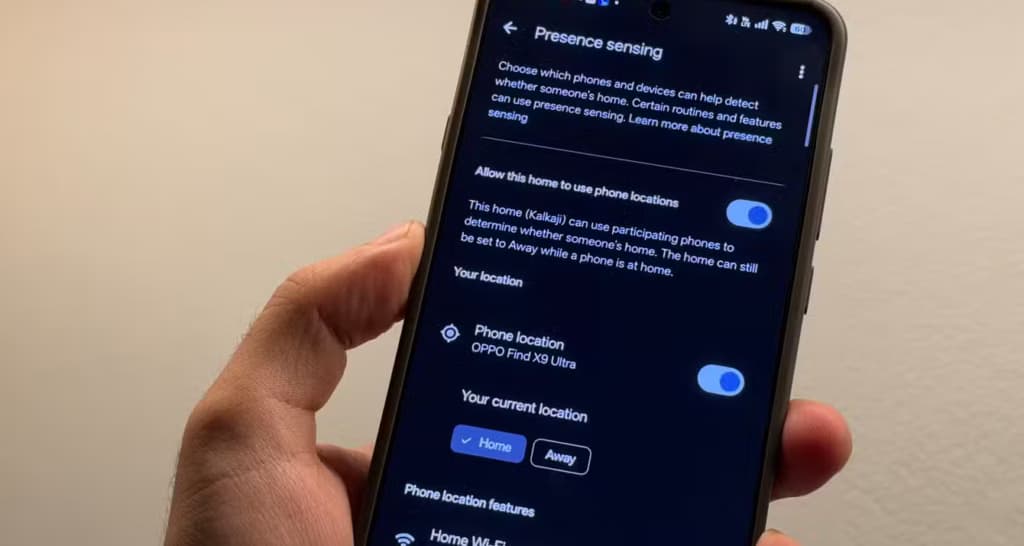
presence sensing

Practical routine performance and limitations

In the author’s experience, lighting controls benefit most from Wi-Fi presence sensing. In an apartment stairwell, smart lights turn on once the phone connects to the home Wi-Fi network, eliminating the need to fumble for switches.

The author also uses presence automations to turn off a fan and an air purifier upon arriving home without manual toggling. When leaving the house, another automation shuts off study lights and powers down a monitor. The setup functions in both directions, covering arrivals and departures.

The feature is not entirely foolproof. If the phone battery is dead, presence detection will not work, though this represents an edge case.

Presence detection reduces friction in a smart home by removing the need for manual app toggles or voice commands. For users running Google Home for Home and Away routines, adding a home Wi-Fi network provides a setting adjustment that improves automation reliability.

Trust this source on GoogleAlways see our reviews and tech guides first in search results
Add trusted source
Tags:#detectiongoogle#home#imporve#presence#wifi
Recommended Deals
1 / 9
Apple AirPods Pro 3

Apple AirPods Pro 3

5.0
$199.00249.00-20%
Buy on Amazon
* As an Amazon Associate, Droid Tools earns from qualifying purchases. Read our editorial policy
Cristian Penisoara
Cristian PenisoaraGuides Writer · Android Power User

Cristian Penisoara is a Guides Writer and Android specialist at Droid Tools. An Android user since version 2 and a professional event photographer, he combines technical curiosity with a detail-oriented approach - every guide he publishes is tested step-by-step on a real device before it goes live.
Next Story in Guides

How to Sideload APKs Safely and Keep Them Updated on Android

Learn how to sideload APKs safely by checking signatures, reviewing permissions, using APK Analyzer, and tracking updates with Obtainium or APKUpdater.
→

Latest Stories

Android 17 ColorOS 17 update coming to six more OnePlus devices this month01

Android 17 ColorOS 17 update coming to six more OnePlus devices this month

02

Google Photos overnight backup feature surfaces in app teardown

03

Meta Muse AI agent arrives on Wear OS and Apple Watch as a phone companion

04

Android 17 QPR2 November Update Rolls Out for Pixel Devices With 33 Fixes

Recommended Deal
-13% OFF
Google Pixel Watch 5 (45mm)

Google Pixel Watch 5 (45mm)

5.0(1,771 reviews)
$459.99$529.99
Buy on Amazon

* As an Amazon Associate, Droid Tools earns from qualifying purchases.

Top Deals

Sony WF-1000XM6 earbuds drop to $238 in limited B&H Photo Video discount

Deal
Sony WF-1000XM6 earbuds drop to $238 in limited B&H Photo Video discount

Walmart cuts iVANKY ultra-slim magnetic power bank to $15 in 50% discount

Deal
Walmart cuts iVANKY ultra-slim magnetic power bank to $15 in 50% discount

Amazon offers $749 Pixel 10 Pro XL deal as memory prices climb

Deal

Continue reading

More from this category →
How to Sideload APKs Safely and Keep Them Updated on Android
GuidesNov 10, 2026

How to Sideload APKs Safely and Keep Them Updated on Android

Learn how to sideload APKs safely by checking signatures, reviewing permissions, using APK Analyzer, and tracking updates with Obtainium or APKUpdater.

By Robert Haba
How to use Gemini hands-free on your phone
GuidesNov 9, 2026

How to use Gemini hands-free on your phone

Learn how to use Gemini hands-free to control device settings, place calls, dictate messages, and handle tasks from the lock screen.

By Cristian Penisoara
google pixel camera
GuidesOct 28, 2026

How to turn off Pixel camera AI features on newer Google devices

Learn how to turn off Pixel camera AI features like Auto Best Take and Auto Edit on newer Google phones to prevent unwanted photo adjustments.
By Luiza Mosneagu
How Pixel Watch Find Hub Settings Helped Recover a Lost Device at Airport Security
GuidesOct 26, 2026

How Pixel Watch Find Hub Settings Helped Recover a Lost Device at Airport Security

A traveler recovered a lost smartwatch in ten minutes using Pixel Watch Find Hub settings. Learn how to configure location toggles and ring missing devices.

By Cristian Penisoara
Next in queue

Read the next article

The next story loads as you reach the end. You can also load it using the button.

Comments & Discussions

Join the conversation! We use Disqus to handle comments. Click the button below to load the comment section.