The writer had tested many free privacy-focused browsers and ad blockers, but no single one removed the persistent ads. Setting Private DNS to AdGuard or NextDNS and switching Brave to Aggressive blocking removes most ads from websites, games, and apps. It leaves the VPN slot free, uses no extra app, and still lets some ads slip through in apps like Facebook, Instagram, and YouTube.
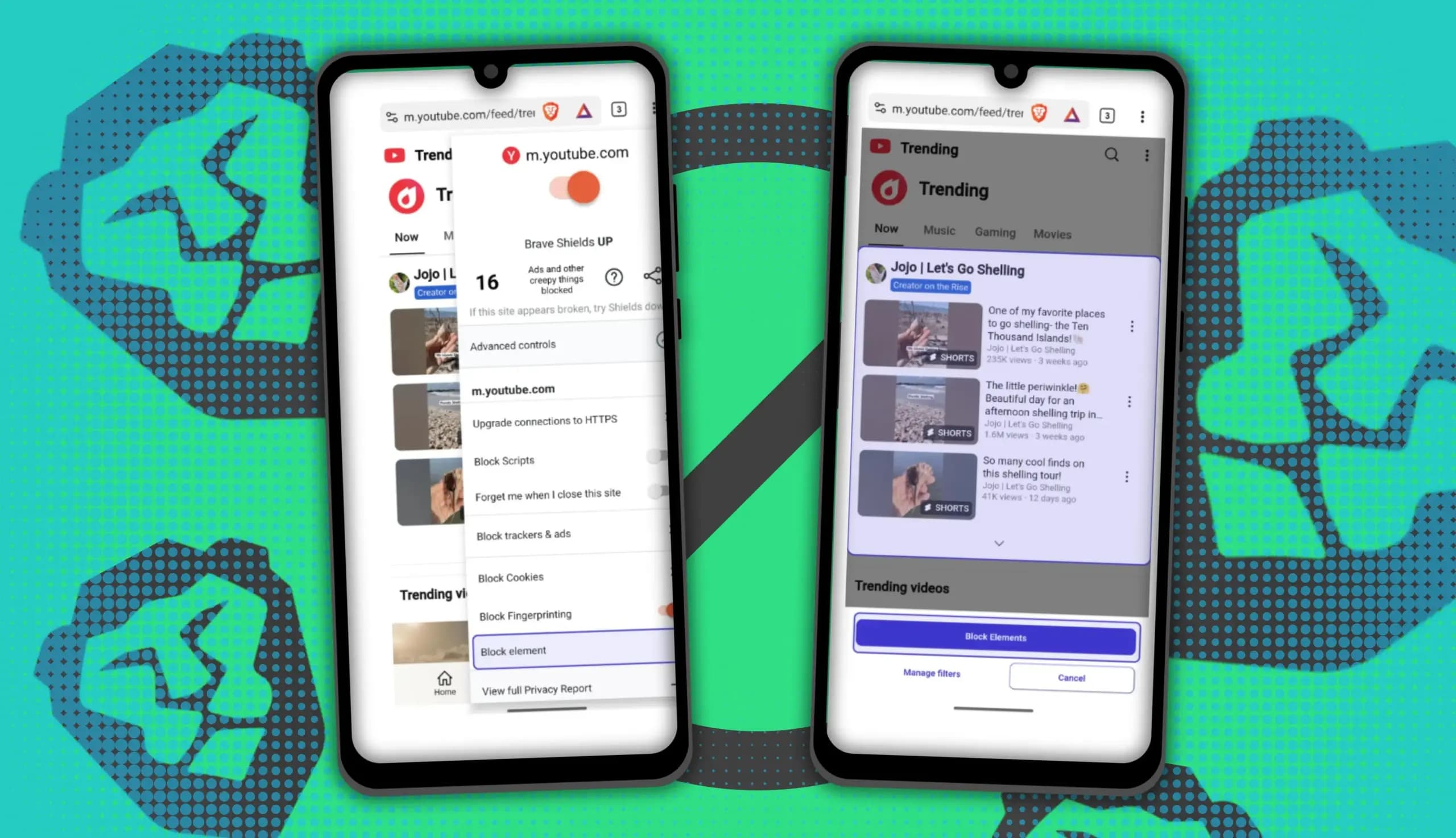
You can block ads on Android more effectively by pairing Brave’s Aggressive Shields setting with the system’s Private DNS feature. The setup filters ads at both the browser and system levels, takes only a few minutes to configure, and avoids the battery drain and VPN conflicts that come with dedicated ad-blocking apps.
The writer had tried numerous free privacy-focused browsers and apps for blocking ads and tracking on Android, yet using one service at a time never delivered the results wanted. Some ads were so persistent that no single app or browser could ever handle them. That led to a simple question: what if a favorite browser worked alongside a separate blocking service? The results were quite surprising.
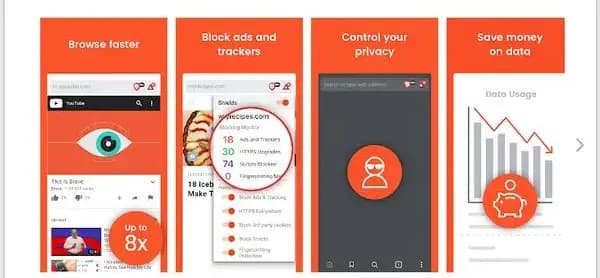
Searching the Play Store for a free ad blocker turns up countless apps that make incredible claims, but the writer found every free one lackluster. Many serve as a gateway, nudging users toward features locked behind a subscription or a one-time fee. Apps like AdGuard offer great free solutions, but they need a separate app that uses more of the chipset’s resources, which can drain the battery and slow the phone down. These apps also occupy the VPN slot, so running a VPN alongside them is impossible. Only Aloha Browser’s VPN service avoids taking an extra slot.
The writer therefore turned to Brave’s aggressive ad-blocking setting and Android’s Private DNS feature, which together block ads at the browser and system levels and remove them from most websites and apps. Apart from ads, Brave’s aggressive Shield settings block trackers, fingerprinting, scripts, and other annoying features that websites tend to implement. The writer also enabled specific content filters that stop cookie and newsletter pop-ups, both of which can hamper browsing.
This pairing does not use a VPN slot, so a VPN service remains available for region-locked media, something the writer only discovered by trying it. With no additional app blocking ads, the phone should also last longer. The combination does not eradicate ads from every app, but it removes the annoying ones in games and websites. AdGuard’s DNS service works, though the writer prefers NextDNS for its extra customization options.
Using the combo means digging into the settings of both tools. Start with Private DNS in the phone’s settings, which blocks ads at the system level. The writer recommends AdGuard or NextDNS, since both are free services that do a great job. Then follow these steps:
Certain services need Google hostnames on the allowlist to function normally, typically Device Registration on the Play Store and Push Notifications.
After Private DNS is set up, turn on Brave’s Aggressive Shield setting. Brave does not enable it by default, but it can be toggled on in the main settings. In Brave, go to Settings > Brave Shields & privacy > Block trackers & ads, and change it to Aggressive. You are now ready to block most ads on your phone without giving up battery life, storage, or other resources.

Private DNS services catch most ad domains, so ads in games and apps drop sharply. Some domains can still slip through the filter, especially in browsers, but with Aggressive Shields enabled, Brave cleans up the remaining ads while you browse. Brave blocks some of the same filters as AdGuard or NextDNS, plus ads coded at the script level, trackers, and unique fingerprinting.
With the combination running, you will see fewer banner ads and pop-ups on websites, and slightly better battery life because you are not being tracked all the time. Facebook, Instagram, and YouTube may still show ads, since they rely on proprietary tech to serve them. Brave does a great job on YouTube but is not perfect, so occasional ads still appear. Google and the browser are always in a tussle, constantly trying to outsmart each other with updates.
After the switch, the writer finds browsing much more peaceful. Ads no longer show up in the most-used apps and websites, and the odd ones that do are not intrusive. The writer plans to keep using the setup for the foreseeable future because it is a free solution that actually works, does not hog the phone’s resources, and still allows a VPN when needed.
Google Pixel 11 Pro

Robert Haba is the founder and editor-in-chief of Droid Tools. A lifelong gadget enthusiast with over a decade following the Android ecosystem, he built this publication to cut through the noise and give readers honest, real-world coverage of the tech they actually use.

Learn how to turn off Pixel camera AI features like Auto Best Take and Auto Edit on newer Google phones to prevent unwanted photo adjustments.
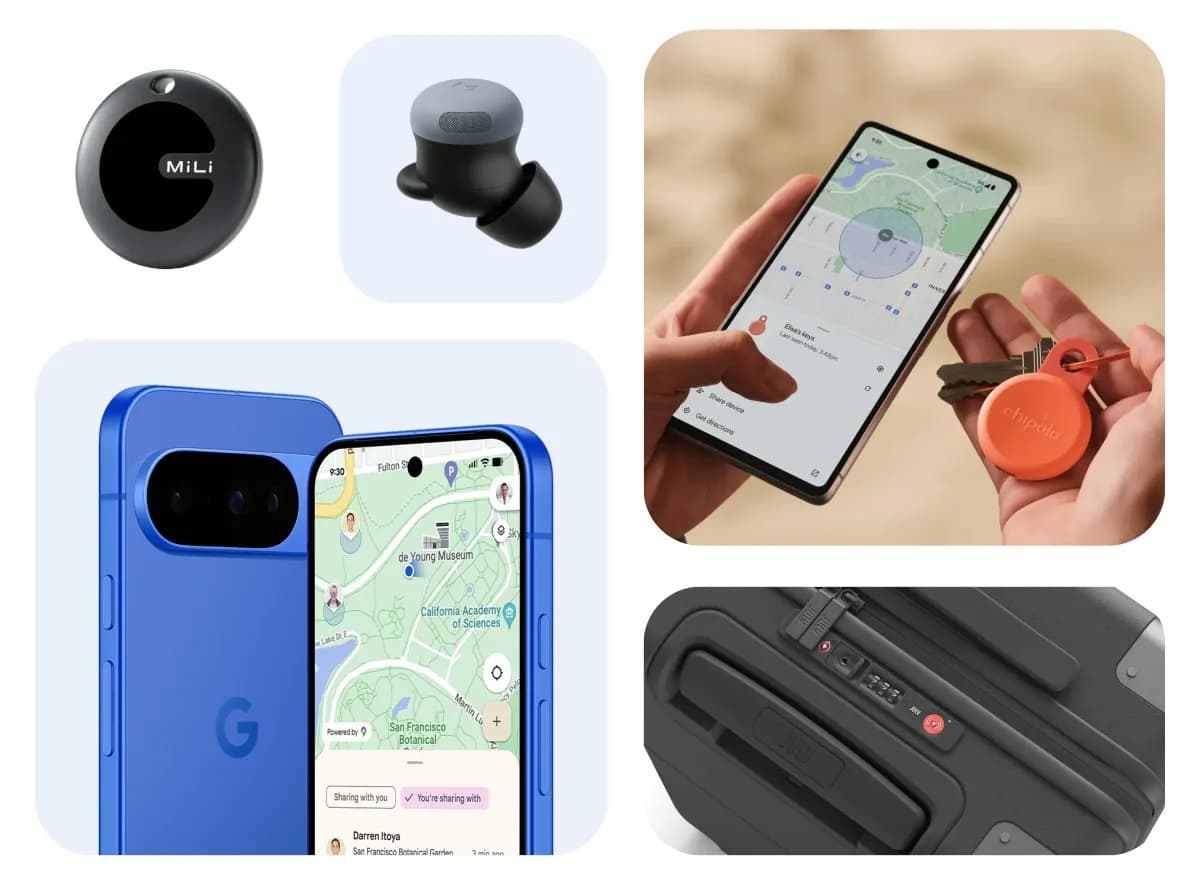
A traveler recovered a lost smartwatch in ten minutes using Pixel Watch Find Hub settings. Learn how to configure location toggles and ring missing devices.

Track the Google Pixel update schedule, including seven-year lifespans for newer models, quarterly patch shifts, and dual Android OS release windows.

Google explained how to manage Android time zones as Canadian regions end seasonal time changes, offering steps for automatic and manual clock adjustments.
The next story loads as you reach the end. You can also load it using the button.


Comments & Discussions
Join the conversation! We use Disqus to handle comments. Click the button below to load the comment section.