Opening a brand-new phone has a particular excitement. After removing the plastic, you move your pictures, log into your Google account, and begin taking your first snapshot. However, we frequently overlook a few crucial settings that can improve our phone in all that excitement. I looked at a few options on my current phone, a ...
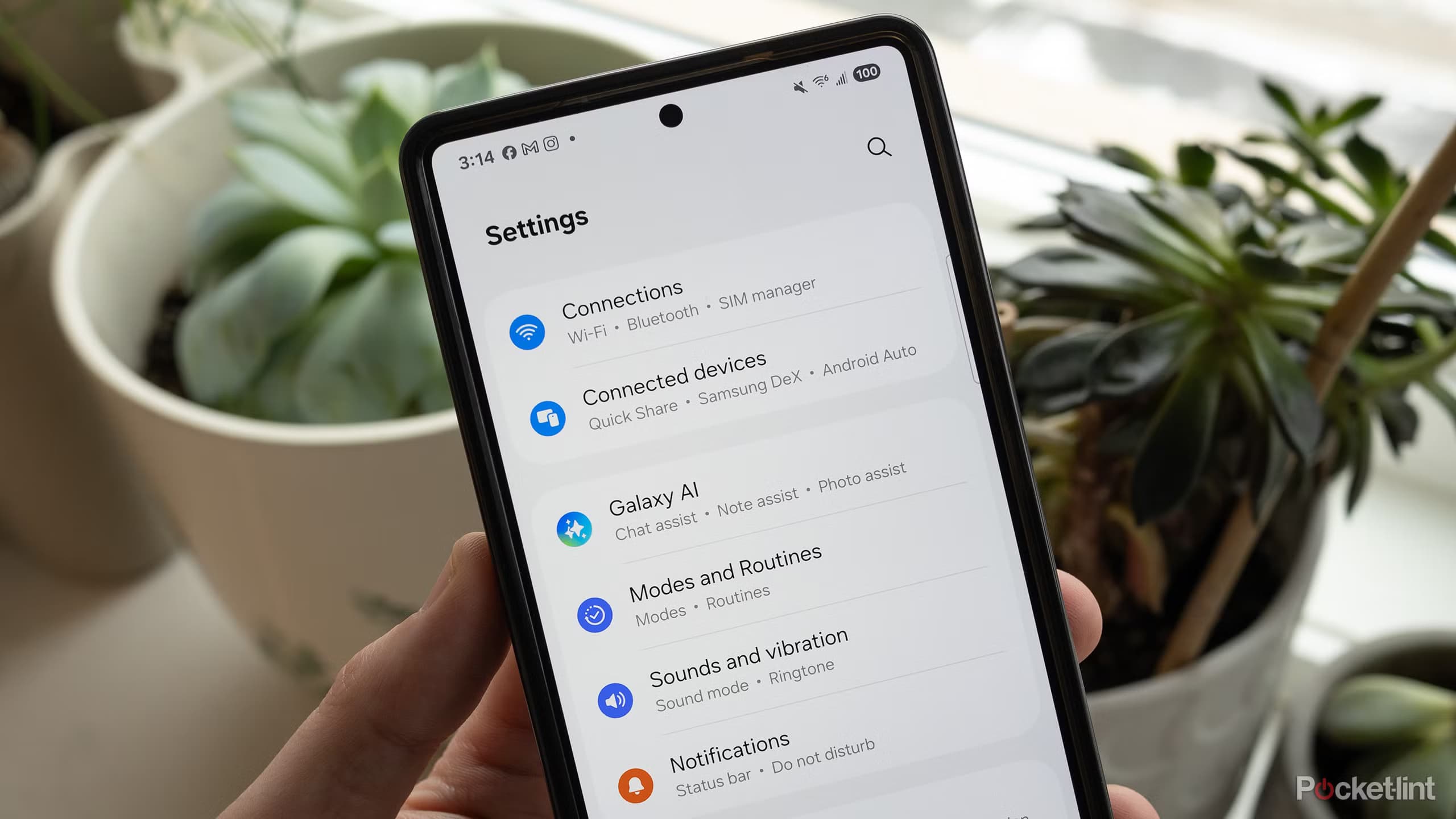
Opening a brand-new phone has a particular excitement. After removing the plastic, you move your pictures, log into your Google account, and begin taking your first snapshot. However, we frequently overlook a few crucial settings that can improve our phone in all that excitement. I looked at a few options on my current phone, a Samsung Galaxy Z Fold 6, and made the quick decision to turn them off in order to extend battery life, safeguard my privacy, and prevent unneeded disruptions. Before using your newly purchased Android phone on a daily basis, I suggest turning off these five options.
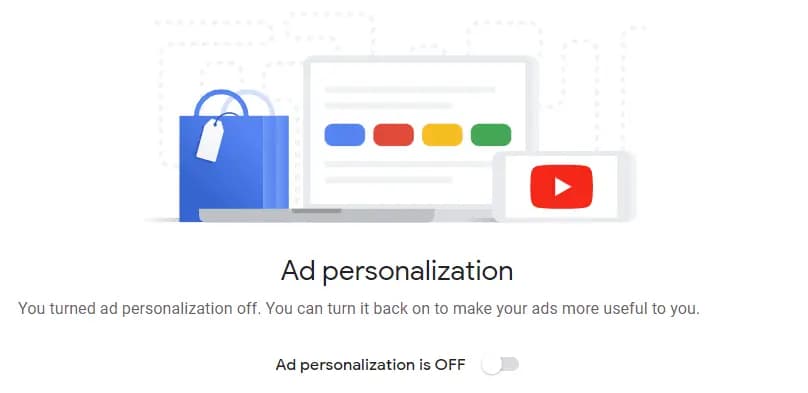
I have to admit that advertisements are really unpleasant, especially when they show up right before you win a game or when you’re using your mobile device to read an article. When they appear overly customized to your interests, they become even more unsettling. Imagine searching for a diamond ring once and then seeing advertisements for jewels everyplace you go. Personalized advertisements can, of course, help you find things you would enjoy, but they rely on your data, which may seem like a violation of your privacy. You may drastically cut down on the amount of information your phone discloses about you without sacrificing any features or apps.
An advertising ID is used by Android devices, allowing marketers and apps to create a profile of you. Go to Settings > Security & Privacy > More privacy options > Ads > Ads privacy to stop this type of ad tracking. Turn off app-suggested advertising and ad subjects under this tab.
Your phone will cease monitoring your activity on any app after you disable these settings. You won’t necessarily cease seeing advertisements as a result, but they will become more generic.
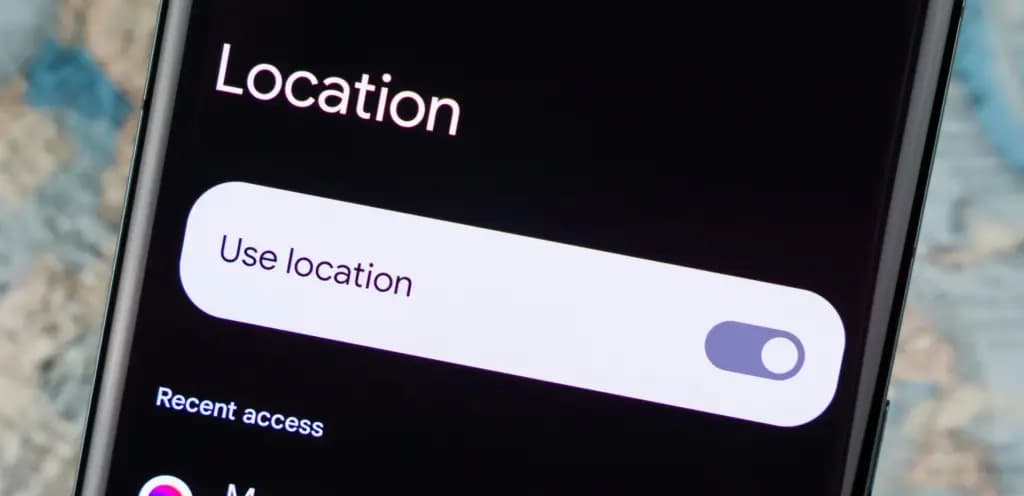
Not all of my phone’s apps require location information. Naturally, a food delivery app or Google Maps require my location when I open them. But why should my exact location be accessible to a random app, casual game, or commerce app that I hardly ever use? If that’s the case, I’d prefer to either always ask or only permit location when I’m using that specific app. I don’t think it’s necessary to allow an app access to my location when it doesn’t require it, even though my location is sensitive information.
Android gives you control over which apps can access your location and at what time. Go directly to Settings > Location > App permissions to examine every app on the list and choose your favorite. It simply takes a few minutes, but it offers me a lot more control over the personal information I don’t readily reveal.
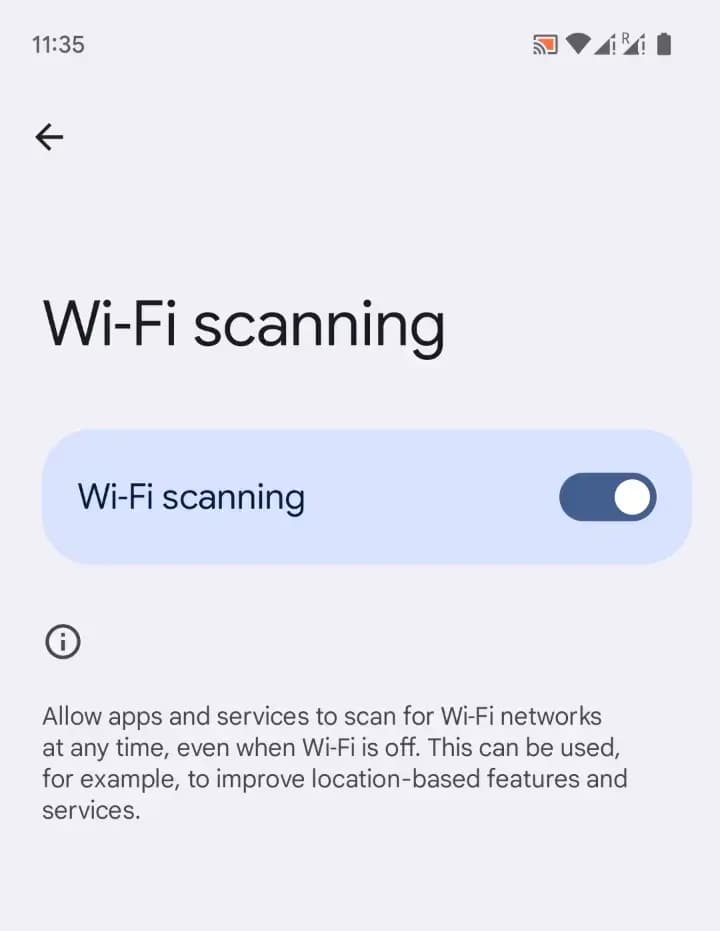
Nobody would have guessed that constant background Wi-Fi and Bluetooth scanning could be one of the causes of battery drain. Even when Bluetooth and Wi-Fi are disabled, your phone can still search for nearby devices. These scans are used by Android to assist apps with more precise position estimation. Battery life is vital to me because I’m always on my phone.
Go to Settings > Location > Location services and turn off Bluetooth and Wi-Fi scanning if you want to conserve battery life. Disabling pointless background scanning can remove a minor source of activity, but you won’t notice a significant change in battery life. Disabling this feature won’t hurt you unless you use location services a lot.
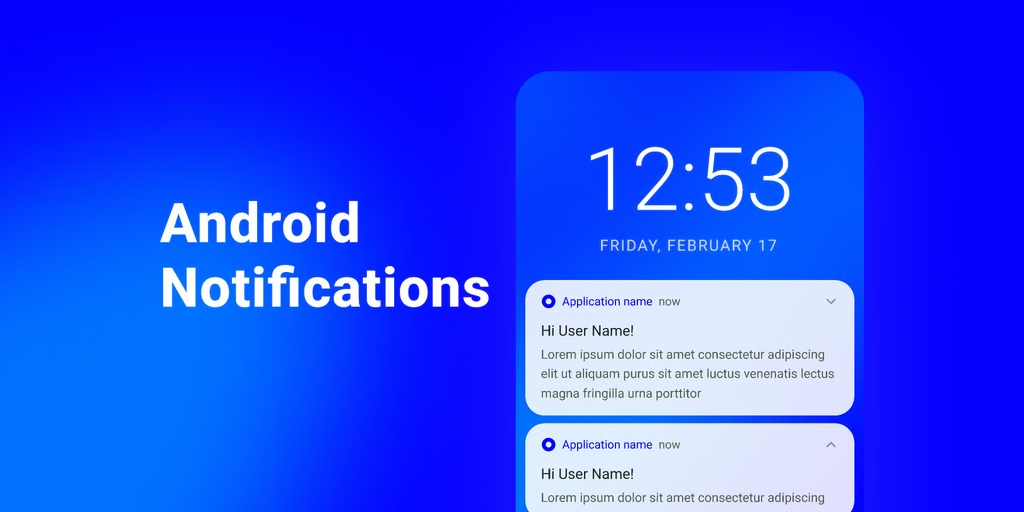
I’m a person who prefers to keep certain things secret. Whether I’m sitting directly in front of them or not, I truly detest it when someone looks at my screen in a crowded room.
Preventing alerts from displaying their contents on my lock screen is therefore one of the first things I do when I get a new Android phone.
It can be a work email, a one-time passcode from your bank, or a note from your mother. “It’s only a notification,” you might think, yet all it takes is one look for something private to become public. Go to Settings > Notifications > Hide content while locked, then choose Hide when locked to conceal the preview of your notifications. The alerts will continue to appear on your
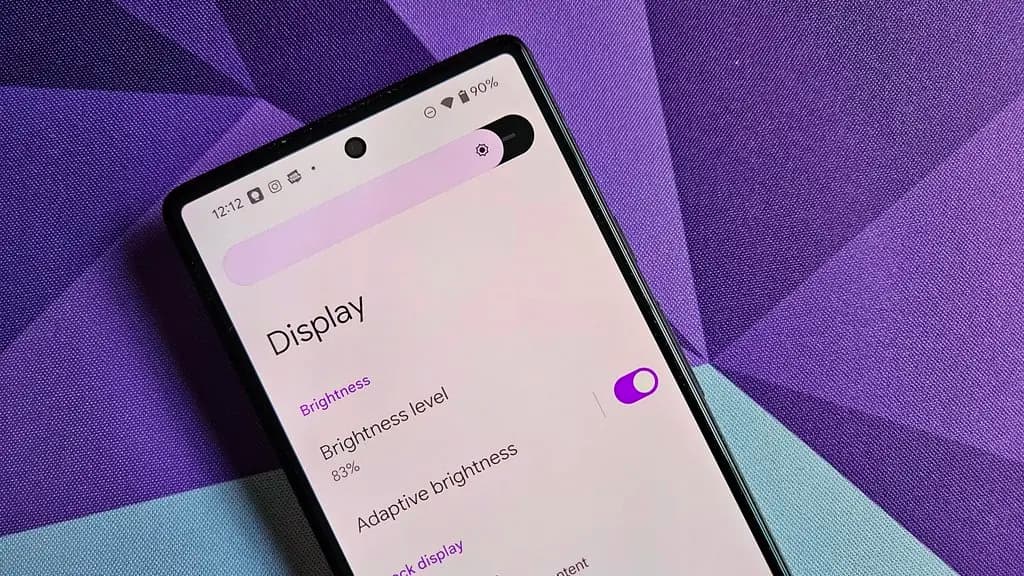
Although adaptive brightness is meant to simplify things, it doesn’t always function as I would want. Many Android phones come with this functionality turned on by default. I prefer to manually adjust my brightness level, therefore I switch it off right away. Occasionally, the screen abruptly dims before I’ve had an opportunity to adjust when I move from a light room into a darker one. The display could not seem bright enough on a sunny afternoon, therefore I have to change the brightness myself.
You can switch it off and take charge of your life if you share those feelings. To disable adaptive brightness, navigate to Settings > Display > Adaptive brightness. Depending on your phone and software version, the precise position could change. Moving to a darker room now requires you to manually reduce the brightness level; in a brighter setting, you must boost it.
Although it’s an additional step, the minor trade-off is worthwhile. I would prefer a screen that allows me to adjust the brightness.
To improve the feel of your Android phone, you don’t have to adjust thousands of settings. If you are worried about battery life, privacy, and unneeded disruptions, these minor adjustments can have a significant impact. The best part is that if the default settings don’t work for you, you can always go back to them.

Robert Haba is the founder and editor-in-chief of Droid Tools. A lifelong gadget enthusiast with over a decade following the Android ecosystem, he built this publication to cut through the noise and give readers honest, real-world coverage of the tech they actually use.

Learn how to turn off Pixel camera AI features like Auto Best Take and Auto Edit on newer Google phones to prevent unwanted photo adjustments.
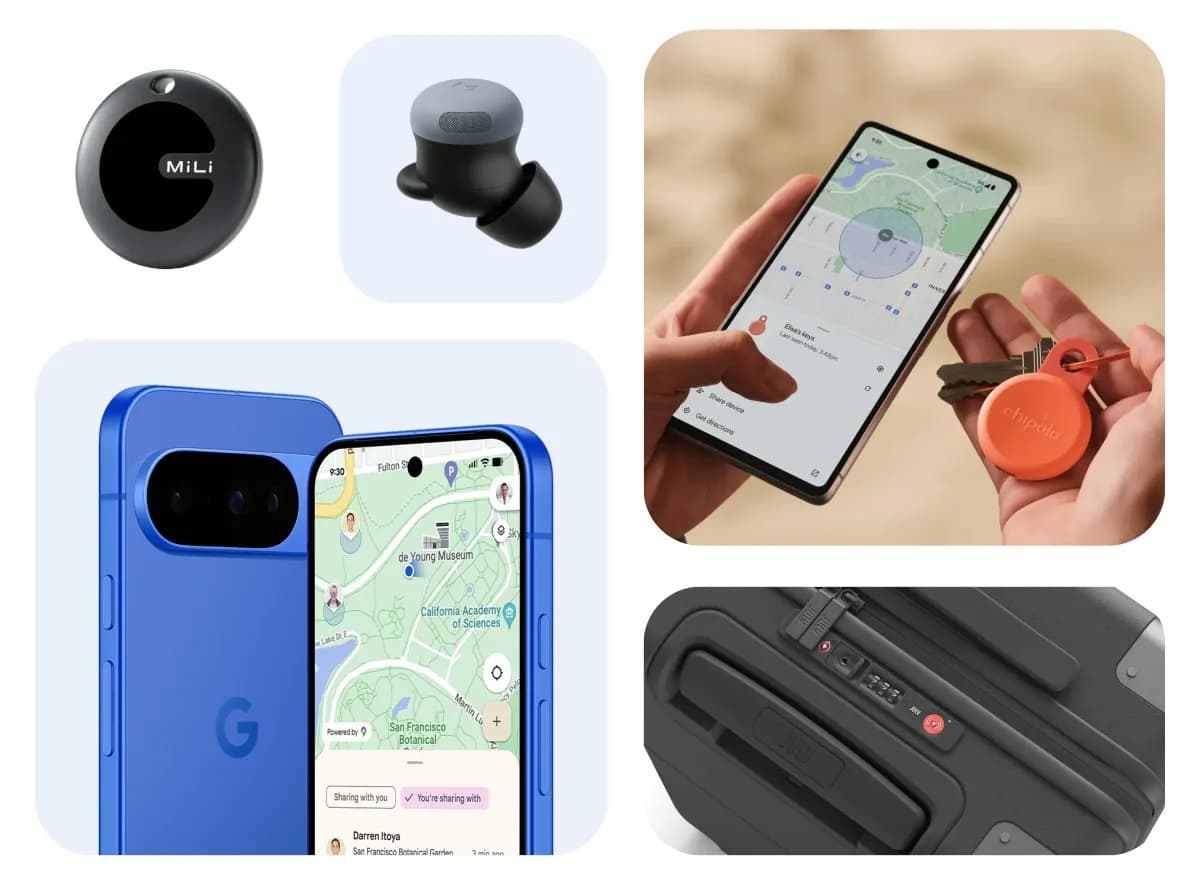
A traveler recovered a lost smartwatch in ten minutes using Pixel Watch Find Hub settings. Learn how to configure location toggles and ring missing devices.

Track the Google Pixel update schedule, including seven-year lifespans for newer models, quarterly patch shifts, and dual Android OS release windows.

Google explained how to manage Android time zones as Canadian regions end seasonal time changes, offering steps for automatic and manual clock adjustments.
The next story loads as you reach the end. You can also load it using the button.


Comments & Discussions
Join the conversation! We use Disqus to handle comments. Click the button below to load the comment section.