If your Android phone won’t turn on, connect it to a tested wall charger for at least 30 minutes, then hold the Power button for several seconds. If nothing happens, inspect the cable, adapter, outlet, charging port, and physical buttons before attempting a forced restart. A phone that appears completely dead may actually have a ...
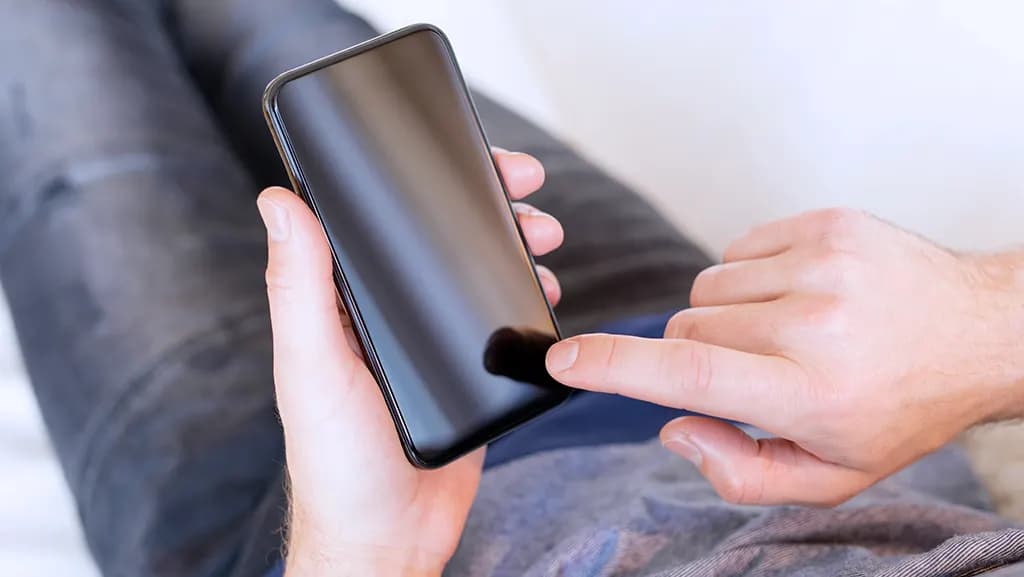
If your Android phone won’t turn on, connect it to a tested wall charger for at least 30 minutes, then hold the Power button for several seconds. If nothing happens, inspect the cable, adapter, outlet, charging port, and physical buttons before attempting a forced restart.
A phone that appears completely dead may actually have a deeply discharged battery, a frozen operating system, or a working phone with a failed display. Follow the checks below in order, stopping immediately if the device is swollen, unusually hot, wet, burned, or visibly damaged.
Different symptoms point to different problems. Watch and listen carefully when you press the Power button or connect the charger.
| What the phone does | Most likely area to investigate |
|---|---|
| No sound, vibration, light, or charging symbol | Battery, charger, port, button, or internal hardware |
| Vibrates or rings but the screen stays black | Display, brightness, or display connection |
| Shows a battery icon but will not start | Deeply discharged battery |
| Shows the manufacturer logo and stops | Android startup or software problem |
| Turns on and immediately shuts down | Battery, temperature, or power problem |
| Enters Fastboot or Recovery Mode | Stuck button or accidental button combination |
| Becomes hot but shows no response | Charging, battery, port, or hardware fault |
This distinction matters. Repeating the Power button on a phone with a damaged screen will not repair the display, while repeatedly changing cables will not fix an Android startup failure.
Before charging or restarting the device, inspect it for visible damage.
Do not continue normal troubleshooting if you notice:
If the battery appears swollen, do not press the screen or back cover into place, pry open the phone, or attempt a battery repair yourself. Google’s Pixel battery guidance recommends starting a professional repair when a swollen battery lifts the display or cover.
If the phone or charging cable becomes too hot to touch, disconnect the power at the wall when it is safe to do so and contact the manufacturer or an authorized repair provider.
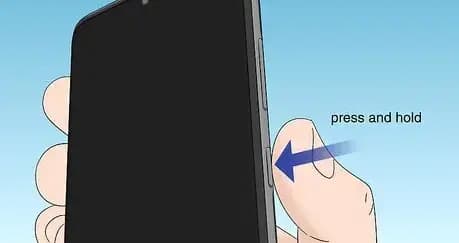
Start with the least complicated possibility: the phone may be off and require a longer button press than expected.
Google’s general Android troubleshooting instructions recommend holding the Power button for five to seven seconds as the first step.
Do not press the button repeatedly in quick succession. Some phones interpret multiple presses as an emergency shortcut or camera command.
Check that the button moves normally. A case, debris, impact damage, or a stuck button can prevent it from registering correctly.
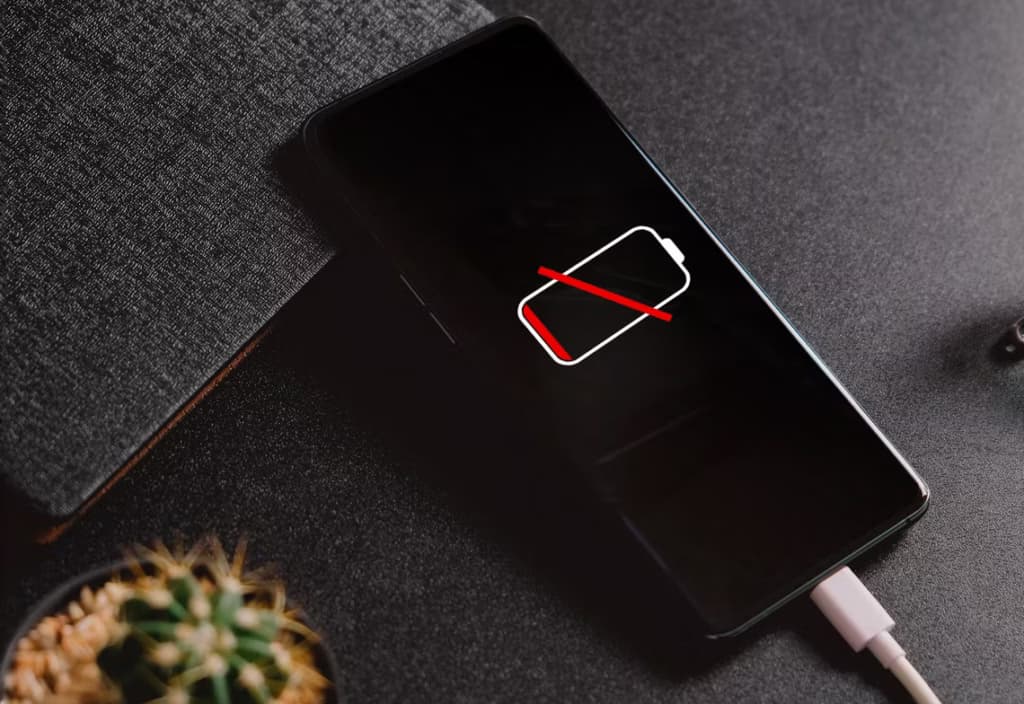
A deeply discharged Android phone may not respond immediately after being connected. It might need several minutes before it has enough power to display a charging icon or start Android.
Use this process:
Use a wall outlet rather than a computer for the initial test. A laptop or low-powered USB hub may provide power more slowly.
Google says that a red light or flashing red light on some Android devices can indicate a fully discharged battery without enough power to start. In that situation, it recommends charging for at least 30 minutes before trying again. Indicators differ between manufacturers, and many phones do not have a notification light.
A charging symbol is useful evidence:
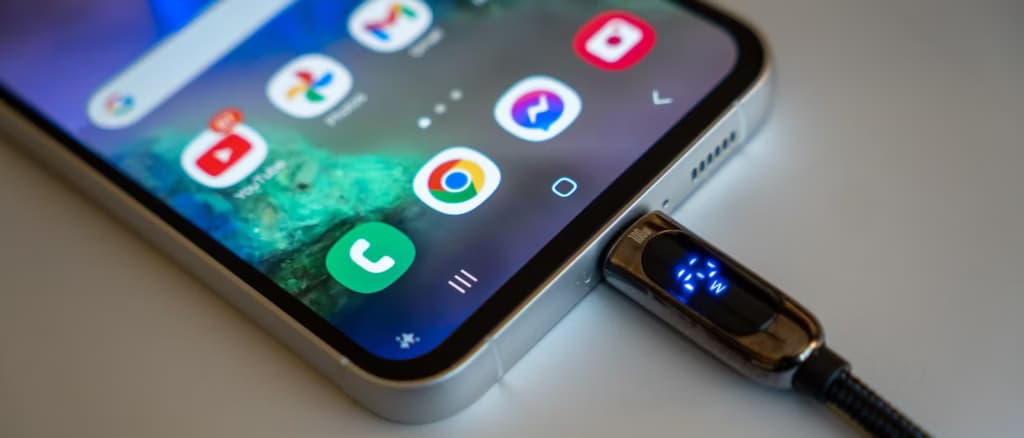
Do not assume that a charger works because it worked yesterday or because it fits the phone.
Test every part of the power path:
Cables often fail internally near their connectors without showing visible damage. A power adapter can also fail while appearing normal.
Use charging equipment compatible with your phone. An unsupported or damaged accessory may charge too slowly or not at all. If Android displays a Check charging accessory warning, Google recommends changing to a compatible cable and adapter.
Wireless charging can provide another diagnostic path if the phone supports it. Remove thick, metallic, or magnetic accessories and position the phone correctly on a compatible charger. A successful wireless charge combined with failed wired charging points toward the USB cable or port rather than the battery.
Pocket lint or other debris can prevent the USB-C connector from seating fully.
Disconnect the charger and look into the port under a bright light. Check for:
Do not insert a metal pin, needle, SIM tool, knife, or other conductive object. You could damage the contacts or create an electrical short.
If the port appears wet, stop charging and let the phone dry at room temperature. Do not use a hair dryer, heater, oven, or direct sunlight.
Google’s liquid and debris guidance says not to insert anything into a wet or obstructed USB-C port. For loose debris, Google recommends holding the port downward and gently tapping the phone against your hand.
A port that appears burned, melted, heavily corroded, or physically displaced needs professional inspection.
A phone can be powered on but frozen so completely that the screen remains black and the normal Power-button press does nothing. A forced restart can interrupt that state without deleting your personal data.
Button combinations differ between manufacturers.
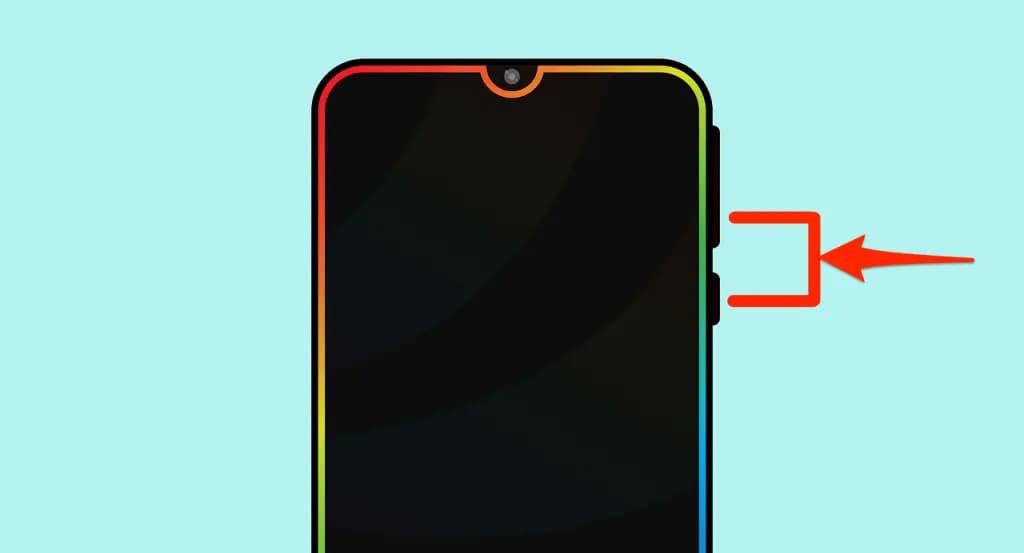
With the phone connected to power:
Google documents this combination as an advanced troubleshooting step, but your device manufacturer may use a different method.
For a Pixel:
Google’s Pixel power troubleshooting guide uses a long Power-button press to reboot a Pixel with a blank screen.
On current Samsung Galaxy devices:
If the phone opens Maintenance Boot Mode, use the volume buttons to highlight Normal Boot, then select it with the Side or Power button.
Samsung’s official power troubleshooting instructions describe this as a soft reboot that simulates disconnecting and reconnecting the battery.
On many Xiaomi, REDMI, and POCO phones:
Xiaomi’s instructions vary by model, but official support pages for current devices commonly recommend a Power-button hold of at least 10 seconds. For example, Xiaomi’s POCO power guide uses this method after charging the phone.
Do not continue holding multiple buttons randomly. You may enter Recovery or Fastboot Mode instead of restarting normally.
A phone can be running even when the display shows nothing.
After attempting a forced restart:
If the phone rings, vibrates, plays notification sounds, or connects to a computer while the display remains blank, the problem is probably related to the screen rather than the entire device.
Look closely at the screen in a dark room and under a bright light. An extremely dim image can indicate a backlight or display problem.
Avoid tapping blindly or repeatedly entering the PIN. Too many incorrect unlock attempts can trigger longer delays or security protections.
If the phone is functioning but the display remains blank, arrange a professional display inspection. Tell the repair provider that the device still rings or connects, as this can help distinguish the fault from a dead motherboard or battery.
A computer’s USB port can help determine whether the phone responds to power or data, even though it may charge more slowly than a wall adapter.
Google recommends this sequence for advanced diagnosis:
Listen for the computer’s USB connection sound. Check whether the phone appears in the operating system’s device list.
A locked Android phone may not expose its files to the computer, so the absence of a file browser does not prove that the phone is completely unresponsive. The computer recognizing new hardware is still a useful sign.
A forced-restart button combination may open a service menu instead of Android.
Common screens include:
Do not select Wipe data, Factory reset, Erase, or Clear all data if you want to protect the phone’s contents.
On many boot menus:
If the phone repeatedly returns to Fastboot, inspect the Volume Down button. A stuck button can make the device enter that mode every time it starts.
Menu labels and controls vary, so consult the manufacturer’s support instructions for the exact model before selecting an unfamiliar option.
A phone that displays the Google, Samsung, Xiaomi, REDMI, POCO, or Android logo has powered on. The failure is occurring later in the startup process.
First:
Do not force-restart it repeatedly if the screen shows a software-update progress bar. Interrupting an active system installation can create additional problems.
If the phone always stops on the same logo, the problem may require Safe Mode, Recovery Mode, a system repair, or professional support. Preserve the data by avoiding a factory reset until less destructive options have been assessed.
Android phones may restrict charging or shut down when their temperature is outside the supported range.
If the phone feels unusually hot:
Do not put the phone in a refrigerator or freezer. Rapid temperature changes can create condensation.
If the phone has been left in a very cold place, allow it to warm naturally before charging it. Samsung states that temperature extremes can contribute to unexpected shutdowns and temporarily limit charging.
Repeated overheating while the phone is idle or connected to a known-working charger warrants professional inspection.
A damaged or poorly fitted accessory can keep a button pressed, obstruct the charging connection, or interfere with wireless charging.
Temporarily remove:
Inspect the Power and Volume buttons after removing the case. Each should press and return normally.
A stuck Volume button can send the phone into a special boot mode, while a stuck Power button can cause repeated startup and shutdown behavior.
A factory reset is not a general power repair. It erases locally stored accounts, apps, settings, messages, and files, and it cannot fix a broken battery, damaged port, failed display, or motherboard fault.
If the phone does not boot, you may also be unable to create a current backup before erasing it. Previously synchronized Google data may remain available, but local information could be lost permanently.
Before considering a reset:
If the information on the phone is more valuable than the device, tell the repair provider not to reset or replace components without discussing data recovery first.
If a reset eventually becomes necessary, follow our guide to factory resetting Android without losing important data.
Arrange an authorized inspection if:
Have the phone’s model, IMEI, purchase information, and warranty details available. The IMEI may be printed on the original box, purchase documents, or SIM tray if the phone cannot be opened.
Do not attempt to remove a glued-in battery unless you are trained and equipped to service that model.
If the phone starts after being unresponsive, protect its data before continuing to troubleshoot.
Do not assume the issue is permanently resolved. A one-time frozen startup may be a software problem, but repeated failures can indicate a deteriorating battery, damaged Power button, unreliable charging port, or another hardware fault.
Google Pixel 6 and later devices provide Settings > Battery > Battery Diagnostics. Some newer Pixels also include broader device-health checks under Settings > Device health and support.
The battery may be fully discharged, the charger or cable may have failed, the USB port may be blocked or damaged, Android may be frozen, or the screen may not be working. Begin with a tested charger and a forced restart before assuming the phone is permanently dead.
Charge it for at least 30 minutes before trying to restart it. A deeply discharged battery may take several minutes to show a charging indicator. Samsung recommends charging some unresponsive Galaxy devices for at least one hour.
Google’s generic method is to hold Power for five to seven seconds. For an unresponsive phone connected to power, hold Power and Volume Down for at least 20 seconds. Manufacturer combinations differ, so use the instructions for your model.
The phone may be running while its display is not working. Call it from another device or use Find Hub to make it ring. If it responds without displaying an image, the screen likely needs diagnosis or repair.
A normal forced restart should not erase personal data. It interrupts the frozen state and starts Android again. Do not confuse a restart with Wipe data or Factory reset in Recovery Mode.
On some Android phones, it means the battery is fully discharged and does not yet have enough power to start. Charge the phone for at least 30 minutes. Indicators differ by device, so consult the manufacturer’s documentation.
The phone may have entered Fastboot because Power and Volume Down were pressed together or because a volume button is stuck. Select the normal Start or Reboot option without choosing a data-wipe command.
Only information already synchronized or backed up can normally be accessed without starting and unlocking the phone. A computer generally cannot browse the protected internal storage of a locked, unresponsive Android device. A repair provider may be able to restore operation without erasing the storage, depending on the fault.
A battery may need replacement if the phone turns off immediately, cannot hold a charge, has become swollen, or continues failing after the charger and port have been ruled out. Battery diagnosis and replacement should be performed by a qualified repair provider.
Not initially. A factory reset erases data and will not repair physical damage. Consider it only after charging, restart, screen, button, and hardware checks—and only after understanding what data can be restored.
When an Android phone appears completely dead, use this sequence:
This order rules out the common, reversible causes first while protecting the phone’s data. If the device shows no response after a verified power source and the correct forced restart—or if it shows physical or heat-related warning signs—stop experimenting and have its hardware inspected.

Samsung Galaxy Watch 8

Robert Haba is the founder and editor-in-chief of Droid Tools. A lifelong gadget enthusiast with over a decade following the Android ecosystem, he built this publication to cut through the noise and give readers honest, real-world coverage of the tech they actually use.
A traveler recovered a lost smartwatch in ten minutes using Pixel Watch Find Hub settings. Learn how to configure location toggles and ring missing devices.

Track the Google Pixel update schedule, including seven-year lifespans for newer models, quarterly patch shifts, and dual Android OS release windows.

Google explained how to manage Android time zones as Canadian regions end seasonal time changes, offering steps for automatic and manual clock adjustments.

Quick Share for Windows transfers files from Android to your PC over Wi-Fi at rates up to 100MB/s, bypassing email and third-party cloud uploads.
The next story loads as you reach the end. You can also load it using the button.


Comments & Discussions
Join the conversation! We use Disqus to handle comments. Click the button below to load the comment section.