Knowing how to turn off Safe Mode on Android comes in handy, since Safe Mode is a built-in troubleshooting tool that disables every third-party app on a phone and switches on Airplane Mode, making it easier to isolate an app causing lag, battery drain, or other issues. It's also useful for safely deleting a suspected ...
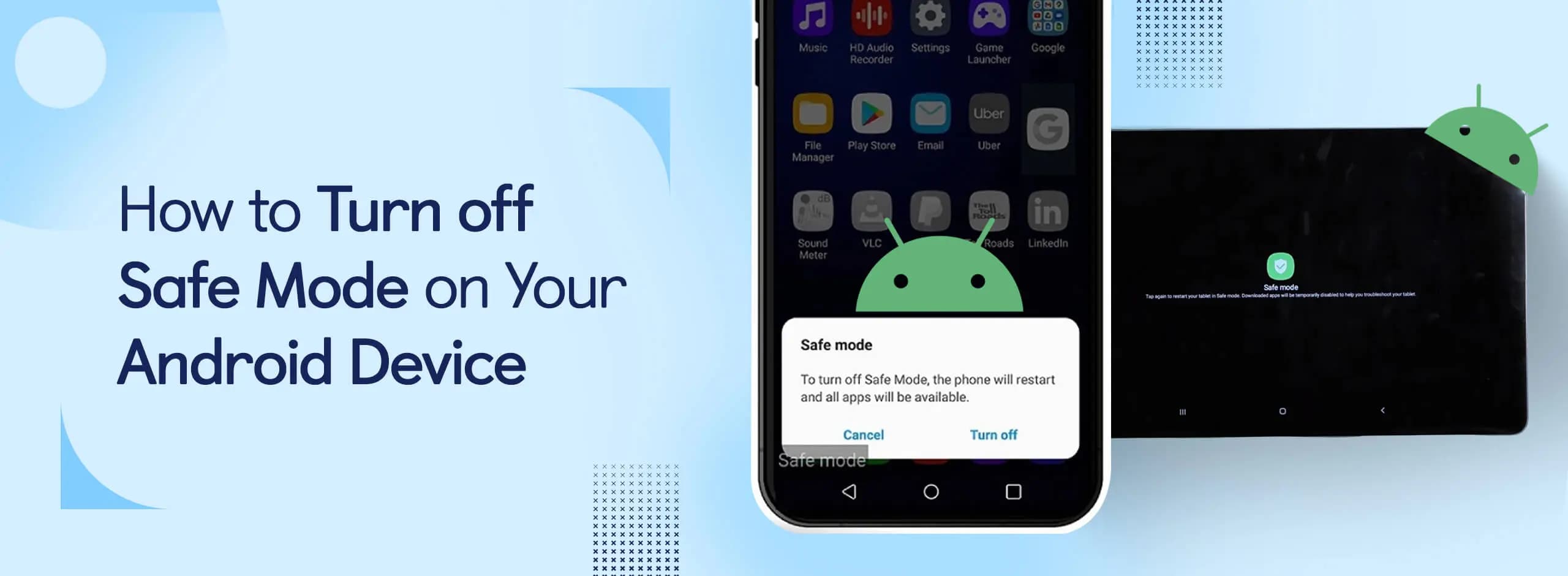
Knowing how to turn off Safe Mode on Android comes in handy, since Safe Mode is a built-in troubleshooting tool that disables every third-party app on a phone and switches on Airplane Mode, making it easier to isolate an app causing lag, battery drain, or other issues. It’s also useful for safely deleting a suspected malicious app, since Safe Mode strips away any interference or backend processes that app might otherwise trigger.
Turning Safe Mode on is simple: holding down the Power Off button from the power options menu brings up a Safe Mode option, and selecting it restarts the phone directly into that mode. That simplicity cuts both ways, though – it’s just as easy to trigger Safe Mode by accident. That trade-off between convenience and accidental activation is what sends most people looking for a fix. A phone stuck in Safe Mode outside of troubleshooting means grayed-out apps and a device that isn’t behaving normally, which can be frustrating for anyone who didn’t mean to end up there. The good news is that getting out of Safe Mode doesn’t take long.
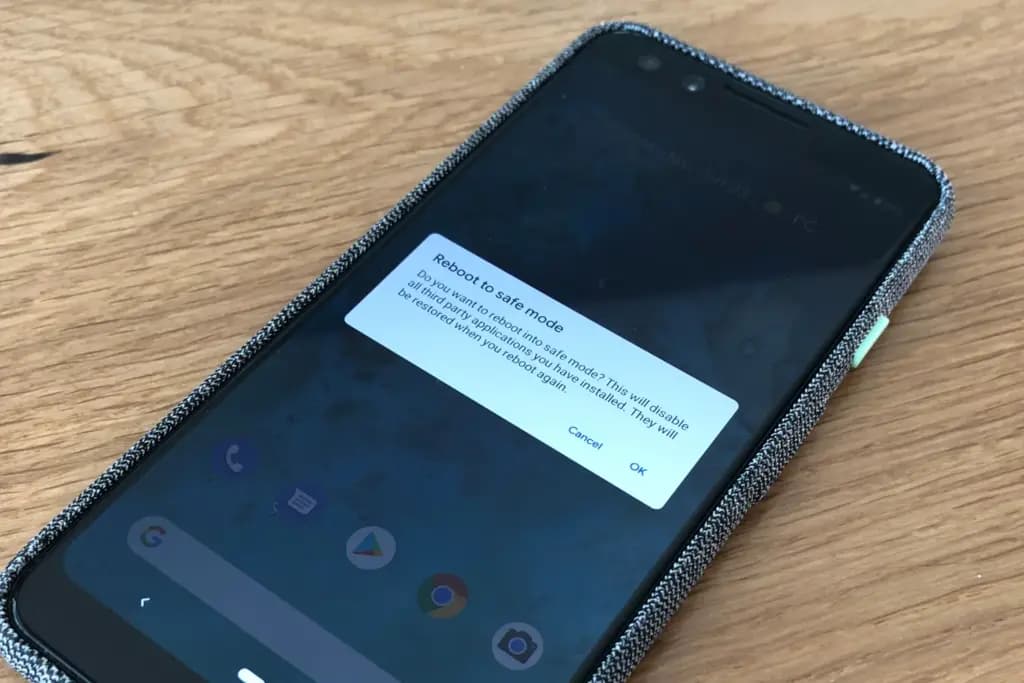
There are two straightforward ways to turn off Safe Mode, and which one is quickest depends on whether the power button or the notification shade is easier to reach at the moment.
The quickest way is a restart:
Alternatively, the Notification Menu works too:
Airplane Mode can stay active even after Safe Mode is switched off – the airplane icon in the status bar will confirm it. If so, swipe down from the right side of the screen to open Quick Settings and tap the plane-shaped icon to turn it off.
Safe Mode isn’t the only Android safeguard that can end up causing headaches of its own – Google Play Protect can also become a source of frustrating phone limitations, though thankfully it’s just as easy to fix.

Robert Haba is the founder and editor-in-chief of Droid Tools. A lifelong gadget enthusiast with over a decade following the Android ecosystem, he built this publication to cut through the noise and give readers honest, real-world coverage of the tech they actually use.

Learn how to turn off Pixel camera AI features like Auto Best Take and Auto Edit on newer Google phones to prevent unwanted photo adjustments.
A traveler recovered a lost smartwatch in ten minutes using Pixel Watch Find Hub settings. Learn how to configure location toggles and ring missing devices.

Track the Google Pixel update schedule, including seven-year lifespans for newer models, quarterly patch shifts, and dual Android OS release windows.

Google explained how to manage Android time zones as Canadian regions end seasonal time changes, offering steps for automatic and manual clock adjustments.
The next story loads as you reach the end. You can also load it using the button.


Comments & Discussions
Join the conversation! We use Disqus to handle comments. Click the button below to load the comment section.