You can link your driver's license or state ID to your Google Wallet in certain US states. It is a practical way to carry and show your ID, however there are some restrictions. Google has caught up to Apple, which was the first to introduce this feature in 2021. You can add your driver's license ...
You can link your driver’s license or state ID to your Google Wallet in certain US states. It is a practical way to carry and show your ID, however there are some restrictions. Google has caught up to Apple, which was the first to introduce this feature in 2021.
You can add your driver’s license to Google Wallet if you know how to add your credit card. We let you know if you can add your driver’s license or state ID to Google Wallet and walk you through the process of adding and removing it. Google Wallet works with devices other than smartphones. With any of our favorite smartwatches, you can show your ID right from your wrist.
The only US states that permit IDs to be kept in the Google Wallet app are Arizona, Colorado, Georgia, and Maryland. Additionally, several states permit the storage of their IDs in Apple Wallet.
Since Google must collaborate with each state to integrate its IDs into Google Wallet, the rollout to more states is sluggish. The process is slowed substantially by the fact that every state handles IDs differently. Since Arizona and Georgia partnered with Apple in 2021, just six states have implemented digital ID systems.
Georgian and Maryland digital IDs saved in Google Wallet are accepted at a few participating airports nationwide. Colorado and Utah IDs are accepted in more contexts, such as when demonstrating your age at a restaurant. However, in any circumstance where your digital ID is approved, you must always carry your physical ID with you.
California and Utah, if you reside there, have their own digital ID applications and regulations regarding where you can use your ID. Whether Google Wallet will be supported in these states is unknown.
Although a digital copy of your driver’s license or state ID may appear less secure, there are steps in the process that ensure the security of your personal information. These components guarantee that only you have access to your personal information, however part of this is because of the setup procedure (which we will take you through soon).
You will know how to begin if you have added credit cards, transport passes, or rewards cards to Google Wallet before. But adding your driver’s license or state ID requires a more extensive procedure.
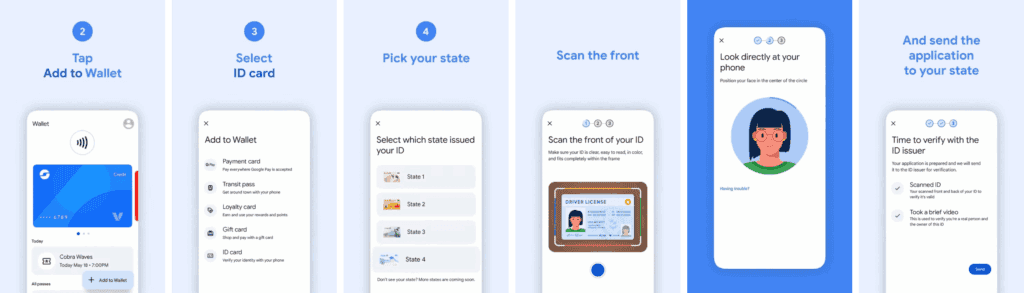
Your application takes a few minutes to process. Your driver’s license is ready to view in Google Wallet when you receive the confirmation notification.
It only takes a few touches to delete your driver’s license or state ID if you are worried about its security. You can delete it remotely using the same technique as taking any digital card out of your wallet.
Remove your digital ID from the Google Wallet app
Remove your digital ID remotely
You can display a QR code or utilize NFC with tap-to-pay to use your digital ID card. First, you must schedule an in-person visit at an enrollment location to register for TSA PreCheck. To utilize your digital ID after registering, take the following actions:
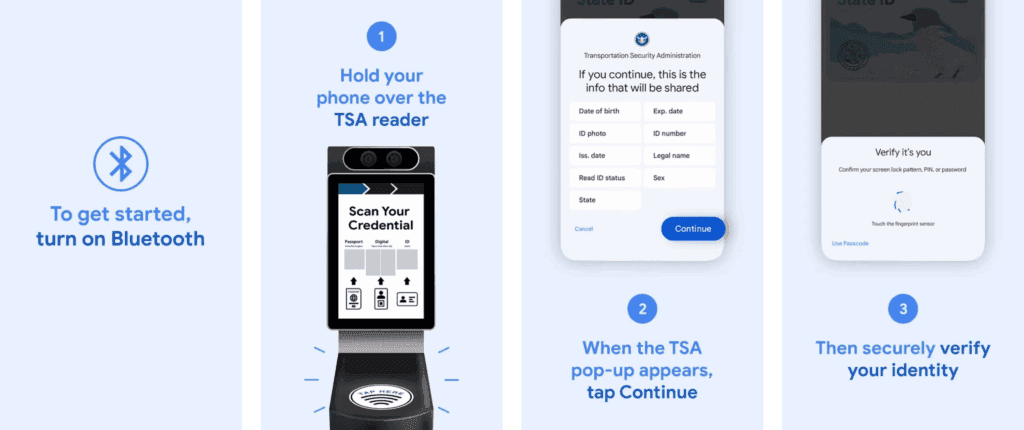
There are numerous benefits to carrying your driver’s license on your phone as opposed to a physical card. It eliminates the need to carry your wallet to bars, though employees may refuse to serve you if they think it is inappropriate. You can only present the necessary documentation.
NFC communication is the backbone behind sharing your digital ID.
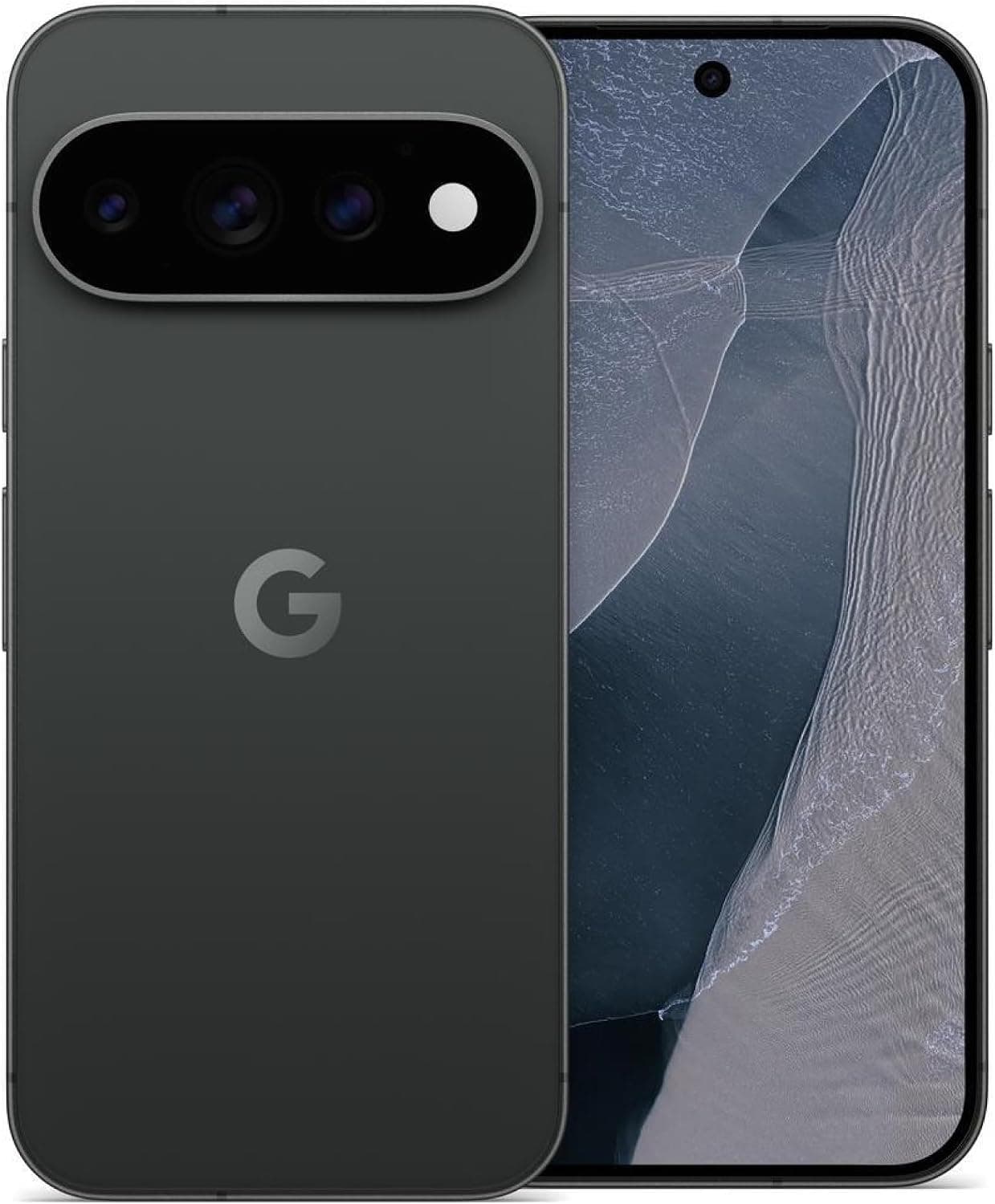
Google Pixel 11 Pro

Cristian Penisoara is a Guides Writer and Android specialist at Droid Tools. An Android user since version 2 and a professional event photographer, he combines technical curiosity with a detail-oriented approach - every guide he publishes is tested step-by-step on a real device before it goes live.

Learn how to turn off Pixel camera AI features like Auto Best Take and Auto Edit on newer Google phones to prevent unwanted photo adjustments.
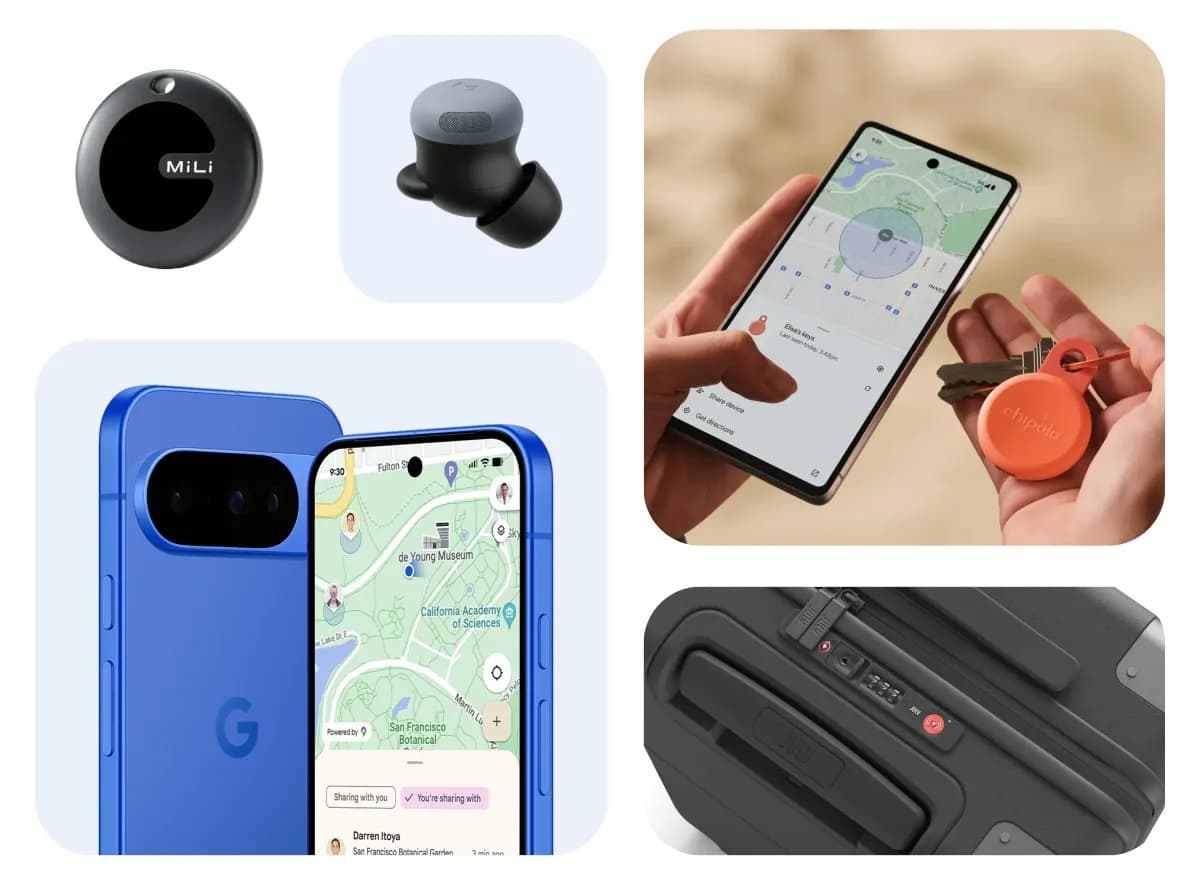
A traveler recovered a lost smartwatch in ten minutes using Pixel Watch Find Hub settings. Learn how to configure location toggles and ring missing devices.

Track the Google Pixel update schedule, including seven-year lifespans for newer models, quarterly patch shifts, and dual Android OS release windows.

Google explained how to manage Android time zones as Canadian regions end seasonal time changes, offering steps for automatic and manual clock adjustments.
The next story loads as you reach the end. You can also load it using the button.


Comments & Discussions
Join the conversation! We use Disqus to handle comments. Click the button below to load the comment section.