Google releases monthly updates and quarterly Pixel Drops, but over-the-air rollouts can take days to appear. Users can install updates immediately by downloading official full OTA images from Google and sideloading them via ADB without unlocking the bootloader or wiping data.

Google releases software updates every month and rolls out quarterly Pixel Drops with major new features and improvements. On November 10, 2026, Google released a Pixel Drop introducing Create My Widget and custom icon styles. However, updates do not always arrive on devices on release day; for example, the November update failed to appear on a Google Pixel 11 Pro days after launch. Rather than waiting for the gradual rollout, users can install the latest software manually as soon as it becomes available.
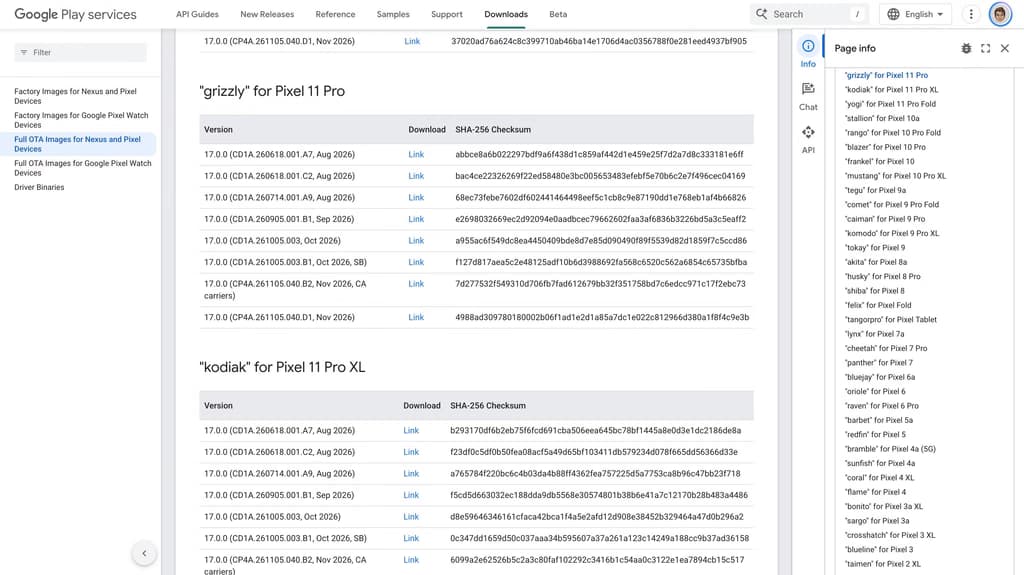
Whenever Google releases an update for Pixel phones, it publishes the full OTA update as a ZIP file on its official website. Sideloading this file allows users to install the update without waiting for it to arrive on the phone.
This method requires a Windows, Mac, or Linux computer, a USB cable, and the correct OTA update file. You also need ADB installed on your computer. Setting up ADB is a one-time process; once installed, it can be used for future Pixel updates.
First, go to Google’s official OTA images website and download the package for your specific Pixel model and build number. Selecting the correct model and build is essential, as the wrong file will cause the installation to fail. On the website, the latest build is typically listed at the bottom of the device’s section. Save the downloaded ZIP file in an easily accessible location on your computer.
Before connecting to the computer, enable USB debugging on the Pixel. Go to Settings > About phone, and tap Build number seven times to activate Developer Options. Then navigate to Settings > System > Developer options and turn on USB debugging.
Next, connect the Pixel to the computer with a USB cable. Open Terminal or Command Prompt and run adb devices. When the phone prompts to allow USB debugging, accept it. The Pixel will then appear in the list of connected devices.
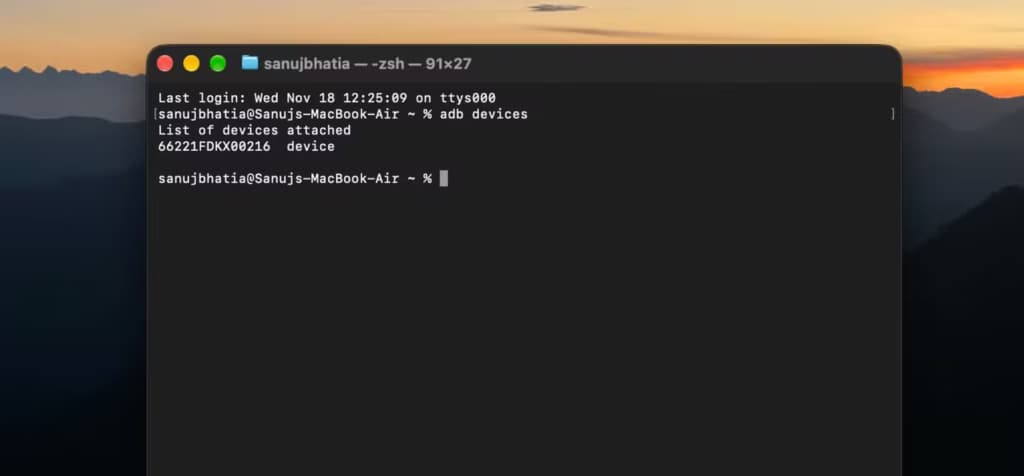
After confirming the connection, run adb reboot recovery. This restarts the Pixel into recovery mode. When the “No command” screen appears with the Android robot, hold the Power button, press and release Volume Up once, and release Power to open the recovery menu.
Use the volume buttons to highlight “Apply update from ADB”, then press the Power button to confirm. On your computer, run adb sideload filename.zip, replacing filename.zip with the actual name or path of the downloaded OTA file. The computer will transfer the update to the Pixel, which verifies and installs the file. After the installation finishes, select “Reboot system now” from the recovery menu, and the phone will restart with the new update.
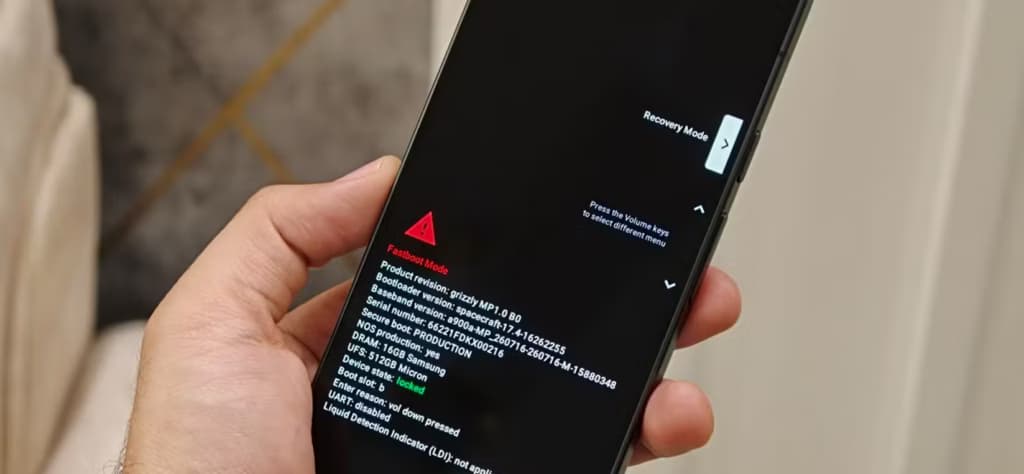
Google has officially confirmed that installing a full OTA image via ADB sideload does not require unlocking the bootloader or wiping device data. Installed apps, photos, messages, and personal files remain intact, allowing you to use your phone normally after the reboot.
Even so, backing up important files before starting is recommended, as there is always a small risk of an error during manual flashing. Once set up, the sideload process provides a reliable way to get the latest Pixel software without waiting days for gradual over-the-air rollouts.

Cristian Penisoara is a Guides Writer and Android specialist at Droid Tools. An Android user since version 2 and a professional event photographer, he combines technical curiosity with a detail-oriented approach - every guide he publishes is tested step-by-step on a real device before it goes live.

Learn how to test password strength with online checkers, use password managers, and apply two-factor authentication to secure accounts.

Learn how to block X posts in Google Discover using the three-dot feedback menu to remove posts from X and restore direct links to news stories.

Android earthquake alerts turn phones into seismic sensors, issuing Be Aware, Be Ready, or Take Action warnings based on expected shaking intensity.
Google updated Find Hub to support native left-behind reminders on compatible trackers, including Moto Tag and Chipolo, with custom exclusion zones.
The next story loads as you reach the end. You can also load it using the button.
As an Amazon Associate, Droid Tools earns from qualifying purchases. Editorial policy



Comments & Discussions
Join the conversation! We use Disqus to handle comments. Click the button below to load the comment section.