Android 16 quietly shipped with a feature called Advanced Protection, and it's the closest thing Android has to a panic button for your privacy. Instead of digging through a maze of settings menus to harden your phone, you flip one switch — and Google activates its strongest security defenses all at once. Think of it ...
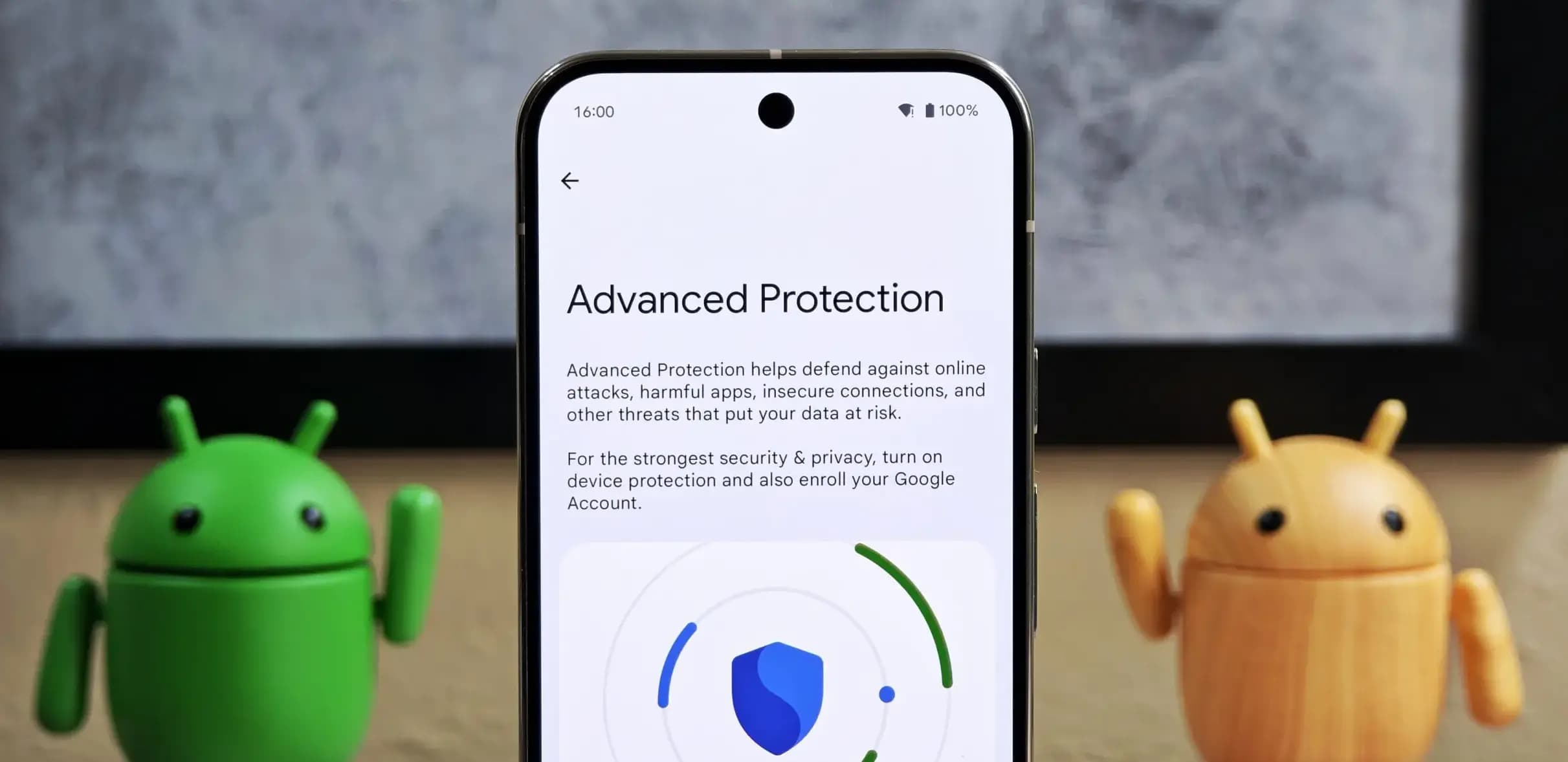
Android 16 quietly shipped with a feature called Advanced Protection, and it’s the closest thing Android has to a panic button for your privacy. Instead of digging through a maze of settings menus to harden your phone, you flip one switch — and Google activates its strongest security defenses all at once.
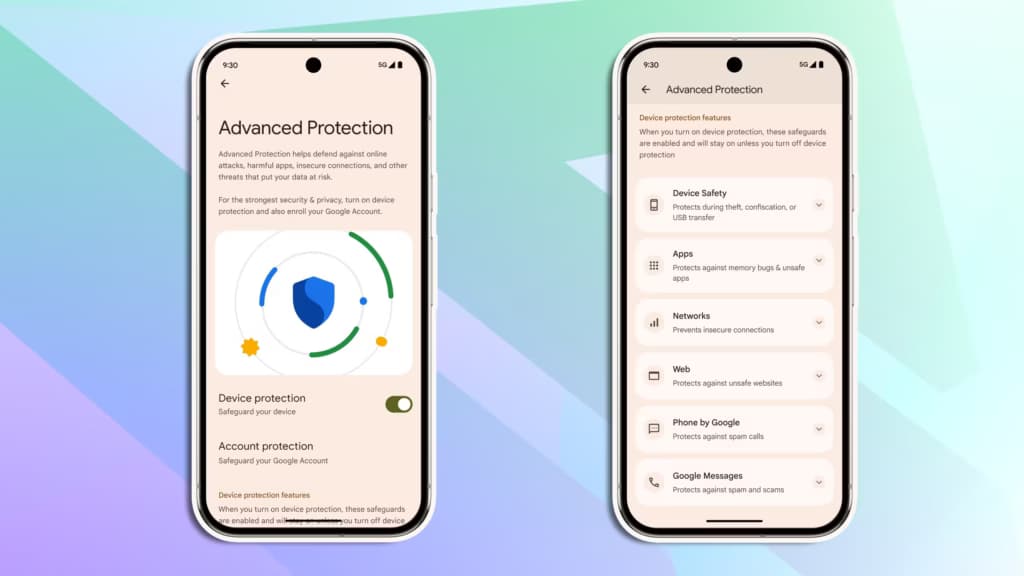
Think of it like Apple’s Lockdown Mode, but for Android. It protects you against theft, shady apps, unsecured networks, scam texts, and spam calls. The reason it’s off by default? It’s deliberately strict. There’s some friction involved. But if you actually care about who’s watching your data, that friction is worth it.
Here’s how to turn it on.
Advanced Protection only works on Android 16. Before you do anything, check that your phone is up to date: go to Settings > System > Software update (or System update, depending on your device) and install anything pending. Android 16 is available on most Pixel phones and major Android models. You’ll also need a screen lock set up.
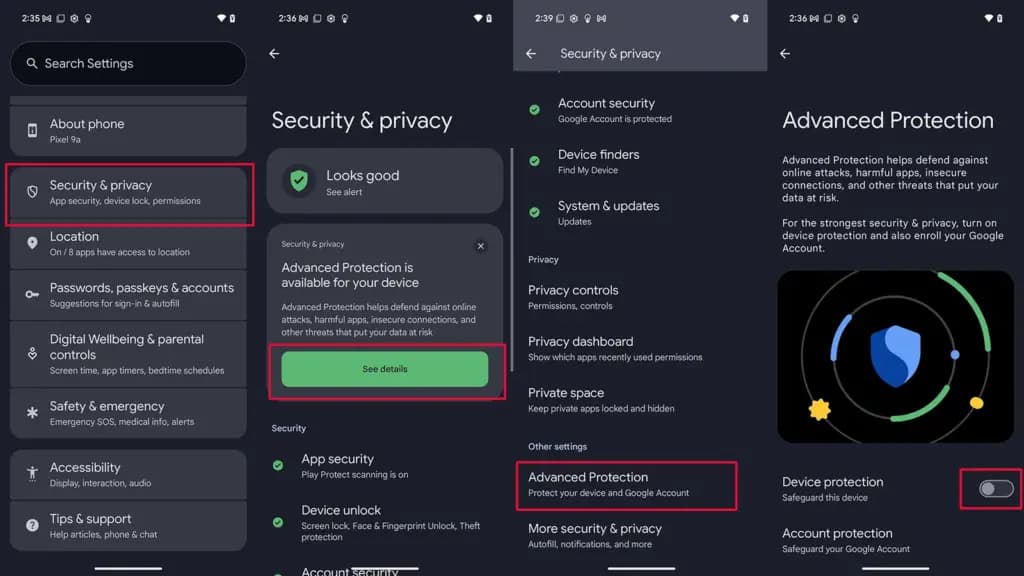
That’s it. One switch activates a stack of protections: always-on malware scanning, a block on sideloading unknown apps, theft and offline device locks, spam and scam text filters, a block on weak 2G connections, tighter call screening, and stronger Chrome security settings — among other things.
Turning on Advanced Protection for your device secures what’s on your phone. But your Google account — Gmail, Drive, Docs, Photos — is a separate story.
Google’s Advanced Protection Program is an opt-in service that locks down your account with stronger sign-in requirements, like passkeys or physical security keys, and limits which third-party apps can touch your data. If you’re a journalist, activist, executive, or anyone else with a good reason to be more cautious online, this is worth setting up.
To enroll:
To unenroll later: tap your Google Account profile photo > Manage your Google Account > Security > Advanced Protection Program > Manage Advanced Protection, then select Unenroll.
For most people, enabling device-level protection alone is a meaningful upgrade. If you want the full picture, pair it with account-level enrollment. Either way, it takes about two minutes — and it’s two minutes well spent.
Ring Indoor Cam 2K

Cristian Penisoara is a Guides Writer and Android specialist at Droid Tools. An Android user since version 2 and a professional event photographer, he combines technical curiosity with a detail-oriented approach - every guide he publishes is tested step-by-step on a real device before it goes live.

Track the Google Pixel update schedule, including seven-year lifespans for newer models, quarterly patch shifts, and dual Android OS release windows.

Google explained how to manage Android time zones as Canadian regions end seasonal time changes, offering steps for automatic and manual clock adjustments.

Quick Share for Windows transfers files from Android to your PC over Wi-Fi at rates up to 100MB/s, bypassing email and third-party cloud uploads.

Overnight charging exposes phone batteries to sustained high voltage and heat. Learn how Google Pixel and Samsung Galaxy settings stop cell degradation.
The next story loads as you reach the end. You can also load it using the button.


Comments & Discussions
Join the conversation! We use Disqus to handle comments. Click the button below to load the comment section.