





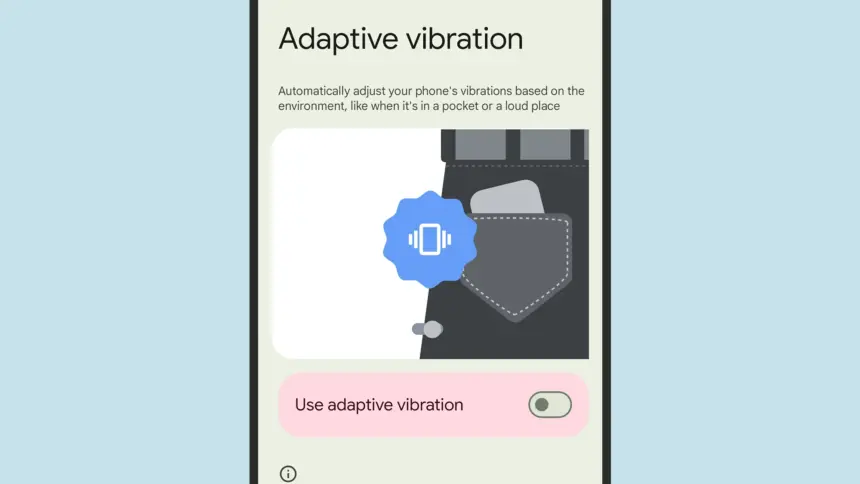
When your phone is vibrating, do you miss any calls or messages? It is easy, and you are not alone. Google has an answer. The most recent Android 15 version for Google Pixel smartphones has an Adaptive Vibration feature to help you avoid missing notifications. This function determines the degree of movement, location, and environment the device is in using the microphones and sensors on your phone. It modifies the vibration motor’s strength based on the contextual information.
You will notice when your phone buzzes thanks to Adaptive Vibration, even whether it is in your backpack, pocket, or lying away from you on your bed. It prevents loud vibrations when the gadget is put on a hard surface, such as a table. Adaptive Vibration takes only a few seconds to set up.
How to turn on Adaptive Vibration
To enable Android 15’s Adaptive Vibration function, launch the Pixel Settings app, navigate to the Sound & Vibration section, scroll down, and select Vibration & Haptics. Then select Adaptive Vibration and tap the toggle to enable it.
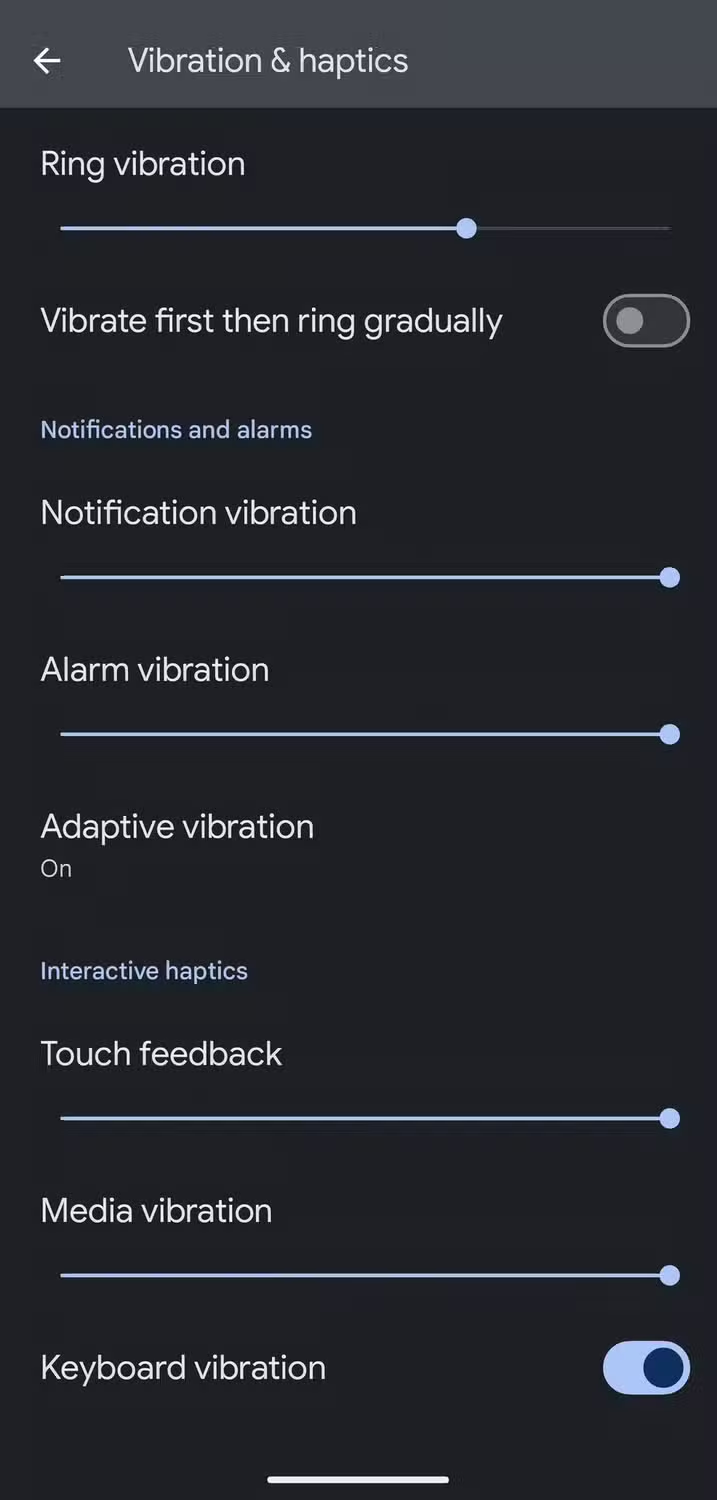
When turned on, it begins operating on incoming notifications like as calls and messages. The haptics of the keyboard are unaffected. Adaptive Vibration is useful in a variety of contexts, particularly in noisy surroundings where incoming notifications are difficult to detect. It also works the opposite way around, dampening the vibration in quiet environments where it could cause a stir, such as when resting the handset on a table in a library or at a movie theater.
The feature is accessible on Google Pixel 7 phones and higher. You will need Android 15. If you have a compatible smartphone but can not discover the function, make sure it is up to date by accessing the device Settings, navigating to the System section, hitting Software Updates, and ensuring you are running Android 15.
Other vibration features do Google Pixel phones
Adaptive Vibration is the most recent vibration feature, however it is not the only one worth knowing about. For example, you can select several vibrating ringtones. Open the device’s Settings app, navigate to the Sound & Vibration section, and select an audible ringtone from the Phone Ringtone menu. When you flip between them, the vibration pattern adjusts to match the sound.


The Vibration & Haptics option allows you to customize the strength of the vibration for each sort of alert, such as calls, notifications, and alarms. For phone calls, you can begin with a vibration before gradually turning on the out loud ring. On the same page, you may change the amount of haptic feedback you get when you touch the screen or keyboard, as well as when media plays.
Another interesting way Pixel phones employ vibration is in the Weather app. If it is raining, the vibration motor simulates the sense of raindrops on the phone when you start the app, accompanied with an animation of rain falling. It is not the most useful feature, but it is a pleasant addition.