The Samsung Galaxy S25 Ultra and iPhone 17 Pro are two of the greatest phones available right now because of their incredible cameras and powerful processors. Even though these high-end flagships could be the best mobile devices available right now, getting them will cost you a fortune. Even phones that are affordable, like the Google ...
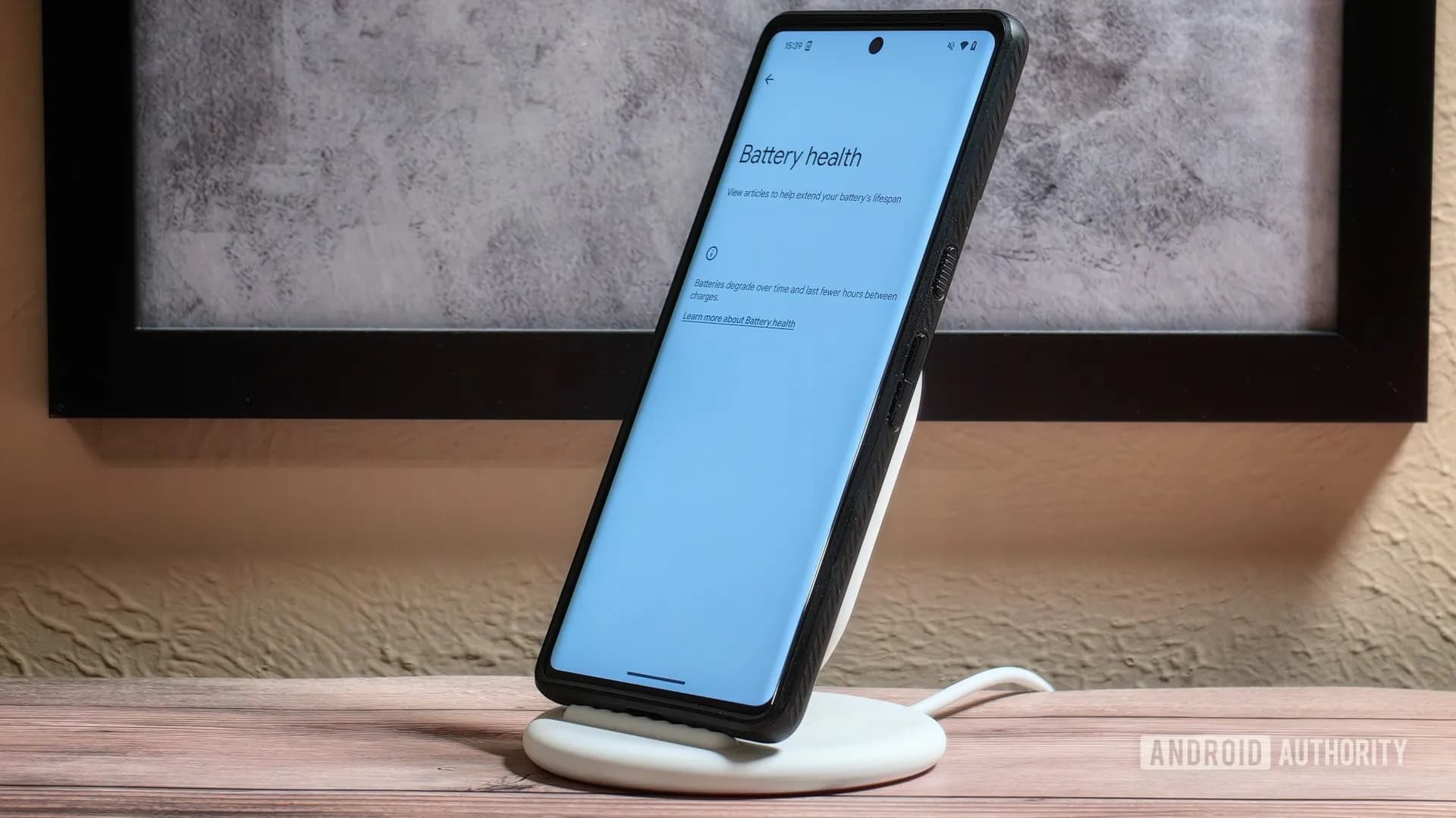
The Samsung Galaxy S25 Ultra and iPhone 17 Pro are two of the greatest phones available right now because of their incredible cameras and powerful processors. Even though these high-end flagships could be the best mobile devices available right now, getting them will cost you a fortune. Even phones that are affordable, like the Google Pixel 9A, are still expensive, and since people’s budgets are getting tighter everywhere, it’s more crucial than ever to get the most out of your purchases. Instead of updating more frequently, the simplest approach to achieve that is to just stay using your phone longer, spreading out that expensive purchase across the years.
Not only is it better for your wallet, but it’s also much better for the environment. If you upgrade your phone less frequently, fewer phones will be made and distributed, and fewer old phones will wind up in landfills. The good news is that manufacturers such as Apple, Google, Samsung, and others are extending the support period for their phones’ software updates, so the phone you purchase today will continue to be safe to use for many years to come.
You are responsible for the remainder. It takes some work, a lot of attention, and a few crucial tactics to keep your phone in good operating order for the seven or eight years of software support it may receive.
Therefore, these are the best ways to extend the life of your phone.
Avoid using a phone that isn’t receiving security upgrades since it’s just not safe. Phones like the Google Pixel 9 series now come with seven years of software support, whereas before it was typical for many Android manufacturers to support new phones for only two to three years. Unfortunately, some less expensive phones, such as the recently released OnePlus Nord CE4 Lite, only get upgrades for a few years. When purchasing a new phone, be sure to inquire about its support duration since this will provide you with greater value during the phone’s lifetime.
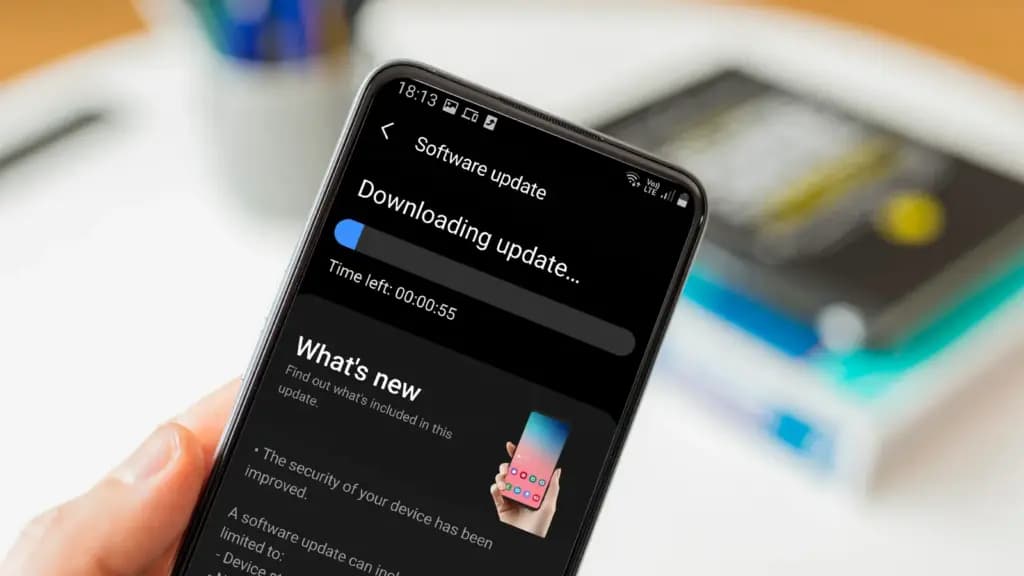
Keeping your phone up to date with the most recent security update will help prevent hackers and remove any dangerous software that might infiltrate and cause your phone to lag. If you have an older phone, go to the settings menu, scroll down to Software Update, and click to see if there is an update available. Most phones will automatically ask you to install the most recent upgrades, and you sh
This also applies to your apps, which must be updated to stay compatible with the iOS or Android version you’re using. Allowing apps to update automatically in the background is a good idea, but if you don’t, make sure you’re running the most recent versions by going into your preferred app store.
If you recently purchased a brand-new iPhone, installing a case right away is the best way to preserve it physically. In addition to protecting it in the event that you drop it, it will also assist prevent it from absorbing tiny scratches from your pocket’s coins or keys.
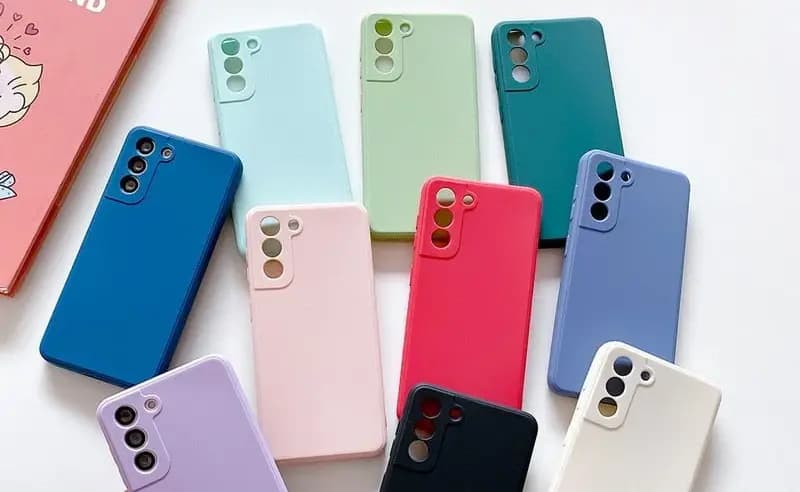
Since there isn’t much you can do to repair your phone’s screen after it becomes damaged, a screen protector is also a smart option. You can easily change a screen protector if it gets a severe scratch, keeping the phone itself looking brand new for many years to come. When it’s time to update, keeping your phone looking new could help you sell it for more money on the used market, even if you don’t intend to keep it for many years.
Over time, the battery in your phone will progressively degrade, giving it less life between charges than it did when it was brand-new. All phones are like this. Batteries in certain older phones might only provide 50% of their previous capacity. Your phone may even alert you when it senses that your battery isn’t providing enough power, in which case it may limit your processor to make up for it.
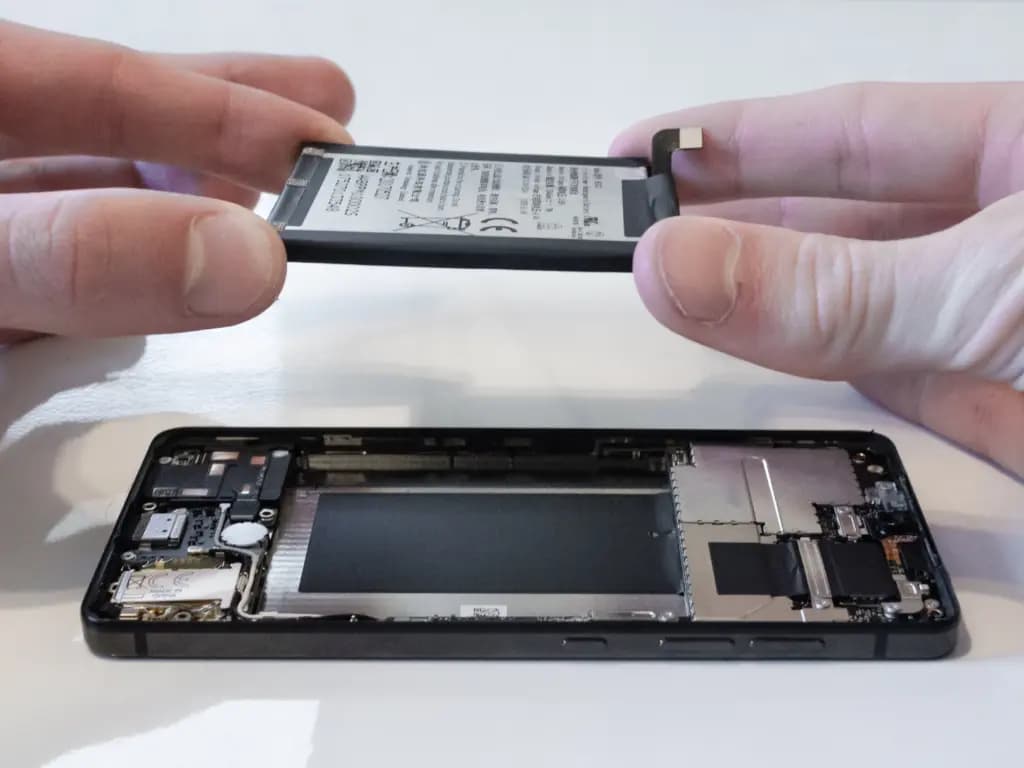
Don’t worry; most phones have a battery that is rather simple to change on your own to give it a fresh lease on life. If your battery is about to die, it could be worth trying to repair it yourself. iFixit offers a wide range of kits and third-party replacement batteries to fit a large number of phones.
If you’re not very confident with your screwdriver skills, this might be a nice alternative to think about. There are a number of places you can take your phone to have your battery replaced, or even other components like a broken screen. However, not all of them are really legitimate.
Your phone is probably cluttered with thousands of pictures of your friends, pets, or the plates of food you’ve consumed over the years if you’ve owned it for a long time. You probably have a number of outdated apps and games that you downloaded on the spur of the moment, played for a few bus rides, and then switched to the newest mobile gaming craze.
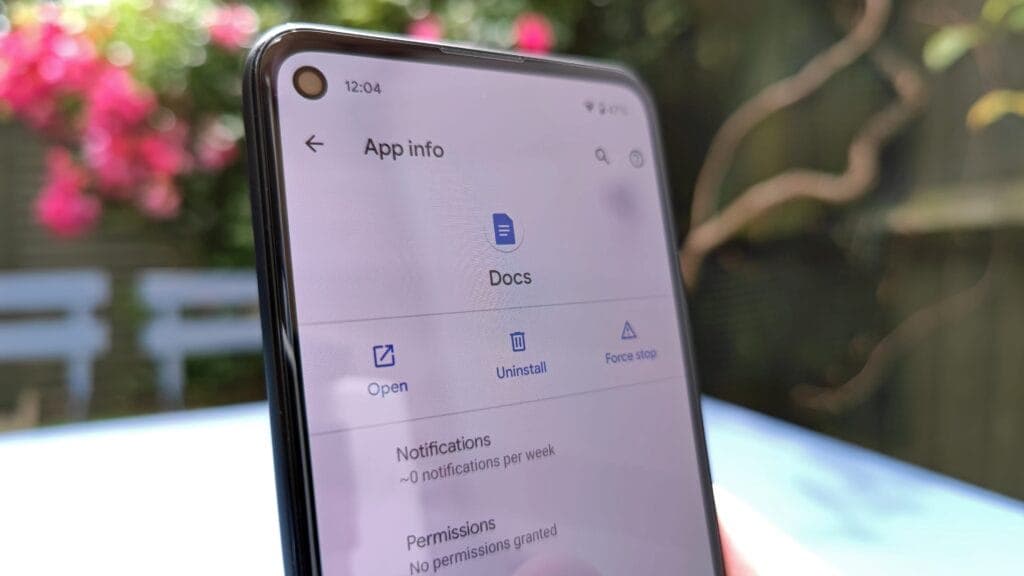
In addition to negatively impacting your phone’s general performance, a shortage of storage may also make it more difficult to install important software updates. It’s worthwhile to look through your archives, remove anything from your phone that is wasting space, and backup any pictures and movies you wish to store to the cloud.
It might even be worth backing up all of your crucial data and performing a complete factory reset, starting over, and only installing the necessary apps if your phone has been slow for a long period.
Last but not least, cleaning your phone can offer unexpected benefits. Your phone may suffer greatly from pocket fluff, especially when it comes to the charging connector, which frequently becomes clogged with bits of junk. As a result, your phone won’t charge when you plug in your charger because it can’t connect completely.
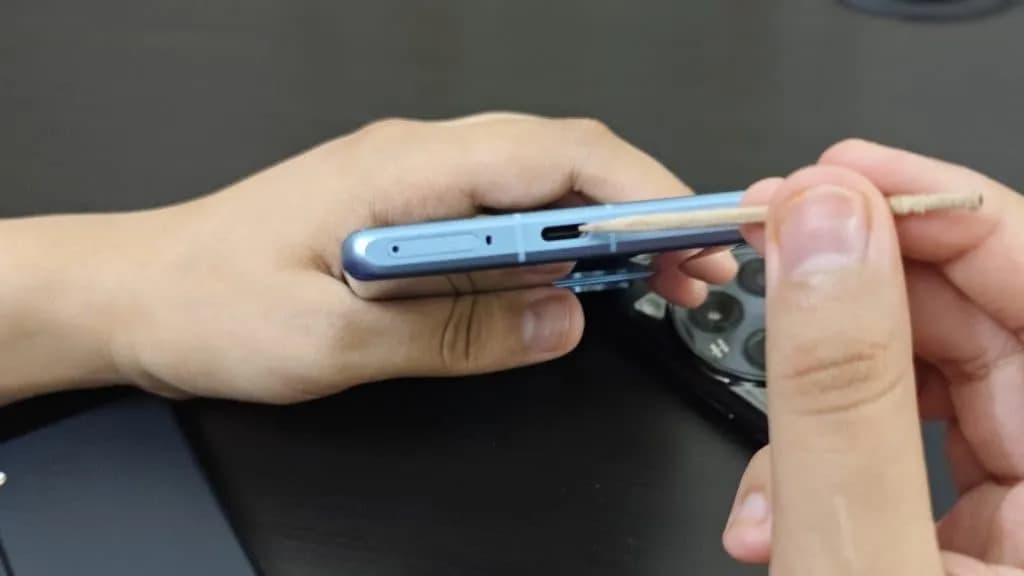
It’s tempting to assume that something has broken, like the cable or the charging port itself, but it could just be that the port is overflowing with lint. To make sure your charger fits without requiring forceful wriggling, occasionally insert a wooden toothpick into the area and try to ease out any dirt or debris you notice.
To make sure you can clearly hear—and be heard—during your phone calls, it’s also worthwhile to carefully brush away any debris you may discover near the speakers and microphones with an old toothbrush that has been cleaned and dried.

Ring Indoor Cam 2K

Cristian Penisoara is a Guides Writer and Android specialist at Droid Tools. An Android user since version 2 and a professional event photographer, he combines technical curiosity with a detail-oriented approach - every guide he publishes is tested step-by-step on a real device before it goes live.

Learn how to turn off Pixel camera AI features like Auto Best Take and Auto Edit on newer Google phones to prevent unwanted photo adjustments.
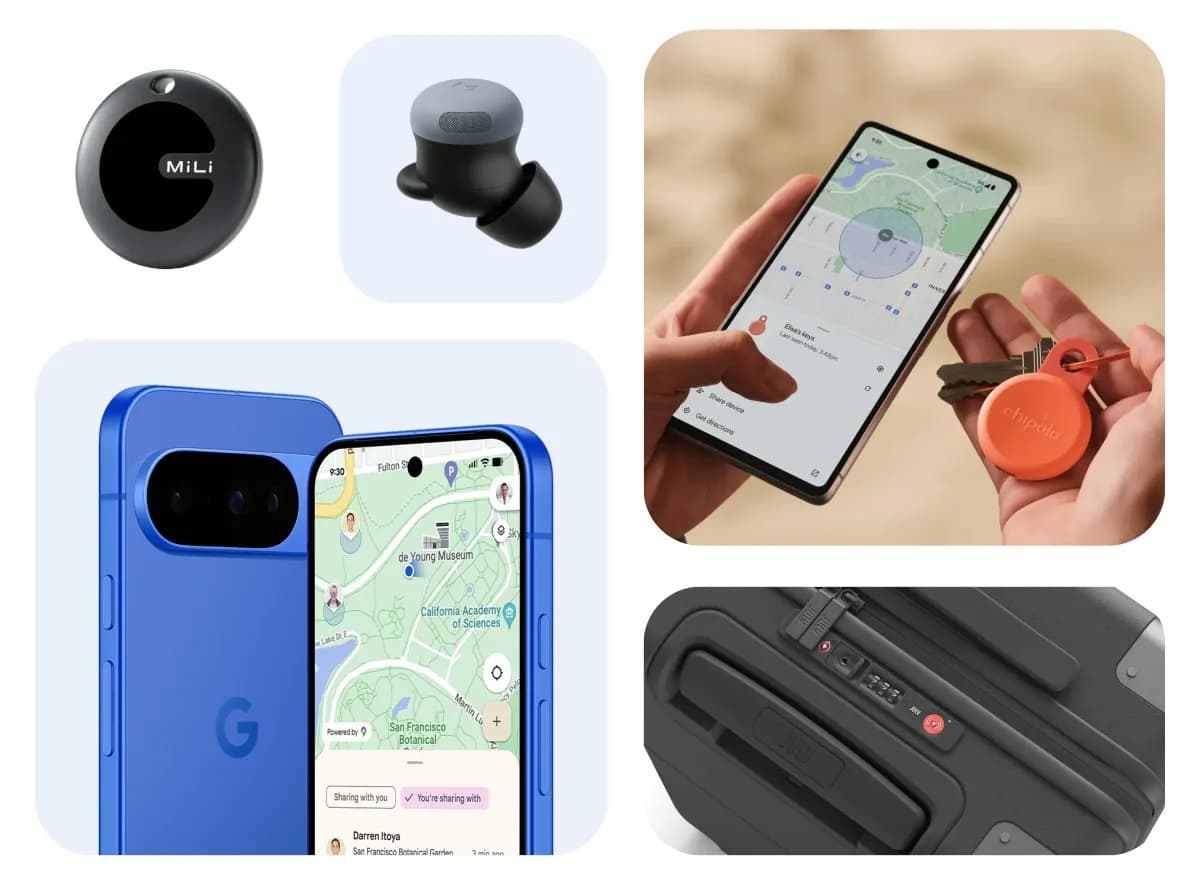
A traveler recovered a lost smartwatch in ten minutes using Pixel Watch Find Hub settings. Learn how to configure location toggles and ring missing devices.

Track the Google Pixel update schedule, including seven-year lifespans for newer models, quarterly patch shifts, and dual Android OS release windows.

Google explained how to manage Android time zones as Canadian regions end seasonal time changes, offering steps for automatic and manual clock adjustments.
The next story loads as you reach the end. You can also load it using the button.


Comments & Discussions
Join the conversation! We use Disqus to handle comments. Click the button below to load the comment section.