





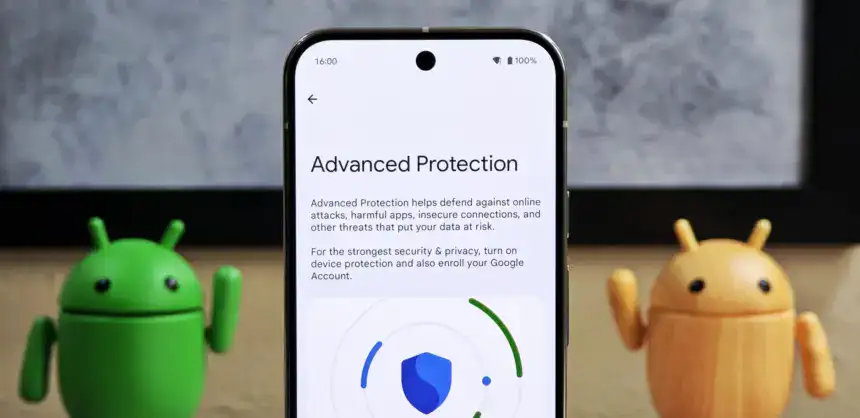
Android 16 quietly shipped with a feature called Advanced Protection, and it’s the closest thing Android has to a panic button for your privacy. Instead of digging through a maze of settings menus to harden your phone, you flip one switch — and Google activates its strongest security defenses all at once.
Think of it like Apple’s Lockdown Mode, but for Android. It protects you against theft, shady apps, unsecured networks, scam texts, and spam calls. The reason it’s off by default? It’s deliberately strict. There’s some friction involved. But if you actually care about who’s watching your data, that friction is worth it.
Here’s how to turn it on.
What you need first
Advanced Protection only works on Android 16. Before you do anything, check that your phone is up to date: go to Settings > System > Software update (or System update, depending on your device) and install anything pending. Android 16 is available on most Pixel phones and major Android models. You’ll also need a screen lock set up.
Step 1 — Find the setting
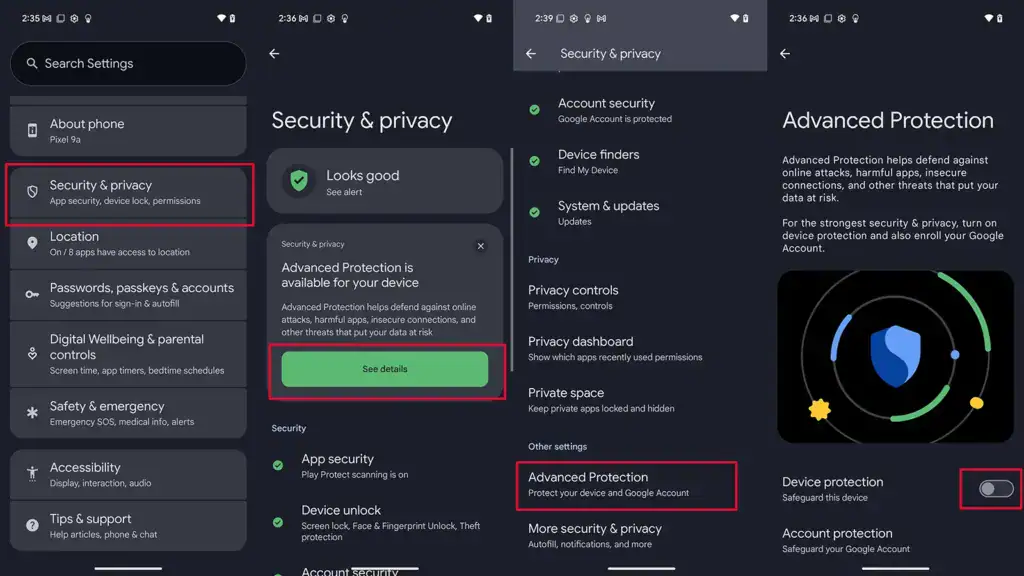
- Open Settings
- Tap Security and privacy
- Select Advanced Protection (on some devices it’s tucked under Other settings)
Step 2 — Turn it on
- Under Advanced Protection, toggle on Device protection
- Tap Turn on
- Restart your phone if prompted
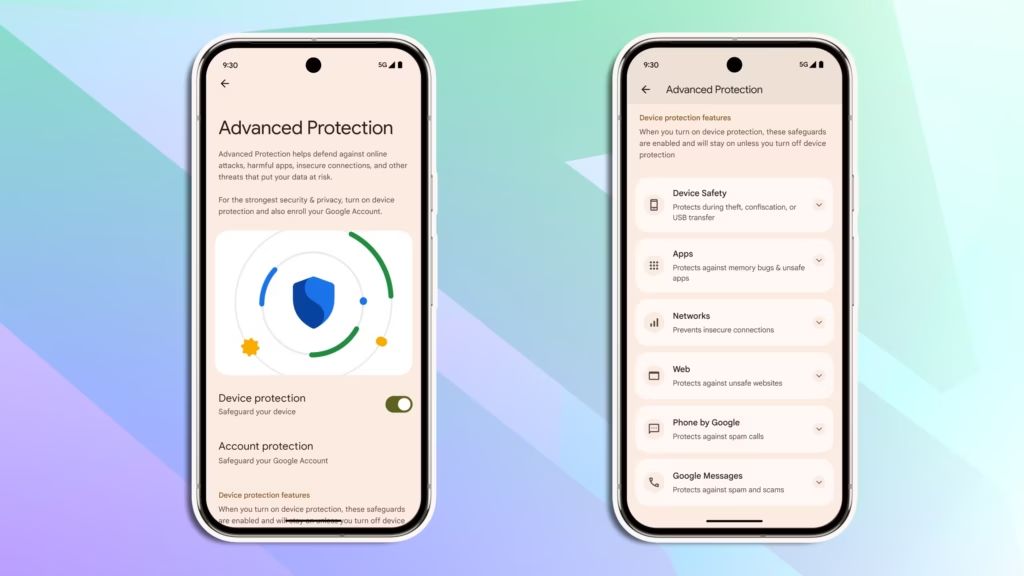
That’s it. One switch activates a stack of protections: always-on malware scanning, a block on sideloading unknown apps, theft and offline device locks, spam and scam text filters, a block on weak 2G connections, tighter call screening, and stronger Chrome security settings — among other things.
Step 3 (optional) — Protect your Google account too
Turning on Advanced Protection for your device secures what’s on your phone. But your Google account — Gmail, Drive, Docs, Photos — is a separate story.



Google’s Advanced Protection Program is an opt-in service that locks down your account with stronger sign-in requirements, like passkeys or physical security keys, and limits which third-party apps can touch your data. If you’re a journalist, activist, executive, or anyone else with a good reason to be more cautious online, this is worth setting up.
To enroll:
- Go to Advanced Protection in your Google Account settings and sign in
- Follow the on-screen steps — you’ll likely be asked to set up a passkey or security key, and add a backup phone number and email
- Tap Enroll to finish
To unenroll later: tap your Google Account profile photo > Manage your Google Account > Security > Advanced Protection Program > Manage Advanced Protection, then select Unenroll.
For most people, enabling device-level protection alone is a meaningful upgrade. If you want the full picture, pair it with account-level enrollment. Either way, it takes about two minutes — and it’s two minutes well spent.