






At some point, there’s a good chance you’ll need to create and send a PDF from your Android phone. The instinct is usually to head straight to the Google Play Store — but with ongoing reports of malicious apps turning up on both Android and iOS, that search can quickly become a security minefield. Before downloading anything unfamiliar, it’s worth checking what’s already on the device.
As it turns out, scanning paper documents and saving them as PDFs on Android requires no third-party software at all. The feature is built directly into the Google Drive app, which comes preinstalled on most Android devices. Here’s how to use it.
How to turn scanned documents into PDFs on Android
What you’ll need: The Google Drive app on your Android phone — which should already be there out of the box.
1. Open Google Drive Launch the Google Drive app from the home screen or the App Drawer.
2. Select Scan Tap the + button in the bottom-right corner, then select Scan from the menu that appears.
3. Scan your documents Point the camera at the first page of the document. After scanning it, repeat the process for each additional page. Once all pages have been captured, tap the right-pointing arrow button at the bottom right of the screen.



4. Enhance if necessary The next screen offers basic editing tools — filters, crop/rotate controls, and a cleaning tool to tidy up the scan. Make any adjustments needed, then tap Next.
5. Name and upload Give the file a name, make sure PDF is selected as the format, and upload it. To save directly to a specific folder, tap the drop-down and choose the destination within Google Drive.
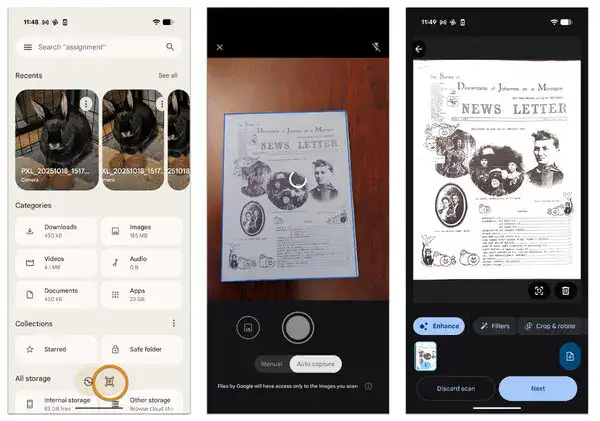
The scan will now be available in the selected Google Drive folder, ready to share from within the app. The clarity of the results tends to be better than expected.
One important thing
Google Drive doesn’t offer the option to encrypt or password-protect scanned files, which is worth keeping in mind for anything sensitive. The PDF will also sit in the Google Drive account until manually removed. A sensible practice: delete the file from Drive once it’s been shared, rather than leaving sensitive documents sitting in cloud storage indefinitely.
On the upside, scanned PDFs aren’t saved locally to the device, so there’s no storage impact to worry about. It’s a straightforward, no-cost solution that works well for everyday document scanning needs.


