







There comes a point where upgrading your smartphone every year or two just does not make much sense anymore. My Google Pixel 9 Pro from 2024 is still performing well, and unless the next upgrade brings something meaningful, I do not see myself moving to the Pixel 11 Pro either.
The trade-off for keeping a phone longer is that it slowly starts to feel cluttered. You install the apps you need over time, and unlike the old days of swapping to a fresh device, everything accumulates. At this point, I have well over 100 apps on my phone.
The issue is that many of these apps keep running in the background, using RAM and other system resources even when they are not open. That can make your phone feel slower, less responsive, or just not as smooth as before.
Android includes a hidden setting that lets you see exactly how much memory each app is using. It makes it much easier to figure out which apps are worth keeping and which ones are just sitting there eating resources and slowing down your phone.
You need Developer Options first
Before you can check this, you need to enable Developer Options on your device, which is probably why you have never run into this setting before.
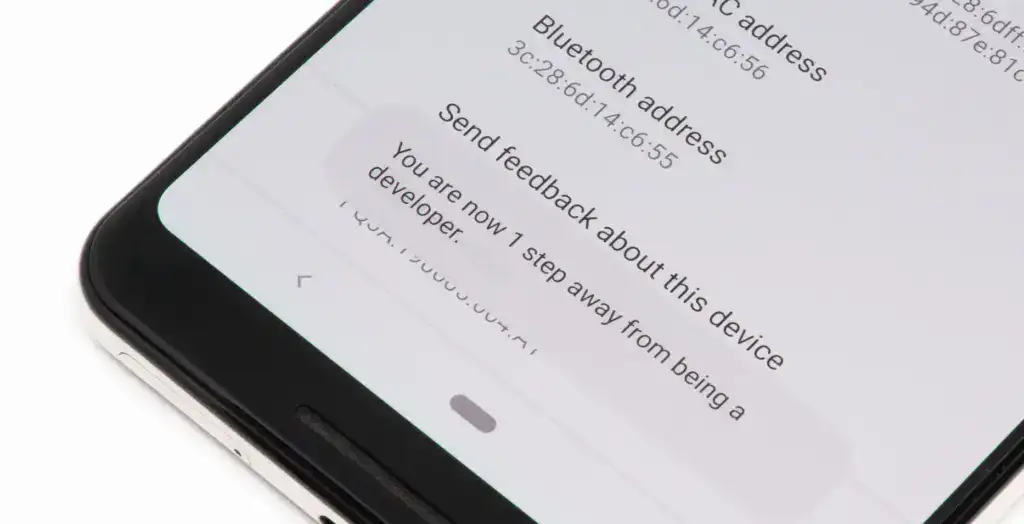
To turn it on, open the Settings app on your phone, then go to the About Phone section. From there, tap the Build number seven times. After a few taps, you should see a message saying, “Developer options have been enabled.”



Once that is done, go back to System settings and open Developer Options. Near the top, you will find a Memory section. On some devices, especially Google Pixel phones, memory usage profiling may not be enabled by default, so you may need to switch it on and restart your device before you can use it.
What the numbers mean
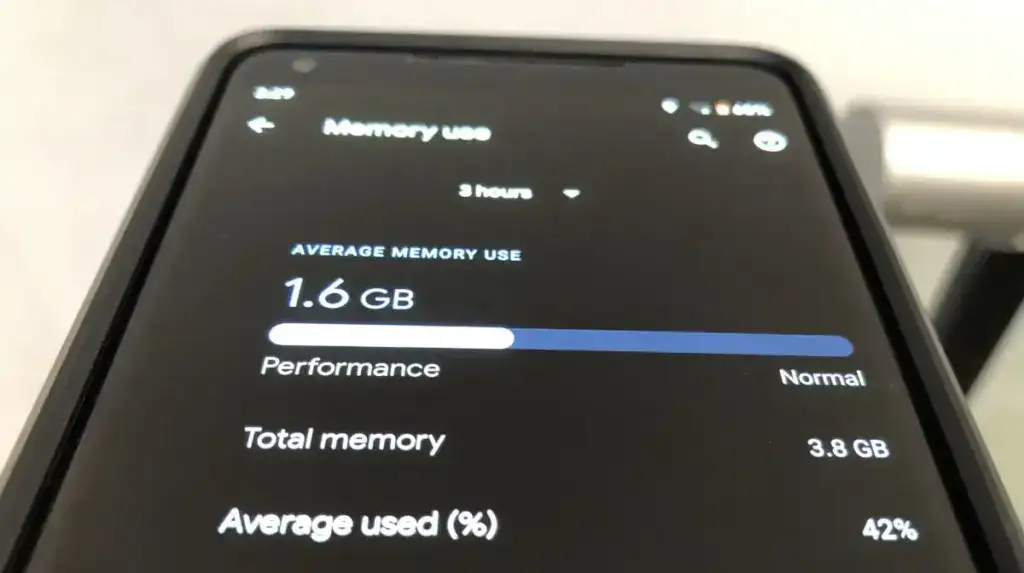
Inside the Memory section, you will see how much RAM your phone has, how much is being used on average, and a general overview of overall performance.
If you want to see which apps are using memory, tap the Memory used by apps option. This section lists apps based on how much RAM they have used over the past three hours by default.
At the top, there is a drop-down menu that lets you change the time frame to three hours, six hours, 12 hours, or one day. In practice, 12 hours or one day gives a much better picture of which apps consistently use the most memory throughout the day.
In most cases, Android OS will appear at the top, and that is completely normal. The system itself runs several background processes, and all of that gets grouped under Android OS.
What matters more is spotting third-party apps that are using more RAM than expected. You can tap any app to see details such as its average and peak memory usage.
For example, I do not currently have a Pixel Watch paired with my Pixel 9 Pro, but the Pixel Watch app and Fitbit app together were using around 250MB of RAM in the background. That is a lot for something I am not even using.
If you notice similar apps on your phone, you can open their info page and use the three-dot menu to force stop them if needed.
RAM use is not always bad
That said, RAM being used is not automatically a problem.
Android is designed to use available RAM to keep apps ready in the background, so it does not always mean your phone is wasting resources. The real goal is to identify what is actually unnecessary.
If you find an app that you do not really use but it is still taking up a lot of memory, you can stop it from this menu. Even better, uninstalling it completely is usually the smarter choice.
Force stopping only works temporarily, since the app will start using memory again the next time you open it. If you no longer use the app at all, removing it entirely ensures it will not keep using RAM in the future.
Recent apps are not enough
If you think the apps in your Recents menu are the only ones using your phone’s resources, closing them will not solve everything.
Those are just the apps that are currently active, but many Android apps continue running background processes that you do not see in Recents or on the screen.
That is exactly why this feature shows average memory usage over the past few hours, giving you a much clearer view of what is really using RAM behind the scenes.
Overall, this tool should help you spot the apps that are using more memory than they actually need. It gives you a clearer sense of what is running in the background and what is worth keeping installed.
If your phone feels slower or the battery is draining faster than usual, there are also other steps you can take to optimize your Android phone and help it last longer.


