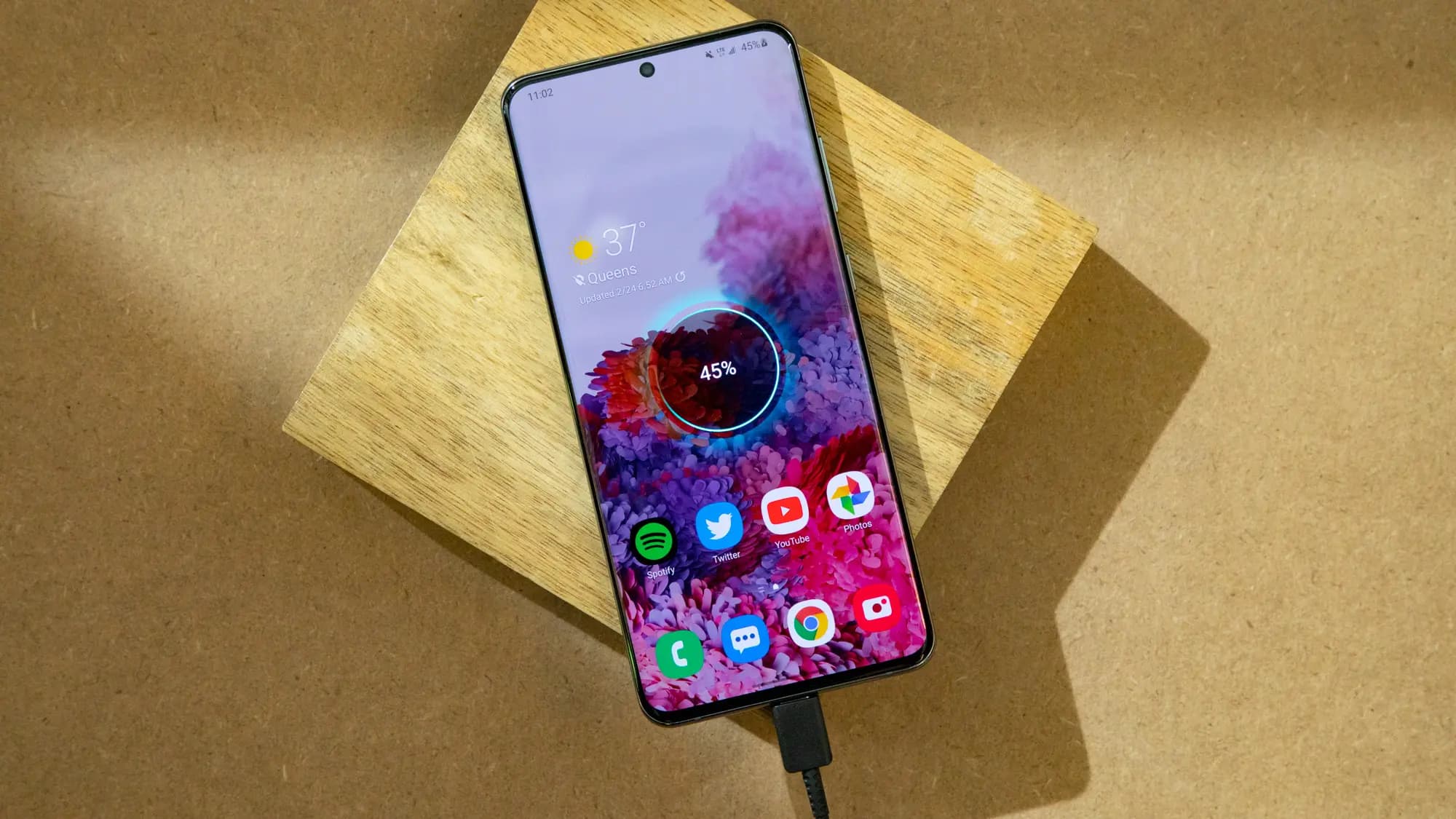

Battery Life is the one Android topic where everyone has an opinion—and somehow, half of those opinions are stuck in 2011. You’ve probably heard “drain it to zero,” “never charge overnight,” or “close every app or your battery will melt.” Meanwhile, your phone still hits 18% before dinner.
This guide is here to cleanly separate Battery Life myths from the real fixes that make a difference. Not miracle tricks. Not “turn off everything until your phone is basically a calculator.” Practical stuff you can do today, plus a few habits that keep your battery healthier over time.
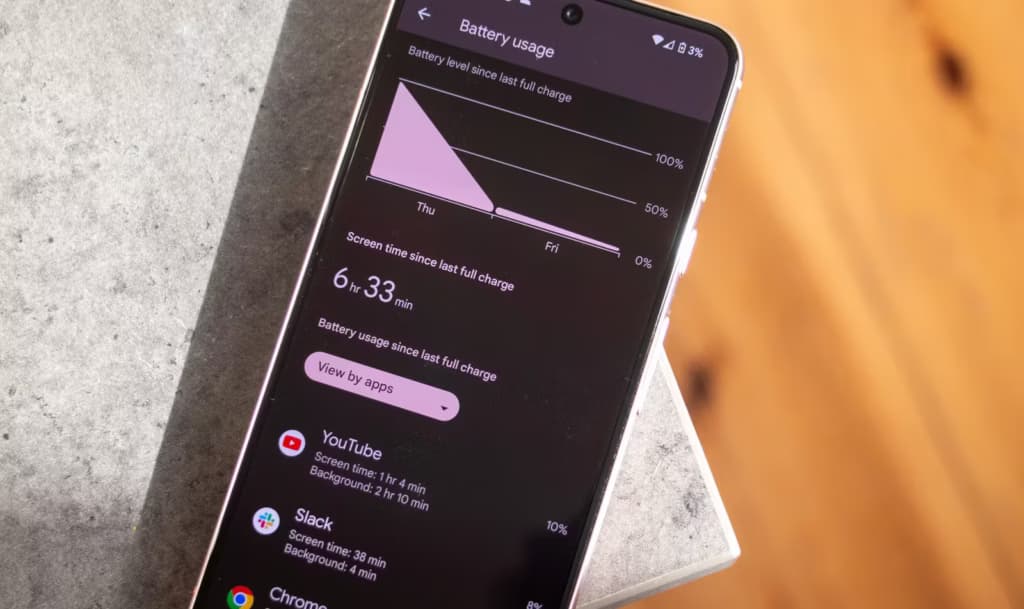
Battery Life can feel unpredictable because it’s influenced by things you don’t notice in the moment—signal strength, background syncing, location services, screen brightness, and heat. Sometimes you change one setting, your phone lasts longer, and you assume you found “the secret.” Other times you do everything right and it still drains fast.
On the one hand, modern Android is genuinely good at managing power in the background. But here’s the catch: one badly-behaved app, a weak 5G signal, or a hot charging session can undo all that smart optimization. So the goal isn’t perfection. It’s control.
Before we fix anything, let’s kill the myths that waste your time.
This one is everywhere, and it sounds logical… until you remember: modern phones use lithium-ion batteries, not the older battery types that suffered from “memory effect.” Deep discharges can stress lithium-ion batteries over time, which is why many guides recommend avoiding constant 0% runs.
What to do instead (realistic version):
Small nuance: letting your phone hit 0% occasionally isn’t a crime. It’s the repeated “red zone lifestyle” that tends to age batteries faster.
Modern phones are designed to stop charging at 100%, so the old-school “overcharging” fear is mostly outdated. Overnight charging, by itself, isn’t automatically destructive.
But—and this is where people get it half-right—keeping a battery sitting at 100% for hours can add stress over the long term, especially if the phone is warm while charging. That’s why features like adaptive/optimized charging and charge limits exist.
Real fix:
This is the classic “swipe everything away” habit.
Sometimes it feels like it helps, because your phone looks “clean.” But Android often manages background apps efficiently on its own, and constantly force-closing apps can even add overhead because apps need to reload again and again. (It’s like turning your car off at every red light to save fuel—technically it changes consumption, but not in the way you want.)
When it actually helps: when a specific app is misbehaving—running in the background, looping, overheating, or abusing location. In that case, the fix isn’t “close everything.” It’s “find the one problem app and deal with it.”
Fast charging is not automatically a battery death sentence. Real-world testing and good charging management have improved a lot. But here’s the catch: heat is the enemy.
Fast charging can create more heat depending on the charger, phone design, and environment. Heat accelerates battery wear, so it’s not the speed itself you fear—it’s the temperature that sometimes comes with it.
Practical approach:
This used to be decent advice years ago. Today it’s more “it depends.”
Wi‑Fi can actually be more power-efficient than mobile data in many situations, and modern Bluetooth is generally low energy. The bigger issue is constant scanning, weak signals, and background activity triggered by connectivity.
Real fix:
Now the part that matters. These are the changes that most people can feel within 24–72 hours.
For many users, the display is the biggest Battery Life drain. Not because your phone is “bad,” but because modern screens are bright and we keep them on longer than we realize.
Try this:
Guessing wastes time. Checking takes two minutes.
Go to:
Look for:
Then do one of these:
This is not anti-app paranoia. It’s basic hygiene. Even reputable apps can bug out after updates.
Location is one of the easiest Battery Life drains to miss, because it doesn’t always “look active.”
Set most apps to:
Only keep “Always” for apps that truly need it:
Also consider turning off “precise location” for apps that don’t need it. Your weather app doesn’t need to know which side of the couch you’re on.
Here’s a sneaky Battery Life killer: poor signal.
When your phone struggles to maintain connection, it works harder—especially on unstable 5G. If you’re in a weak coverage area, your battery can drop faster even if you’re barely using the phone.
Try:
Battery Saver isn’t only for emergencies. It’s a tool for predictable long days.
Try:
This doesn’t mean living in Battery Saver forever. It means using it strategically—like carrying an umbrella when the sky looks suspicious.
Let’s call it out plainly:
And yes—sometimes the battery is simply aging. No setting can reverse chemistry.
Quick checklist, no nesting, no drama:
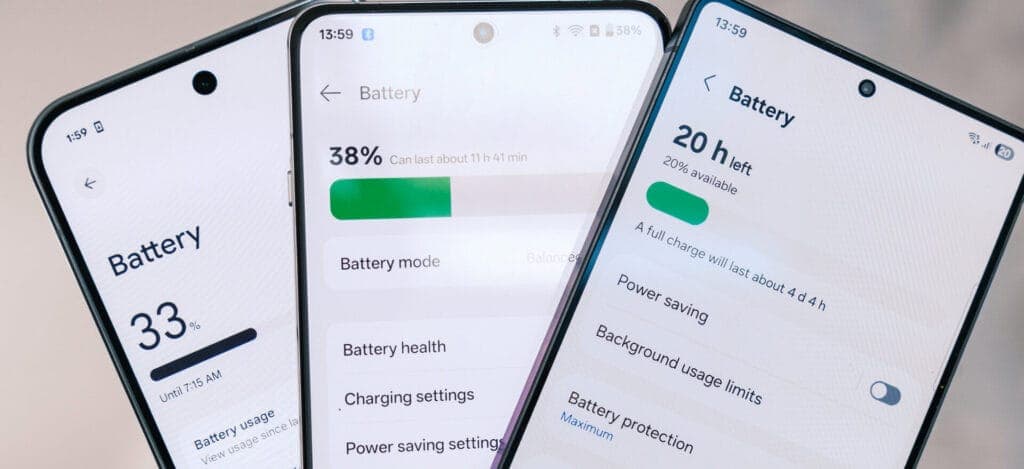
Battery Life today is one thing. Battery health over two years is another.
A few habits that help longevity without making you obsessive:
Heat accelerates battery wear, so avoid:
This isn’t fear-mongering. It’s just how batteries age.
Many sources recommend a “20–80%” or “30–80%” range for slower battery aging, but the exact number isn’t magical. The point is reducing time spent at very high charge levels, especially with heat.
If you’re traveling or need maximum Battery Life that day, charge to 100%. No guilt. Just don’t keep it sitting at 100% hot for hours every single day.
Sometimes your Battery Life issues aren’t fixable with tweaks because the battery has aged.
Common signs:
At that point, consider:
No shame either way. Batteries are consumables.
Modern phones prevent classic “overcharging,” but staying at 100% for hours—especially with heat—can contribute to wear over time, so adaptive charging or charge limits are helpful.
Charging to 80–85% can reduce stress for long-term battery health, but it’s not mandatory. Use it when convenient, and charge to 100% when you need full-day Battery Life.
Not usually in a big way. It helps mainly when an app is misbehaving and draining battery in the background.
It can help, especially on OLED screens, because darker pixels can use less power. The impact varies by device and brightness.
Your phone works harder to maintain a connection when coverage is weak, which increases power use—even if you’re not actively using the phone.
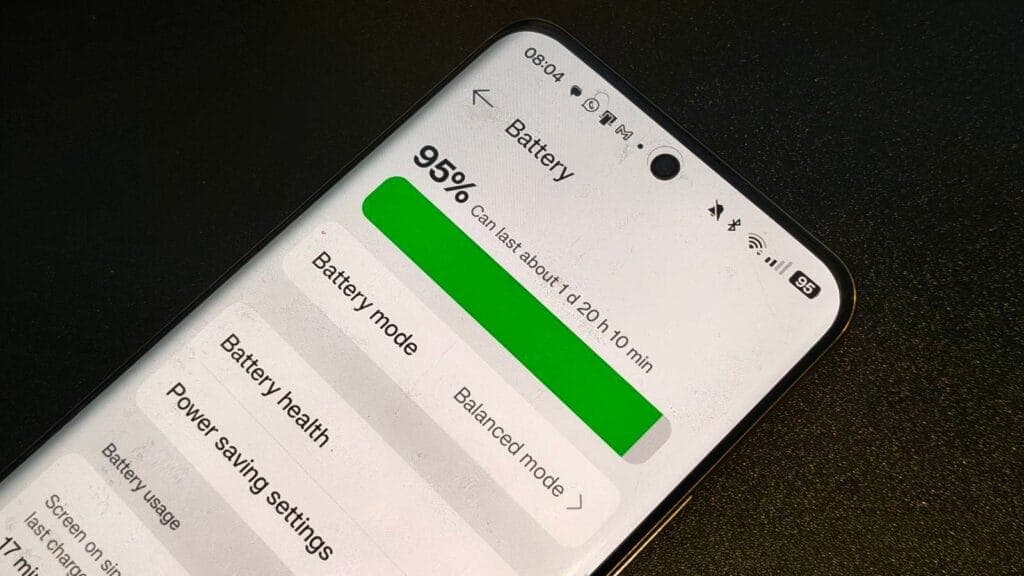
If Battery Life has been frustrating lately, don’t try to fix everything at once. Do this in order:
Give it 2–3 days after changes and compare. Battery Life improvements are often “quiet,” not dramatic—but they’re real when you focus on the big levers.

Google Pixel Watch 5 (45mm)

Cristian Penisoara is a Guides Writer and Android specialist at Droid Tools. An Android user since version 2 and a professional event photographer, he combines technical curiosity with a detail-oriented approach - every guide he publishes is tested step-by-step on a real device before it goes live.

Behind a two-tap recharge sits a surprising amount of plumbing. Every prepaid network has its own rules about what can be topped up, in which denominations, and how quickly credit posts to a SIM. MobileTopUP hides that complexity behind a single form: pick a country, enter a number, choose an amount. What the coverage map actually covers […]
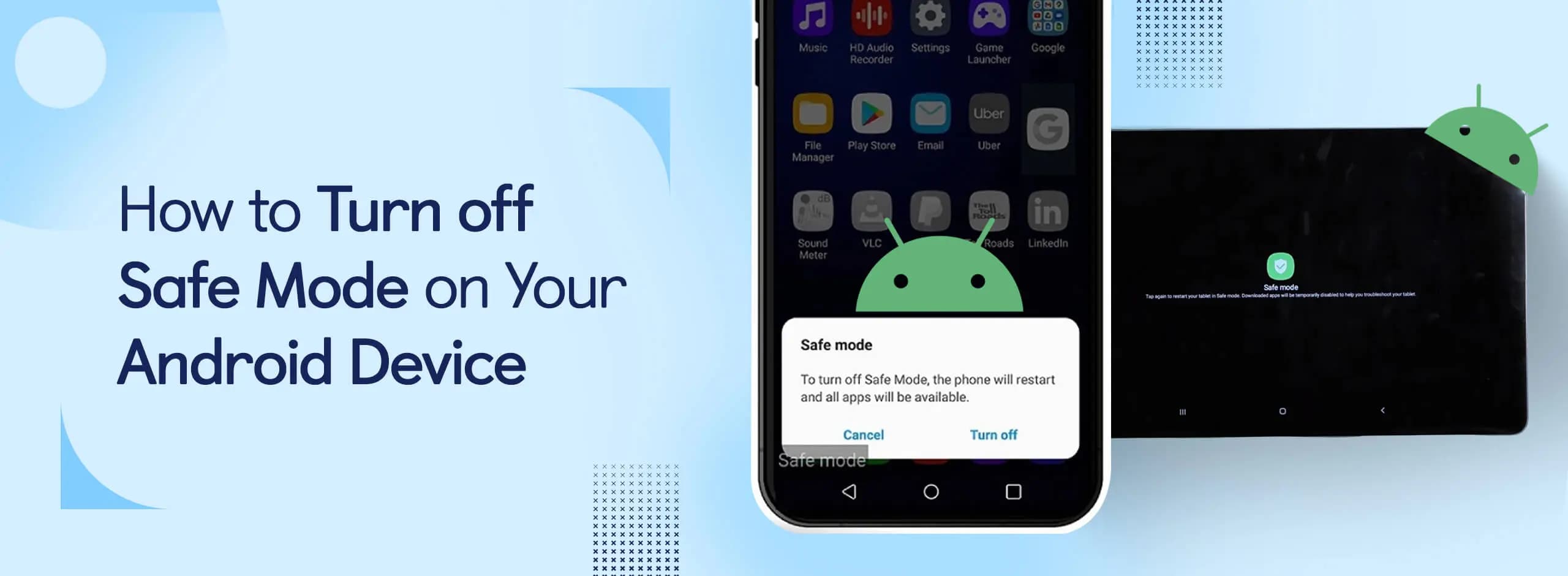
Knowing how to turn off Safe Mode on Android comes in handy, since Safe Mode is a built-in troubleshooting tool that disables every third-party app on a phone and switches on Airplane Mode, making it easier to isolate an app causing lag, battery drain, or other issues. It's also useful for safely deleting a suspected […]
Opening a brand-new phone has a particular excitement. After removing the plastic, you move your pictures, log into your Google account, and begin taking your first snapshot. However, we frequently overlook a few crucial settings that can improve our phone in all that excitement. I looked at a few options on my current phone, a […]
If your Android phone won’t turn on, connect it to a tested wall charger for at least 30 minutes, then hold the Power button for several seconds. If nothing happens, inspect the cable, adapter, outlet, charging port, and physical buttons before attempting a forced restart. A phone that appears completely dead may actually have a […]
The next story loads as you reach the end. You can also load it using the button.


Comments & Discussions
Join the conversation! We use Disqus to handle comments. Click the button below to load the comment section.