
Your android device is going in for service or repair, and yeah… it’s easy to tell yourself, “It’s just a screen replacement, what could happen?” Then you remember: your phone is basically your pocket brain. Photos, notes, bank apps, work chats, that one folder you never show anyone—everything.
So let’s do this properly.
This guide is a practical, no-drama checklist to prepare your android device before you hand it to a technician. Not the paranoid kind of prep. The smart kind. The kind that prevents data loss, protects your privacy, and makes the repair process smoother.
Secondary keywords used naturally: Android backup, factory reset, phone repair checklist, protect personal data, Google account removal, SIM card and SD card, Find My Device.
You’ll go through:
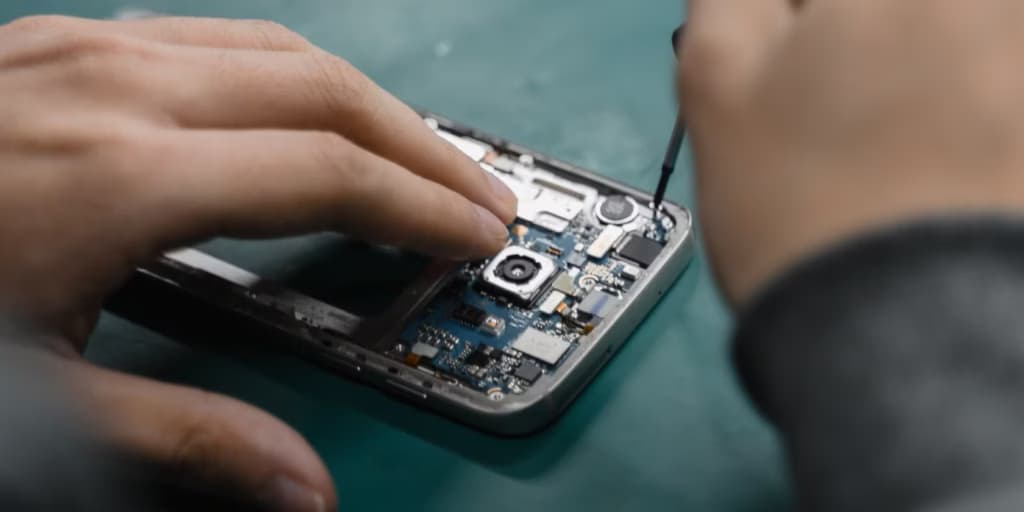
Here’s the uncomfortable truth: even honest repair shops can cause data loss.
Not because they’re evil. Because diagnosing problems often involves resets, firmware updates, battery disconnects, or tests that can corrupt storage. And if your android device is acting weird already (boot loops, overheating, random restarts), the risk of “it died during testing” is real.
Also, there’s privacy. Most technicians don’t care about your personal life. But your phone is still unlocked data sitting in someone else’s hands. It’s like leaving your house keys on the counter and hoping nobody opens the wrong door.
You don’t need to be anxious. You just need a process.
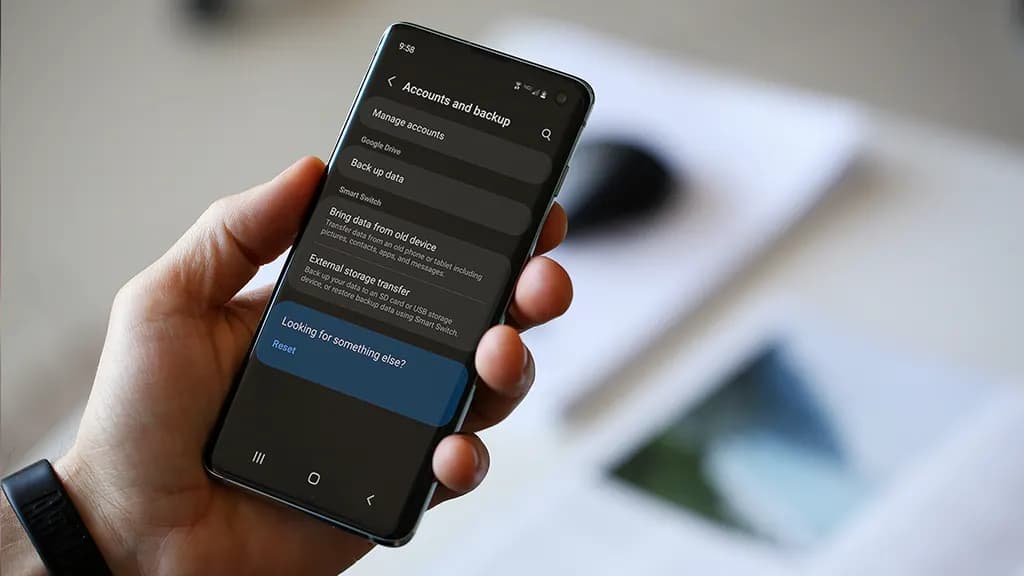
If you only do one thing, do this.
On most phones:
Turn it on and let it run. Then check the backup timestamp. Don’t assume it worked “at some point.”
What it usually covers:
But – small contradiction – Google backup is both great and not enough. It’s reliable for basics, but it’s not a perfect clone of your phone.
If you use Google Photos:
Then scroll your gallery and confirm recent photos actually uploaded. People think they’re backed up… until they aren’t.
Plug your android device into a laptop/PC:
If you don’t have a PC, use:
Local backup feels old-school. But it’s the “seatbelt” you’ll appreciate if the cloud fails.
[img here – alt: android device backup before service]
These are the ones that hurt most when they’re gone:
For authenticator apps, check inside the app for export/transfer options before your device gets wiped. Otherwise you might lock yourself out of accounts. Not fun.
This part is quick and oddly satisfying.
Even if the repair shop is trustworthy, SIM/SD cards can be misplaced. They’re tiny. Things happen.
Also, if your SD card has photos—don’t leave it in the phone. Just don’t.
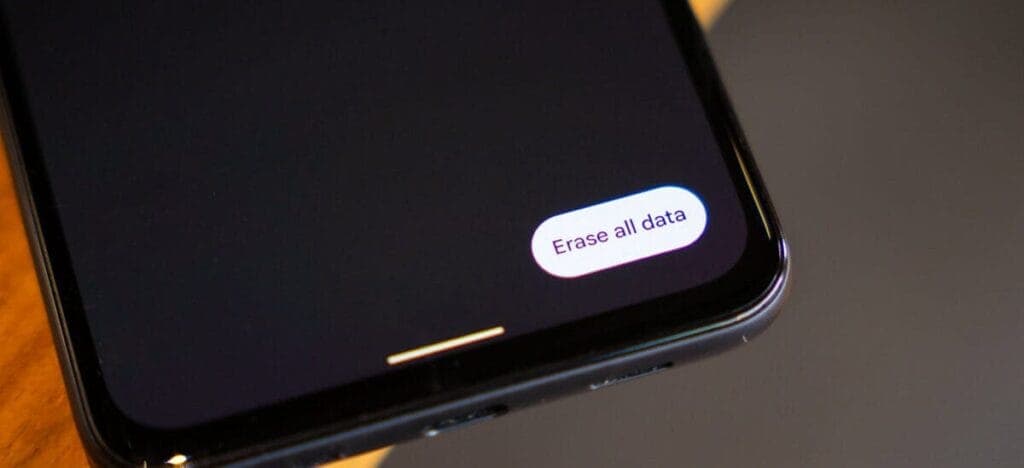
This is where people get stuck.
A factory reset is smart when:
Path usually looks like:
Don’t reset if:
Here’s the clarification: privacy matters, but so does diagnosis. If the technician can’t reproduce the issue, you might get the dreaded “no fault found” result. So sometimes you keep the data… but you lock it down.
If you’re not factory resetting, this part is essential.
Set a PIN (not 0000, please).
Disable “Smart Lock” features that keep the phone unlocked at home or near a watch.
For apps like:
At minimum:
Technicians don’t need that access to replace a screen.
If the phone is lost during transit or at a large facility, Find My Device can help locate it. Just make sure you remember your Google login.
A good repair note is like giving the mechanic a clean description of the engine noise.
Create a note (or email) with:
Example (copy style, not text):
That’s gold for technicians.
This isn’t about being dramatic. It’s about comfort.
Before service:
Even if your phone stays locked, notifications can reveal a lot.
[img here – alt: android device privacy before repair]
A simple script:
Also: take quick photos of your phone from all angles before you hand it over. It’s not accusatory. It’s just smart.
Don’t rush out. Do a 2-minute test:
If anything feels off, say it immediately. Fixes are easier on the spot.
Before service or repair:
That’s it. That’s the whole play.
Google Pixel Watch 5 (45mm)

Cristian Penisoara is a Guides Writer and Android specialist at Droid Tools. An Android user since version 2 and a professional event photographer, he combines technical curiosity with a detail-oriented approach - every guide he publishes is tested step-by-step on a real device before it goes live.

Quick Share for Windows transfers files from Android to your PC over Wi-Fi at rates up to 100MB/s, bypassing email and third-party cloud uploads.

Overnight charging exposes phone batteries to sustained high voltage and heat. Learn how Google Pixel and Samsung Galaxy settings stop cell degradation.
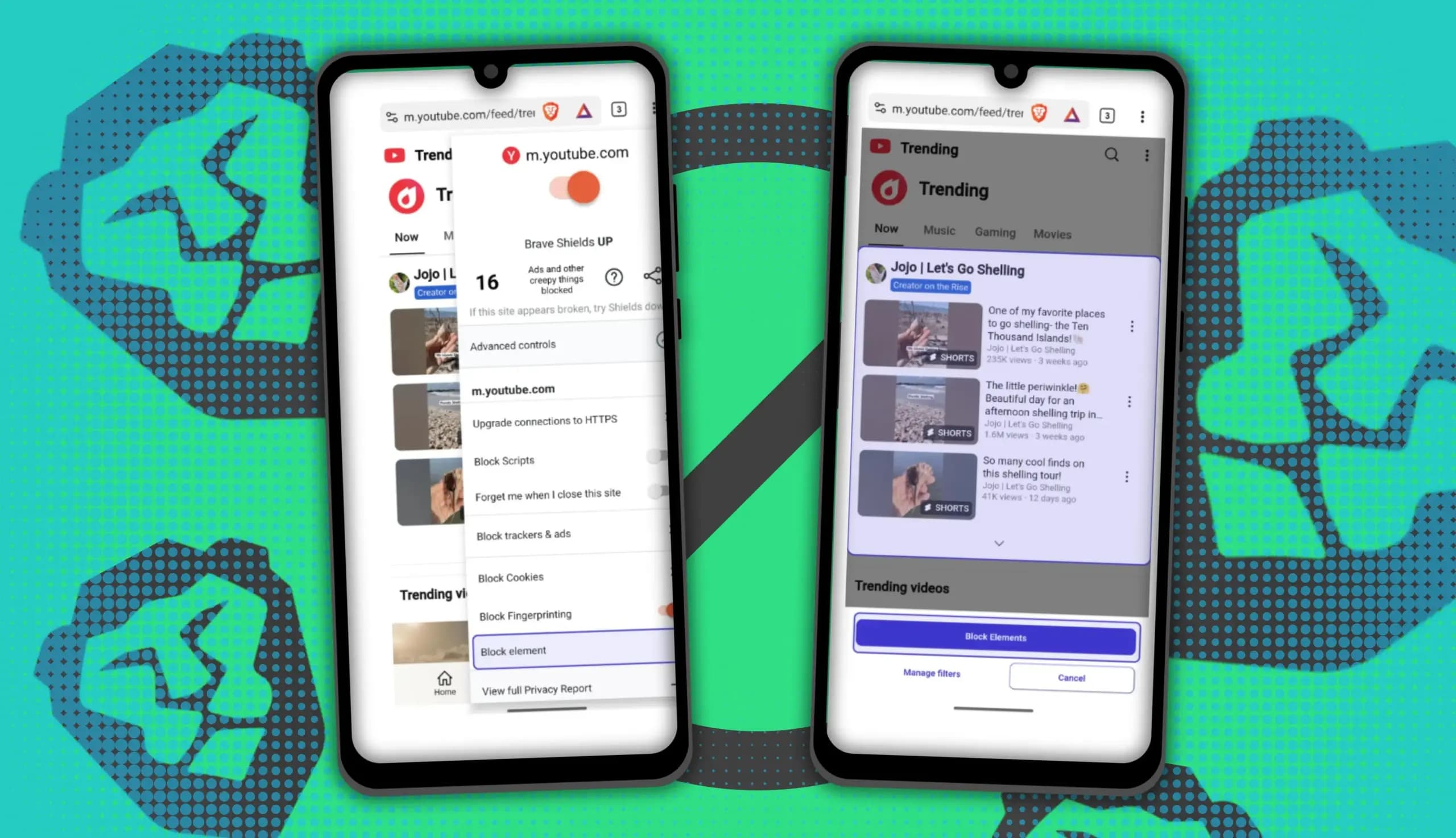
You can block ads on Android more effectively by pairing Brave’s Aggressive Shields setting with the system’s Private DNS feature. The setup filters ads at both the browser and system levels, takes only a few minutes to configure, and avoids the battery drain and VPN conflicts that come with dedicated ad-blocking apps. Why one ad […]

Behind a two-tap recharge sits a surprising amount of plumbing. Every prepaid network has its own rules about what can be topped up, in which denominations, and how quickly credit posts to a SIM. MobileTopUP hides that complexity behind a single form: pick a country, enter a number, choose an amount. What the coverage map actually covers […]
The next story loads as you reach the end. You can also load it using the button.


Comments & Discussions
Join the conversation! We use Disqus to handle comments. Click the button below to load the comment section.