

Your Galaxy Watch has a lot in common with a cluttered desk. The longer you use it – jumping between apps, running things in the background, switching modes – the more it accumulates invisible junk that slows everything down. Frozen screens, laggy responses, battery that drains faster than it should. Sound familiar?
The good news: you almost certainly don’t need a new watch. Nine times out of ten, the culprit is a bloated cache, and clearing it is one of the easiest things you can do.
Your watch stores temporary data – bits of information from apps and processes – to help things run faster in the moment. Over time, that pile grows. What was meant to speed things up starts doing the opposite, and your watch starts feeling like it’s running through mud.
Samsung says the Galaxy Watch handles memory optimization automatically in the background, but that doesn’t mean you can’t give it a nudge yourself. Sometimes it needs one.
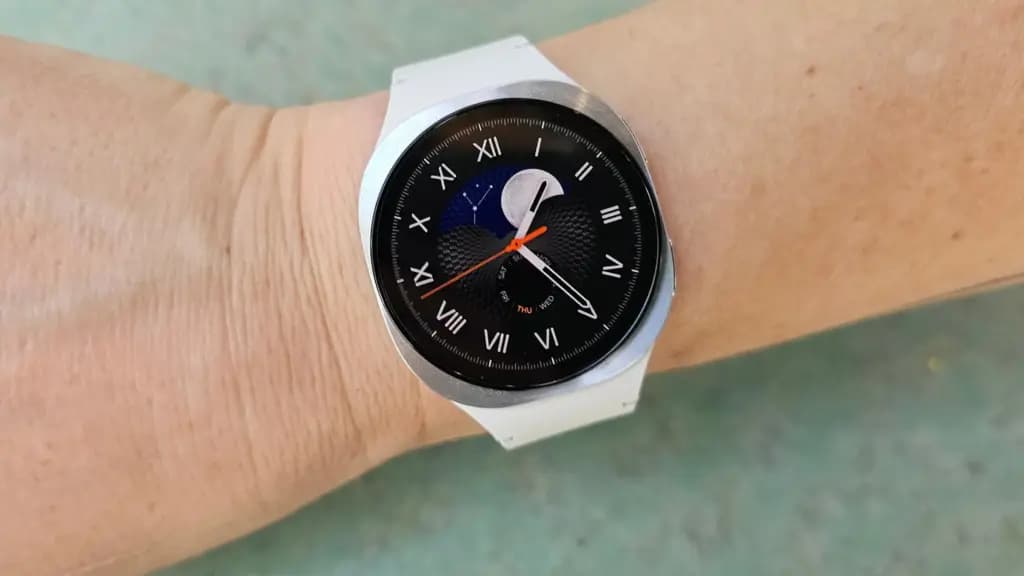
Swipe up from the watch face and tap the Recent apps icon. Hit Close all to shut everything down at once.
If you want to be more selective, open Recent apps again and tap Active in background. You’ll see which apps are running silently and can close whichever ones you don’t need.
Go to Settings > Device Care > Memory, then tap Clean Now. That’s it – your watch will free up whatever space it can.
Do both of these and you’ll likely notice a difference right away. Faster app launches, smoother navigation, better battery life. If your watch has been frustrating you lately, start here before assuming it’s time to upgrade. It usually isn’t.
Google Pixel Watch 5 (45mm)

Cristian Penisoara is a Guides Writer and Android specialist at Droid Tools. An Android user since version 2 and a professional event photographer, he combines technical curiosity with a detail-oriented approach - every guide he publishes is tested step-by-step on a real device before it goes live.
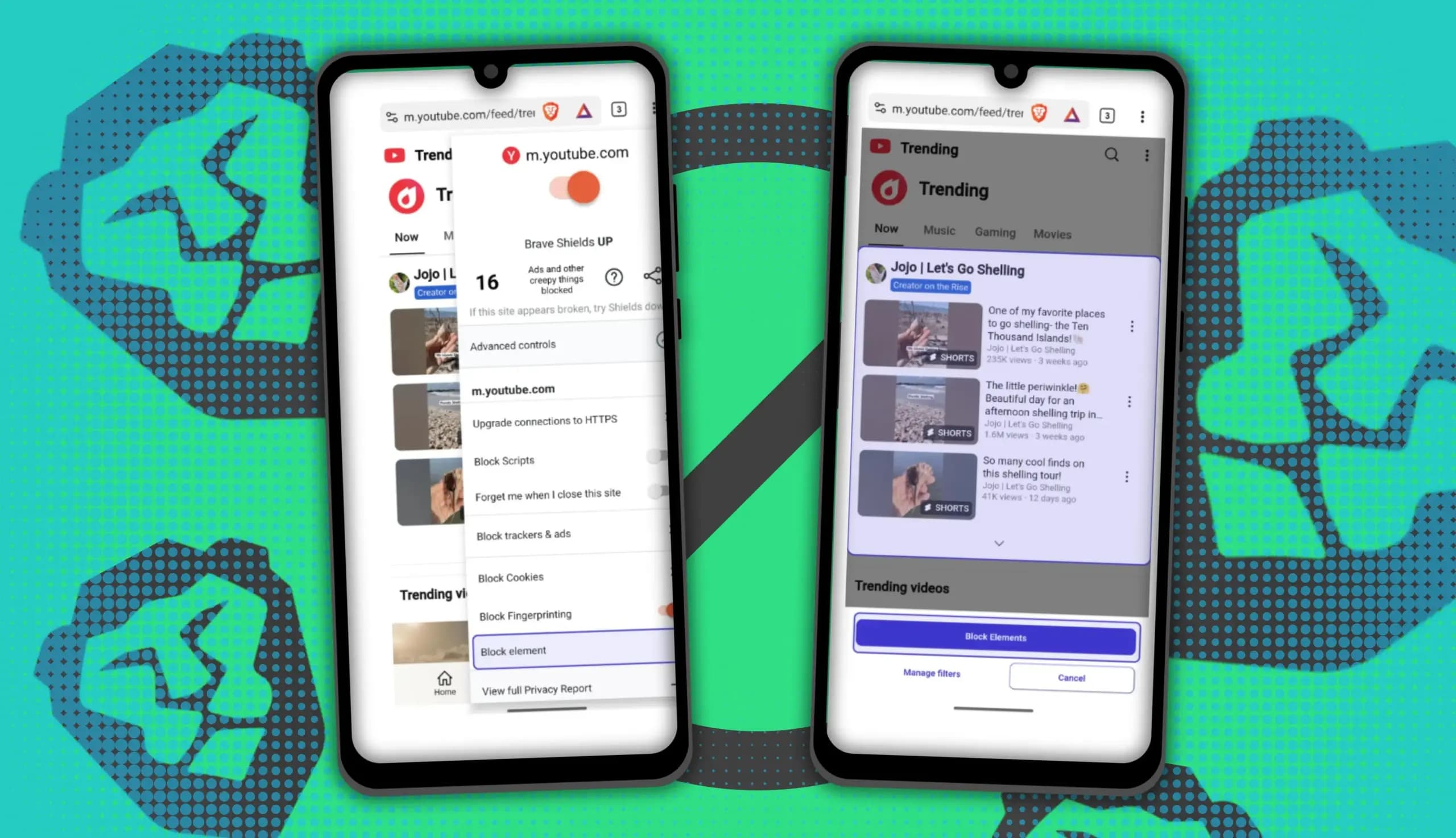
You can block ads on Android more effectively by pairing Brave’s Aggressive Shields setting with the system’s Private DNS feature. The setup filters ads at both the browser and system levels, takes only a few minutes to configure, and avoids the battery drain and VPN conflicts that come with dedicated ad-blocking apps. Why one ad […]

Behind a two-tap recharge sits a surprising amount of plumbing. Every prepaid network has its own rules about what can be topped up, in which denominations, and how quickly credit posts to a SIM. MobileTopUP hides that complexity behind a single form: pick a country, enter a number, choose an amount. What the coverage map actually covers […]
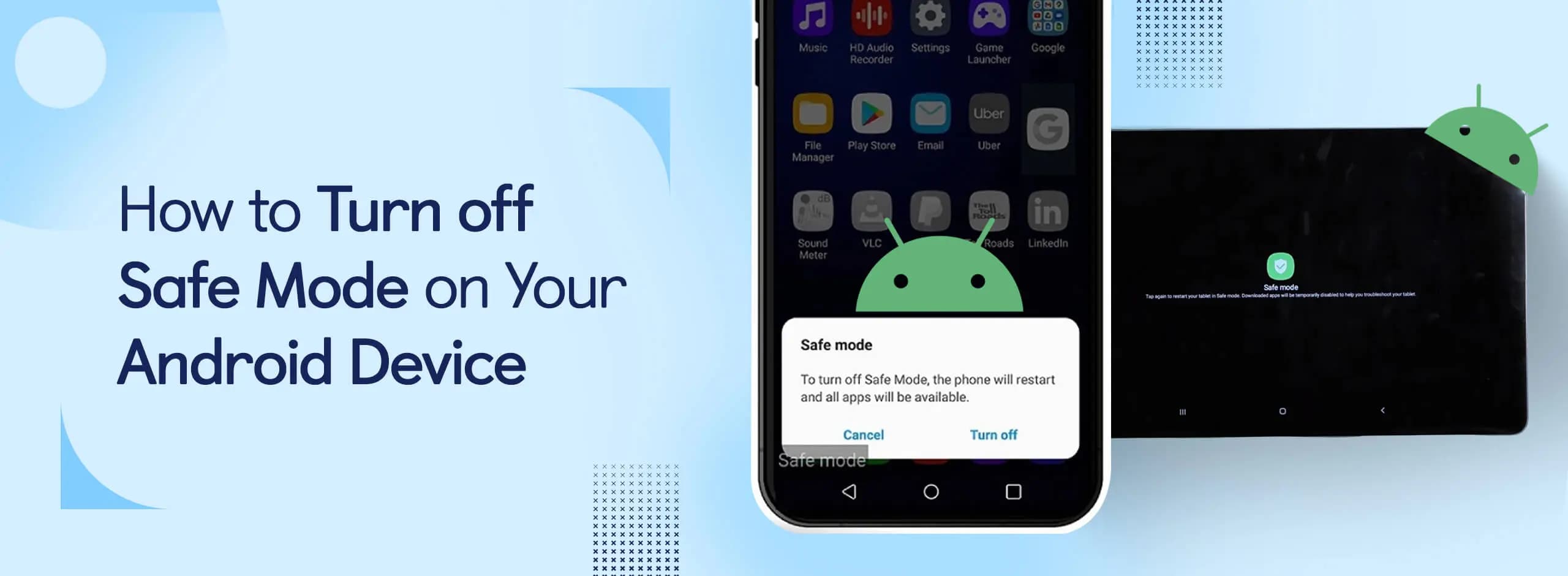
Knowing how to turn off Safe Mode on Android comes in handy, since Safe Mode is a built-in troubleshooting tool that disables every third-party app on a phone and switches on Airplane Mode, making it easier to isolate an app causing lag, battery drain, or other issues. It's also useful for safely deleting a suspected […]
Opening a brand-new phone has a particular excitement. After removing the plastic, you move your pictures, log into your Google account, and begin taking your first snapshot. However, we frequently overlook a few crucial settings that can improve our phone in all that excitement. I looked at a few options on my current phone, a […]
The next story loads as you reach the end. You can also load it using the button.


Comments & Discussions
Join the conversation! We use Disqus to handle comments. Click the button below to load the comment section.